Customise statuses and outcomes
Create and edit the statuses your team gives to leads and calls, decide which ones show up when logging an outcome, and arrange the columns of your boards.
Statuses are the labels your team puts on leads and on calls: the stage a lead is in, and the outcome of an appointment. Hermon comes with a set of statuses, and you can rename them, recolour them and add your own so the wording matches how your team talks about deals.
Everyone with access to Settings can open the list. Only Owners and Sales Managers can create or edit statuses and arrange the board columns.
What a status is made of
Click Settings in the left sidebar, then Status & Outcome. If you see tabs at the top, stay on Sales Status.
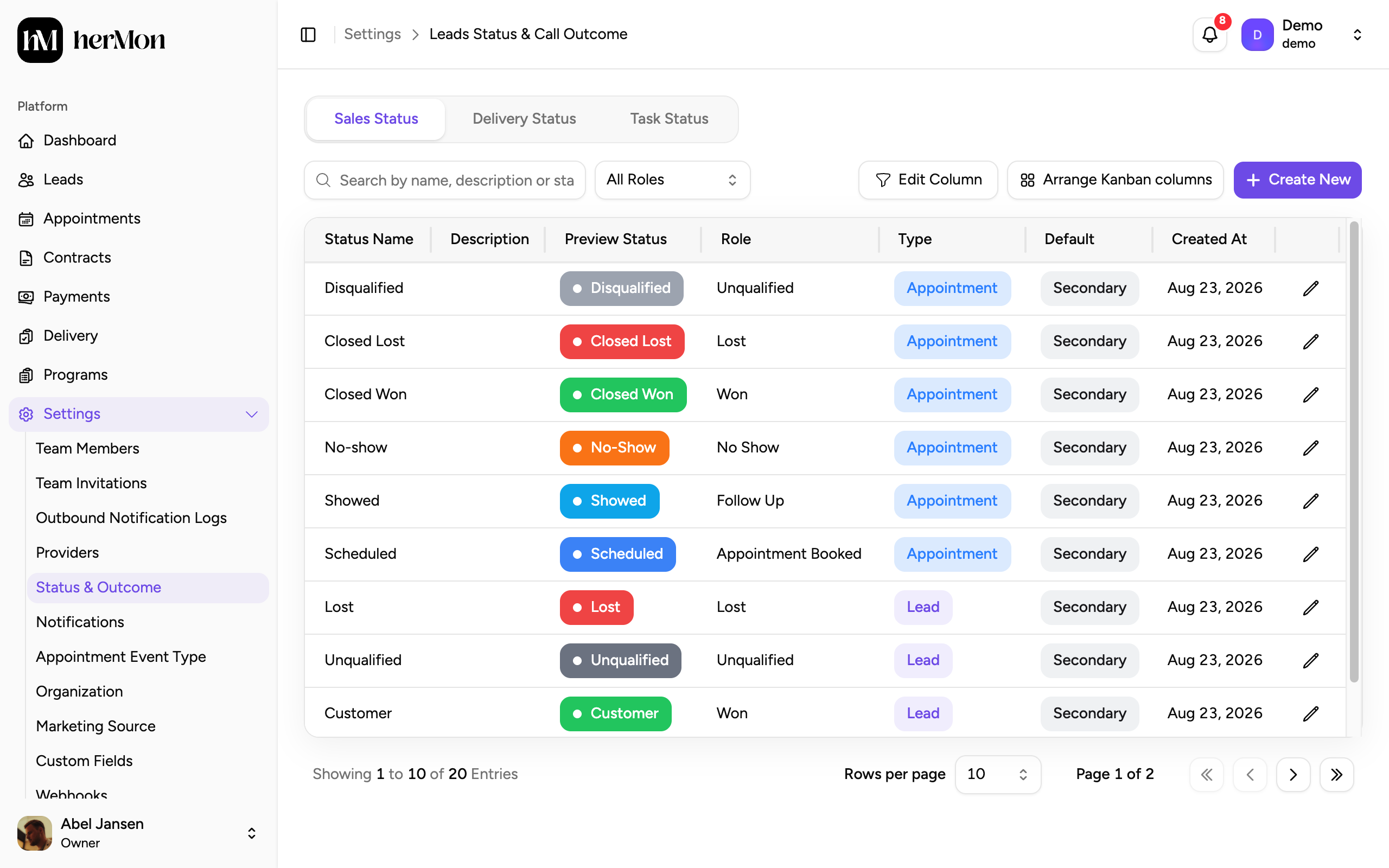
| Part | What it does |
|---|---|
| Name | The label your team sees on badges and board columns. Letters, spaces, hyphens and underscores only, 2 to 50 characters. |
| Role | What the status means to Hermon: New Lead, Appointment Booked, No Show, Rescheduled, Canceled, Partial Payment, Won, Unqualified, Follow Up or Lost. You can have several statuses with the same role. |
| Type | Where the status can be used: Lead, Appointment, or Both. |
| Primary | The default status for its role. The list shows Primary or Secondary in the Default column. |
| Colours | A background and a text colour for the badge. |
The role is what matters for your numbers. You can call a status anything you like, as long as its role says what it really is.
Create a status
Open the dialog
Click Create New. The Create New Status dialog opens.
Name it and pick the role and type
Enter a Name, then choose a Role and a Type.
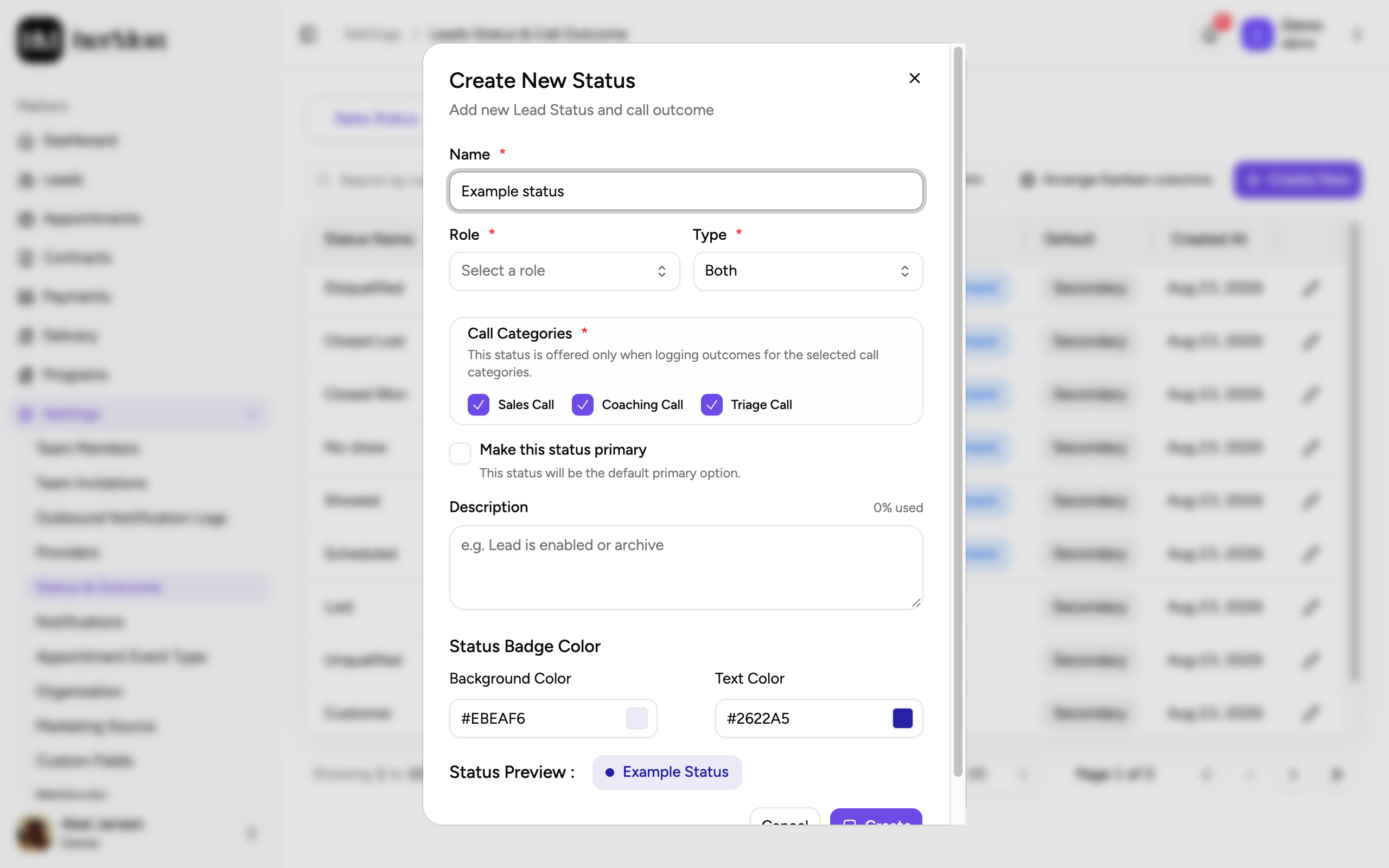
1. Name. 2. Role and type. 3. Make it the primary status for its role. Choose the call categories
If the type is Appointment or Both, tick the Call Categories this status applies to: Sales Call, Coaching Call, Triage Call. The status is only offered when someone logs an outcome for a call in one of those categories.
Decide if it is the primary status
Tick Make this status primary if this should be the default status for its role.
Set the colours and save
Add an optional Description, pick a Background Color and Text Color, and check the result under Status Preview. Click Create.
Edit a status
Click the pencil at the end of a row. The Edit Status dialog has the same fields as the create dialog. Change what you need and click Update.
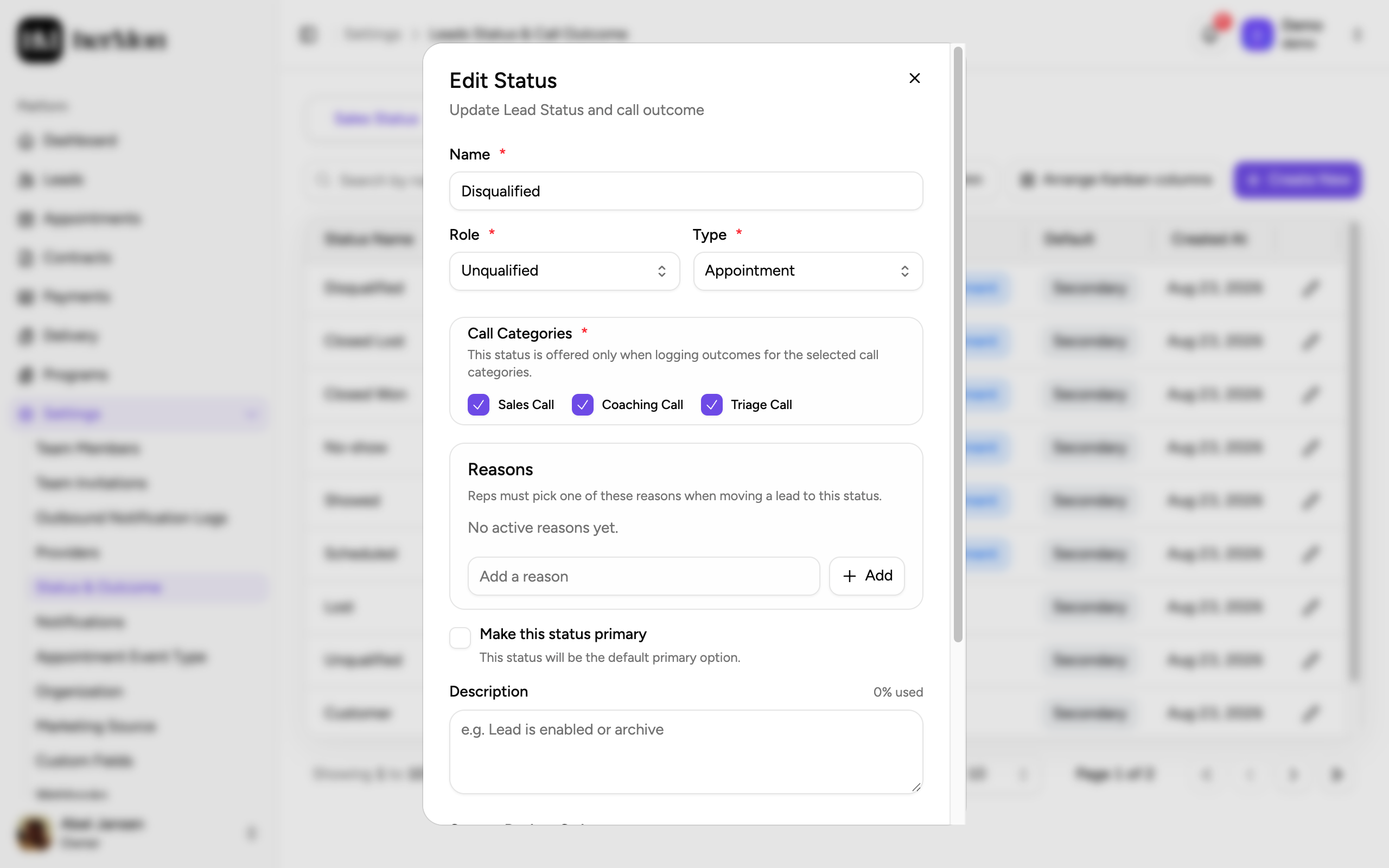
For some statuses the edit dialog also shows a Reasons list. There you add, rename, reorder and archive the reasons that belong to that status.
Change the type of a status that is in use
When you narrow a status, for example from Both to Lead, records on the side you remove still carry it. Hermon checks this as soon as you pick the new type.
Pick the new type
In the Edit Status dialog, choose another Type.
Read the impact
If records are affected, a blue panel titled Impact on Existing Records tells you how many leads and appointments currently use this status.
Choose a replacement status
Select a Lead Replacement Status or an Appointment Replacement Status. The existing leads or appointments are moved to the status you choose. You cannot save without it.
Save
Click Update.
The replacement moves every affected lead or appointment to the new status in one go. Check the numbers in the impact panel before you click Update.
Arrange the board columns
Each status is a column on the Leads board and on the Appointments board. You decide the order, and which columns are hidden.
Open the dialog
Click Arrange Kanban columns. You see two lists side by side: Leads board and Appointment board.
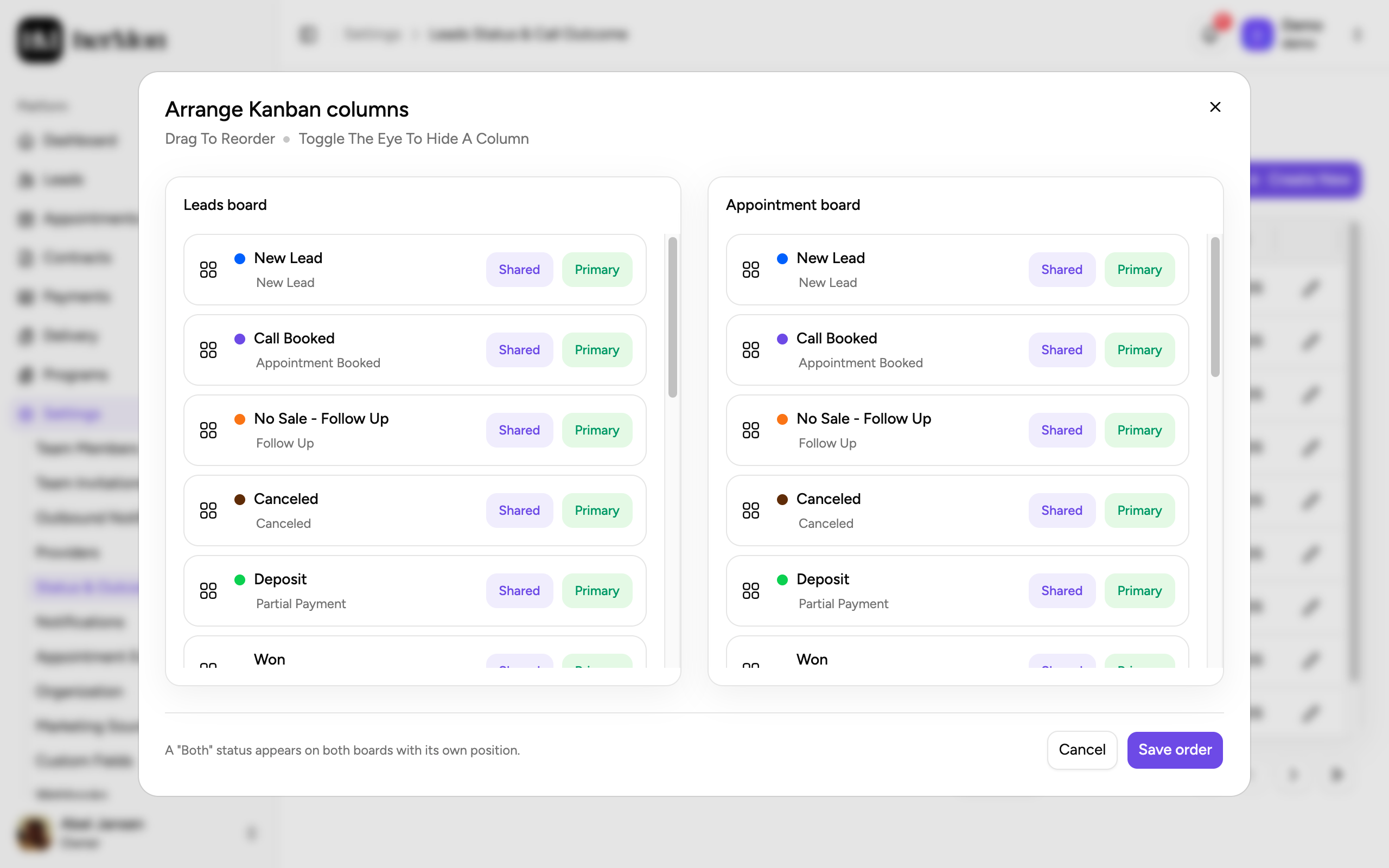
1. Columns of the Leads board. 2. Columns of the Appointment board. 3. Save the order. Reorder the columns
Drag a row by its handle to move it up or down.
Hide columns you do not use
Click the eye on a row to hide that column from the board. Hidden rows move below a dashed line. Click the eye again to show the column.
Save
Click Save order.
Good to know
Primary statuses cannot be hidden. In the arrange dialog they show a green Primary badge where other rows have the eye.
A status of type Both sits on both boards. It carries a Shared badge and has its own position on each board, so you can place it differently for leads and for calls.
Which outcomes appear when logging a call. The Log outcome dialog offers the primary status of each role, for the call category of that appointment. No Show is never in that list: it is set with Mark No-Show on the appointment. See Manage appointments and log call outcomes.
A lead cannot be marked as won without a Won status. When a contract is signed, Hermon moves the lead to the primary status with the role Won. Keep one in place.
Delivery statuses. Owners and delivery roles also see the tabs Delivery Status and Task Status. Those belong to delivery, not to sales.