Manage appointments and log call outcomes
Keep your call list accurate. Log the outcome after every call, handle no-shows, reschedules and cancellations, and plan the follow-up in the same step.
Every booked call appears on the Appointments screen. Calls booked through a connected tool such as Calendly, iClosed or GoHighLevel arrive automatically. Your job is to make sure each call ends with an outcome, because your dashboard numbers are only as good as the outcomes your team logs.
Call is booked
arrives from your booking tool
Call takes place
Log outcome
right after the call
Next step
follow-up, reschedule or contract
Log the outcome of a call
Find the call
Click Appointments in the left sidebar. Use the date range picker to show today's calls, or search by name, email or phone number.
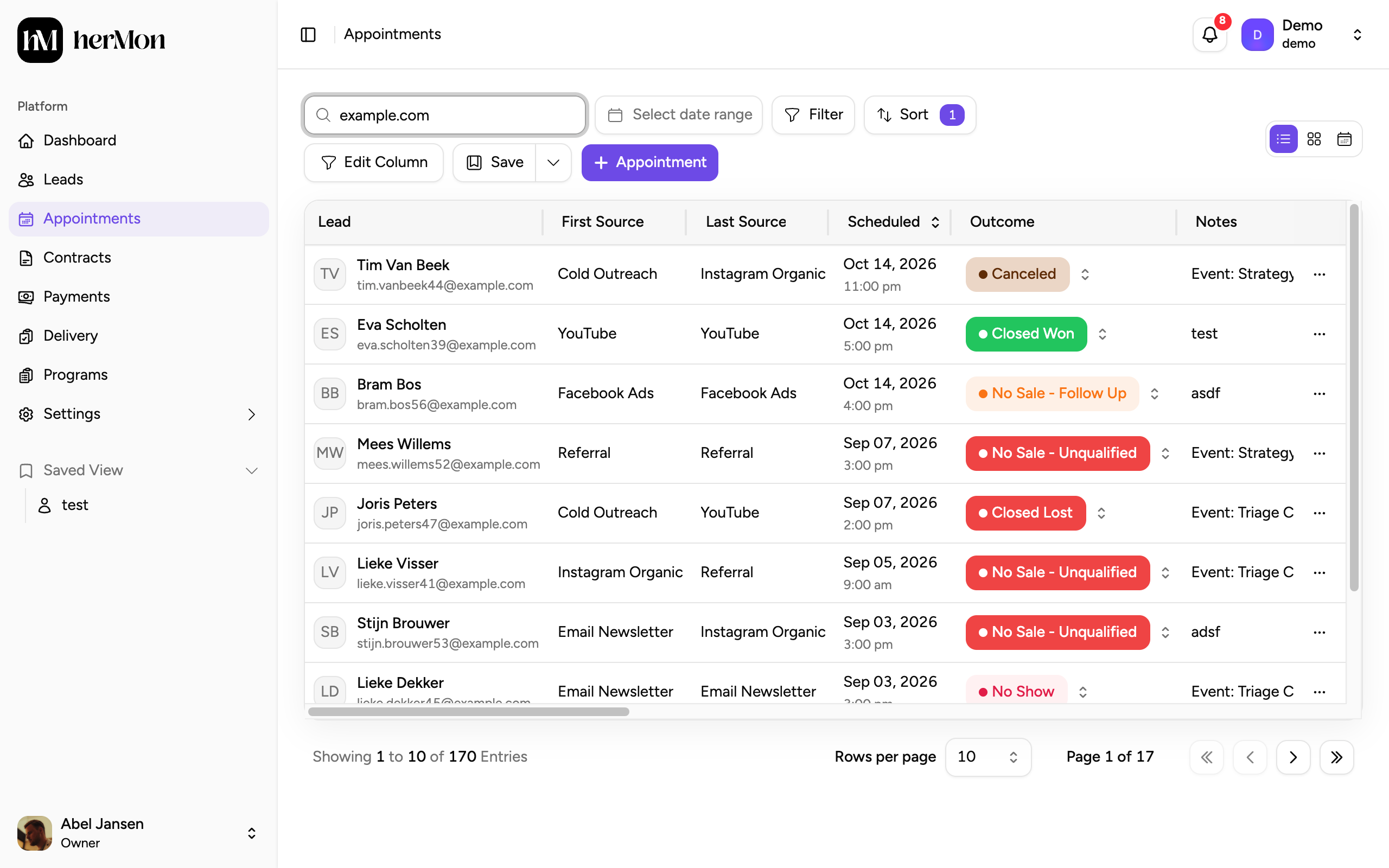
1. Search. 2. Date range. 3. The outcome of each call. Click a badge to change it. Open the Log outcome dialog
Click the coloured outcome badge in the row. You can also open the appointment and click Log Outcome in the panel, or choose Log Outcome from the row menu.
Choose the status and outcome
Pick what happened under Status & outcome and add a short note. If Fathom is connected and recognised the result of the call, its suggestion is tagged AI Suggested.
Plan the follow-up
Under Next Follow Up Information, choose a Follow-Up Type with a date and time. The lead then shows up with a next touch point, so nobody forgets to call back.
If you pick an outcome that means the call moves to another moment, a Reschedule Information block appears where you enter the new date, time and meeting link.
Click Log outcome to save.
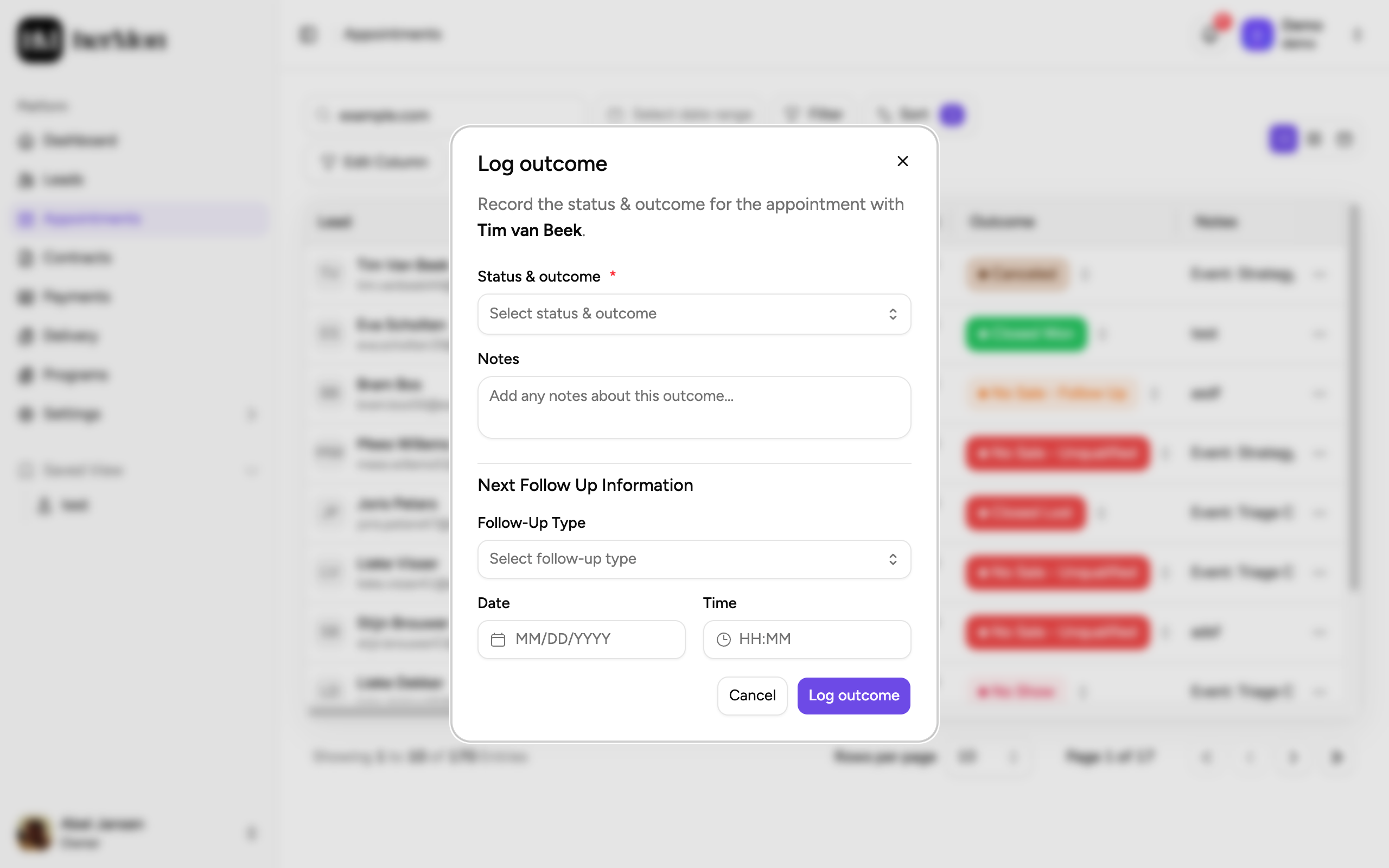
1. What happened on the call. 2. The follow-up. 3. Save the outcome.
No-shows, reschedules and cancellations
Open the appointment, or use its row menu, to find these actions.
| Action | When to use it | What Hermon asks for |
|---|---|---|
| Mark No-Show | The lead did not show up. Only available once the scheduled time has passed. | A reason |
| Reschedule | The call moves to another date or time. | New date and time. Meeting link and note are optional. |
| Cancel | The call will not take place. | A reason |
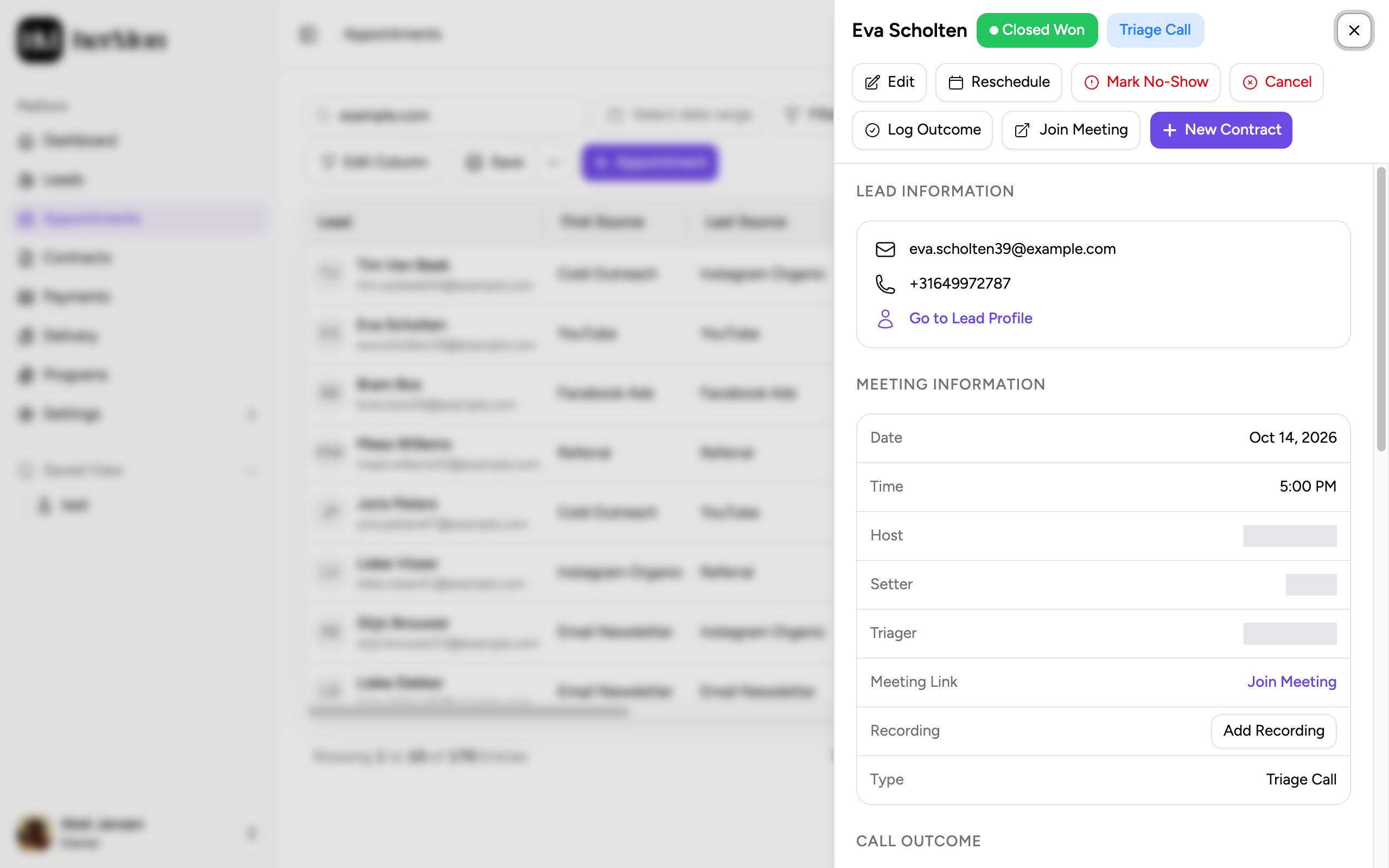
The reason you enter for a no-show or cancellation is saved as a note on the lead, so the next person who calls them knows what happened.
Add an appointment by hand
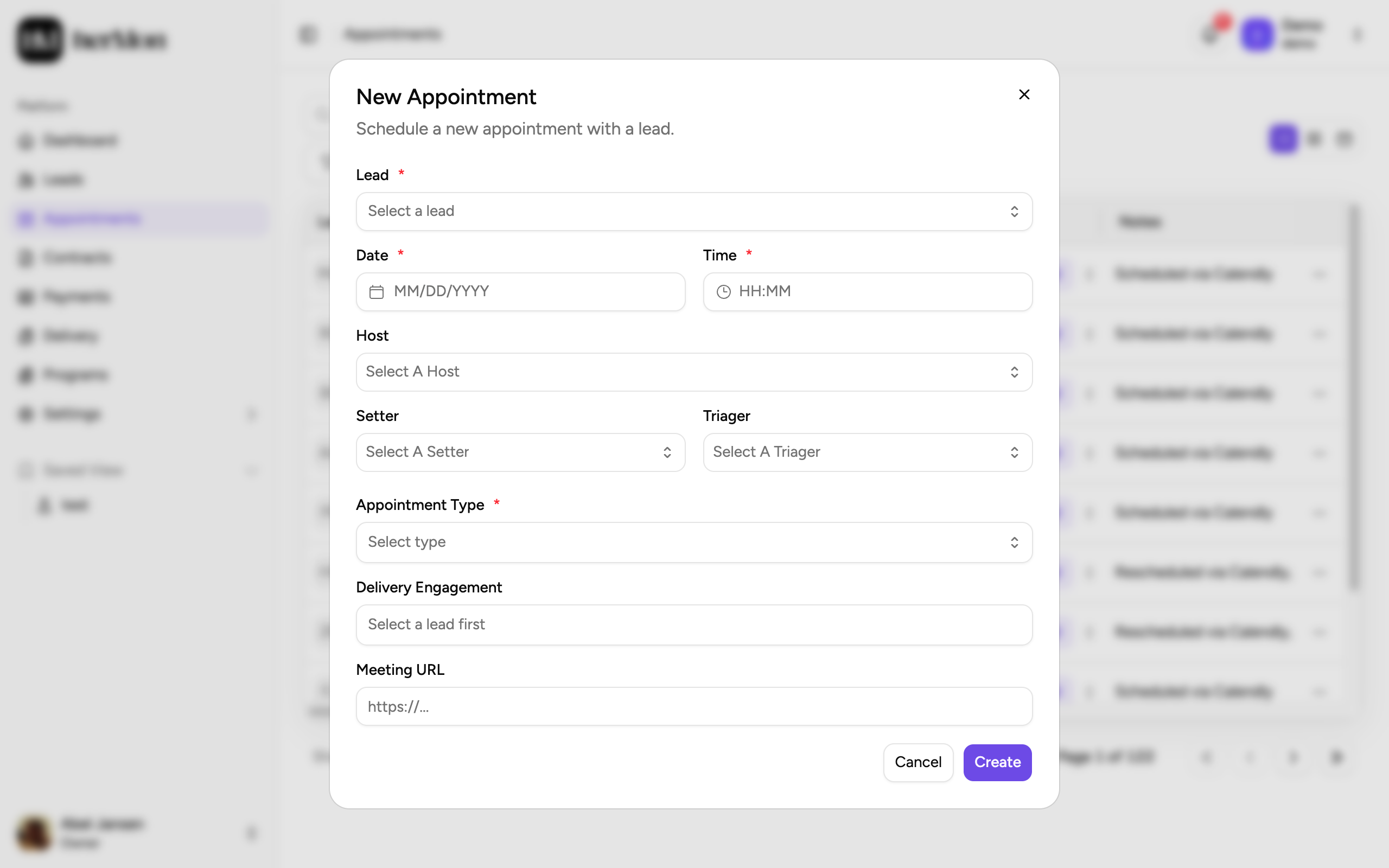
For a call that was not booked through a connected tool, click + Appointment. Choose the Lead, a Date and Time, and the Appointment Type. The host, setter and triager are filled in from the lead, and the call category follows from the appointment type. Click Create.
Board and calendar
The three icons at the right of the toolbar switch between the list, a board with one column per outcome, and a calendar. On the board, drag a card to another column to change its outcome.
Good to know
Why can't I mark a no-show yet? The action only appears after the scheduled time has passed. Your booking tool also updates the appointment, and marking it early would conflict.
A no-show that turns up later. Log a new outcome, reschedule or cancel, and the no-show flag is cleared. For Calendly bookings it is cleared in Calendly as well.
The lead on an appointment is fixed. You can change date, time, host and type afterwards, but not the lead. Create a new appointment instead.
Call recordings. With Fathom connected, open the appointment to link a recording that was not matched automatically.
After a won call, Owners, Sales Managers and Sales Reps can click New Contract in the appointment panel. See Create a contract and record payments.