Use webhooks and API keys
Let another system receive events from Hermon or read and write your data, and know what to hand to your developer.
Webhooks and API keys connect Hermon to software that is not in the list of providers, such as your own reporting tool or an automation platform.
A webhook pushes a message to another system the moment something happens in Hermon, for example when a contract is signed. An API key works the other way around. It lets another system ask Hermon for data or add data. You do not have to build anything yourself. You create the webhook or key here and hand the details to your developer. The technical reference, with the content of every event, is at docs.hermon.io.
Create a webhook
Ask your developer for the endpoint URL first. That is the address where their system receives the events.
Open Webhooks
Click Settings, then Webhooks. Click Create Webhook.
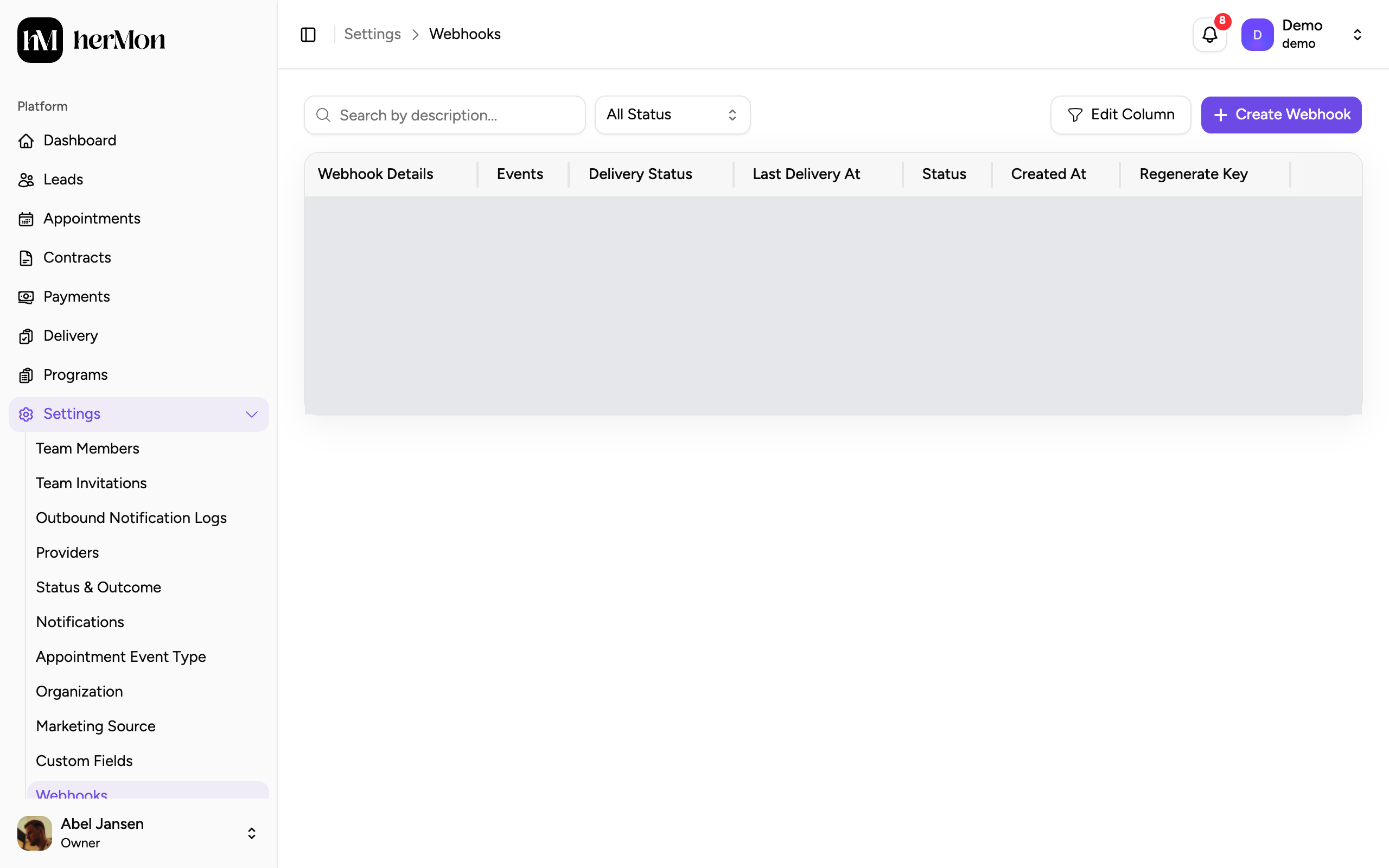
1. Create a webhook. 2. Result of the last delivery. 3. Make a new secret. Paste the endpoint URL
Paste the address in Endpoint URL.
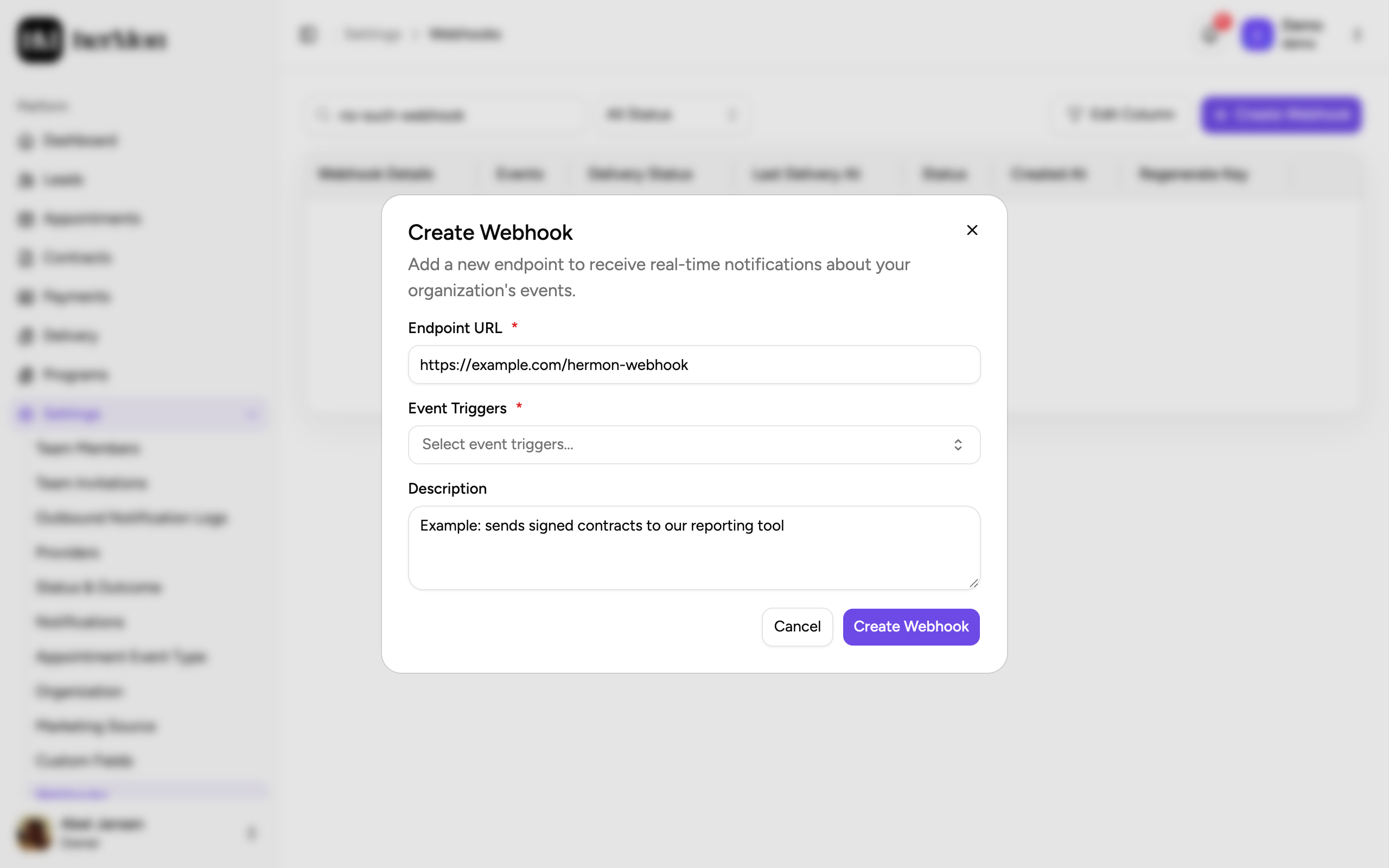
1. The address of the receiving system. 2. The events to send. Choose the events
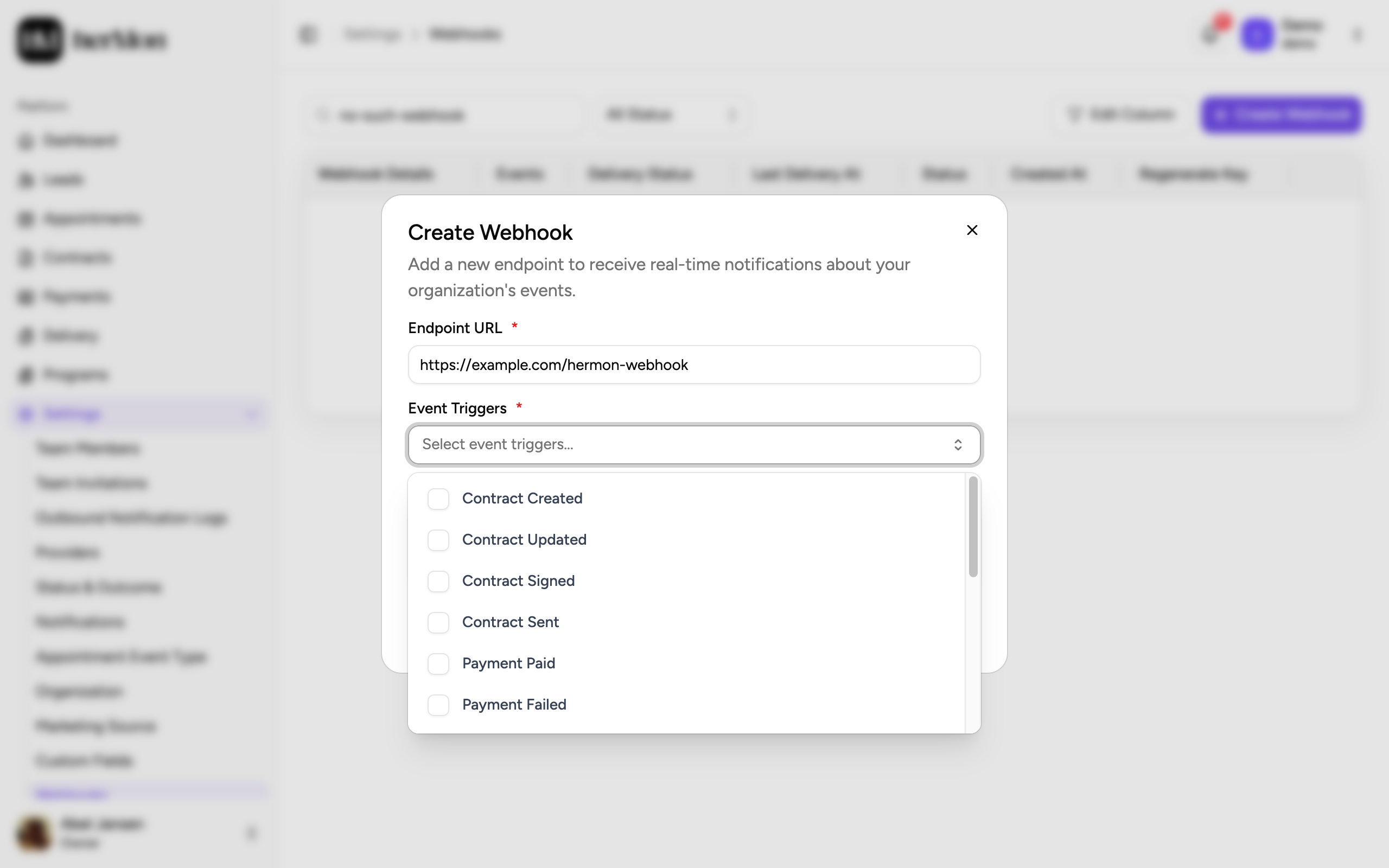
Under Event Triggers, select every event the other system needs. There are events for contracts, payments, appointments, call outcomes and lead status changes.
Set the timing of scheduled events
Events marked (Scheduled), such as a payment that is due soon or overdue, ask for a number of days and a time of day. They are sent within 15 minutes of that time.
Add a description and create
Write in Description what the webhook is for, so a colleague understands it later. Click Create Webhook.
Copy the secret
Hermon shows Your Webhook Secret. Copy it and send it to your developer through a safe channel. Click Done.
The secret is shown only once. If it is lost, click the icon in the Regenerate Key column to make a new one. That happens immediately, without a confirmation, and the old secret stops working. Tell your developer before you click.
Check the deliveries
Every event Hermon sends to a webhook is logged.
Open the delivery log
In the Webhooks list, click the webhook, or choose View Delivery Logs from the row menu.
Find the delivery
The left side lists the deliveries with their status. Use the dropdowns at the top to filter by event or by Success, Failed or Skipped.
Read what happened
Click a delivery. The right side shows the HTTP status code, the Attempt Count, the Response of the other system and the Request that Hermon sent.
Send it again if needed
For a delivery that did not succeed, click Resend.
A failed delivery is retried automatically, up to five attempts in total, with more time between each attempt. Next Retry At shows when the next attempt is planned.
To try a webhook without waiting for a real event, click Send Test. Pick an event type and choose between a dummy payload and the data of an existing record. Test deliveries get a Test badge in the log.
Create an API key
API keys are on the Organization screen, which only Owners can open.
Open the API Keys card
Click Settings, then Organization, and scroll to API Keys.
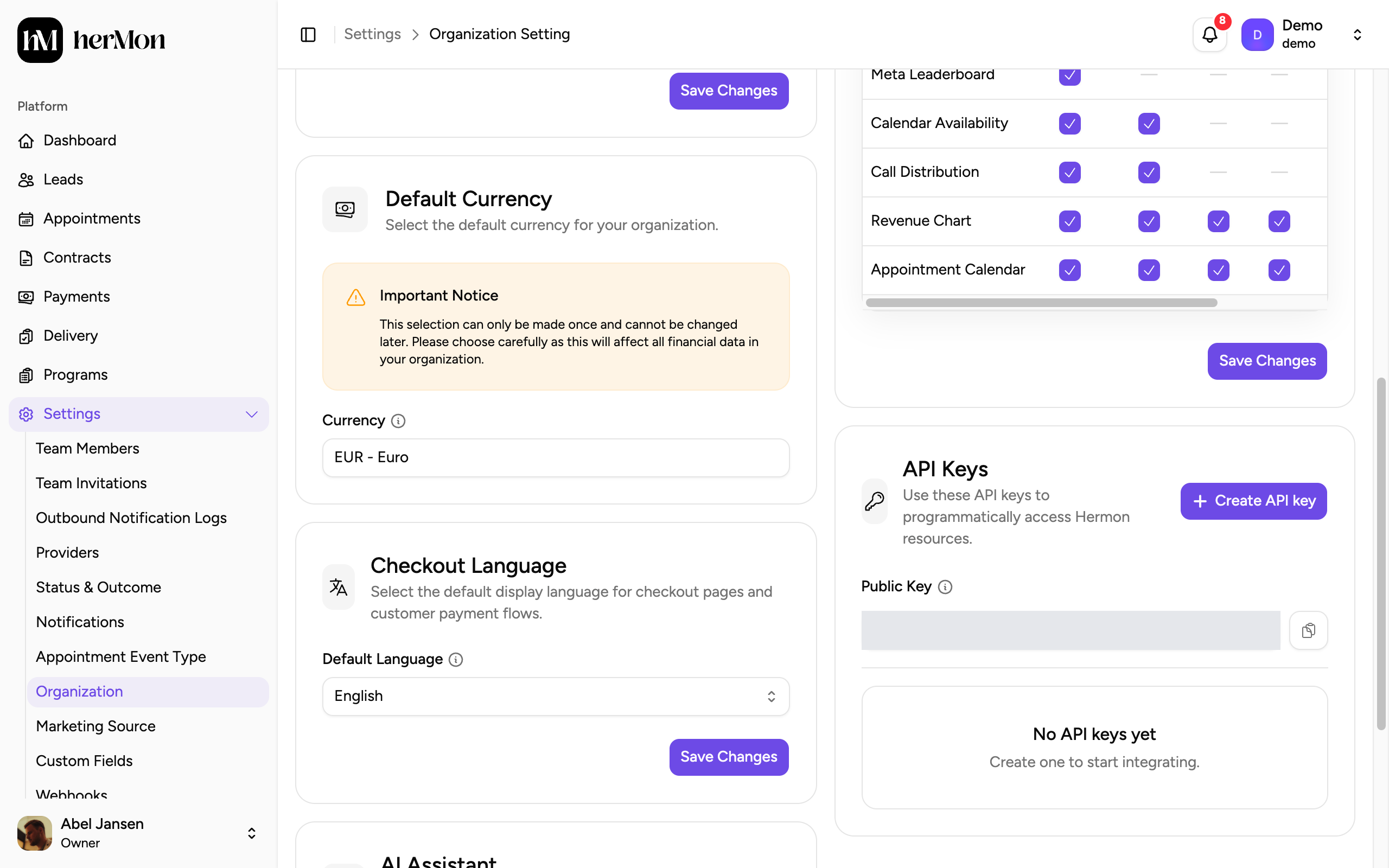
1. Create a key. 2. The public key. Click Create API key
Give the key a Name that says where it is used.
Choose the scope
Pick the Scope with the least access that still does the job.
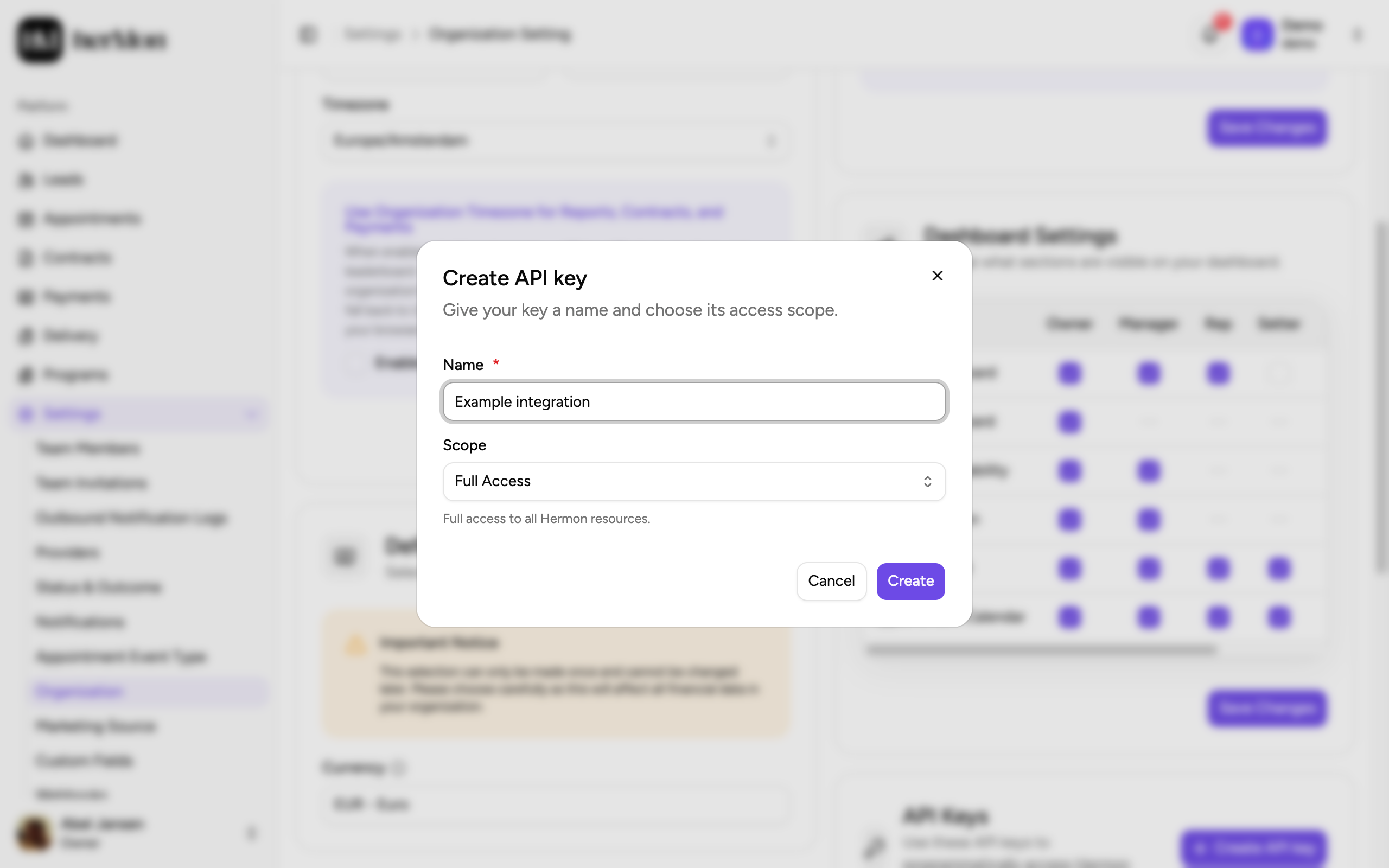
Create and copy the key
Click Create. Copy the key from Your new API key and click Done. Like the webhook secret, it is shown only once.
| Scope | What the key can do |
|---|---|
| Full Access | Read and change all Hermon data |
| Read Only | Read data. It cannot create, update or delete. |
| Opt-in Only | Work with opt-ins only, for example a form on your website that sends new leads |
Good to know
Revoke a key that is no longer used. Open the menu on the key and choose Revoke. Applications that use it lose access immediately. This cannot be undone.
Regenerate a key. Regenerate gives the same key a new secret. The old secret stops working at once.
The public key. The Public Key at the top of the card is safe to use in a website. It only gives read access to public information.
Pause a webhook. Choose Update from the row menu and clear Webhook Status. The webhook stays in the list as Inactive.
Delete a webhook. Choose Delete from the row menu. This cannot be undone.
Who can do what. Owners and Sales Managers can manage webhooks. Only Owners can create, regenerate and revoke API keys.