Create a contract and record payments
Turn a won call into a contract, send it for signature and keep track of every payment until the full amount is collected.
A contract ties a lead to one of your programs and holds the payment schedule: one payment in full, or a plan with instalments. Once it exists, Hermon tracks what is collected and what is still outstanding.
Draft
contract created
Sent
out for signature
Viewed
opened by the lead
Signed
deal is closed
Before you start
- The lead exists in Hermon and the program you sold has been created.
- To send a contract for signature from Hermon, eSignatures is connected and the program has a contract template. Without a template you can still create the contract, but you keep its status up to date by hand.
- To let the lead pay online, a payment processor (Stripe, Mollie or Whop) is connected.
Create the contract
Start a new contract
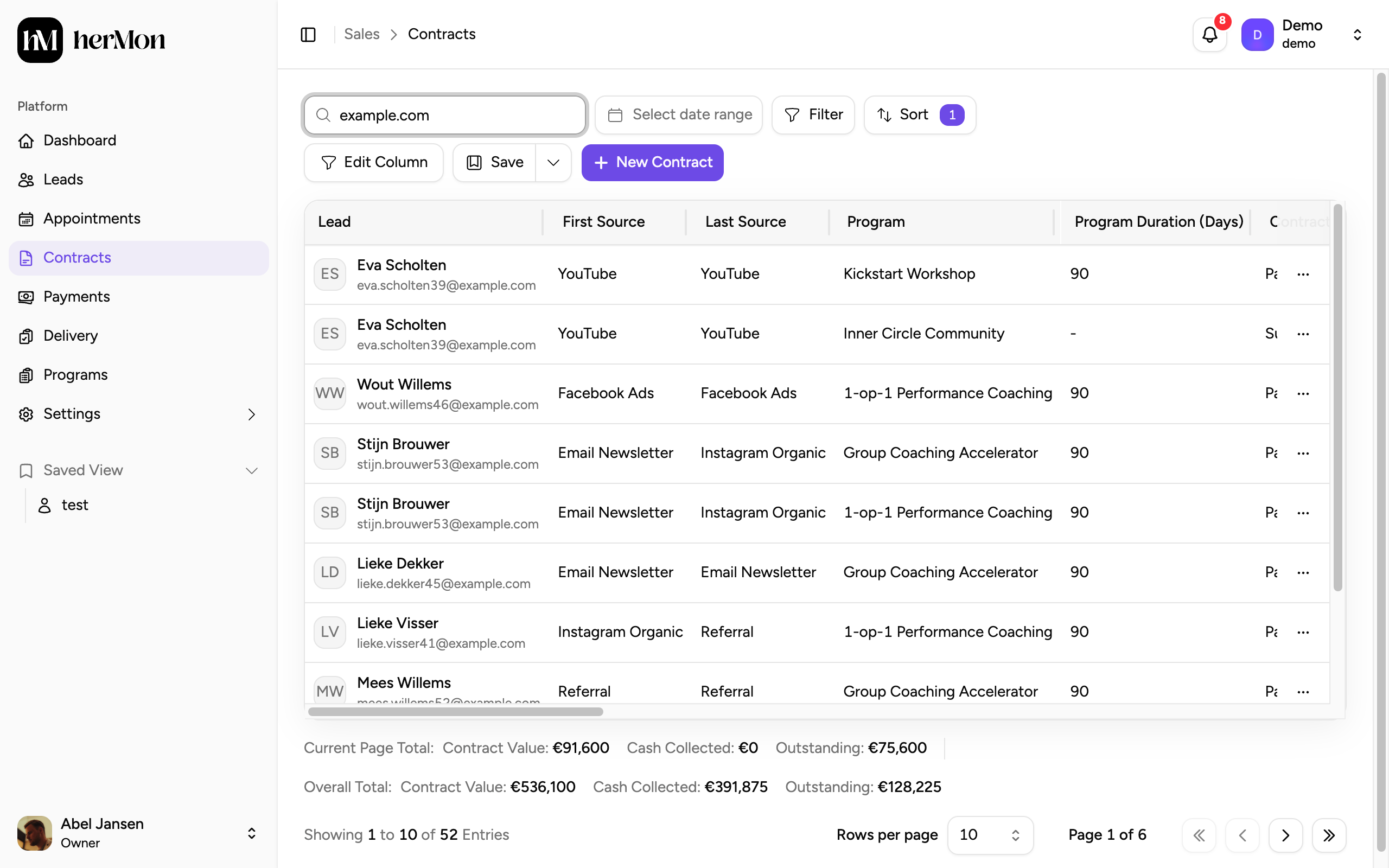
Click Contracts in the left sidebar, then New Contract. You can also start from a lead page with the Contract button, or from an appointment with New Contract. In those cases the lead is already filled in.
Choose the program and the lead
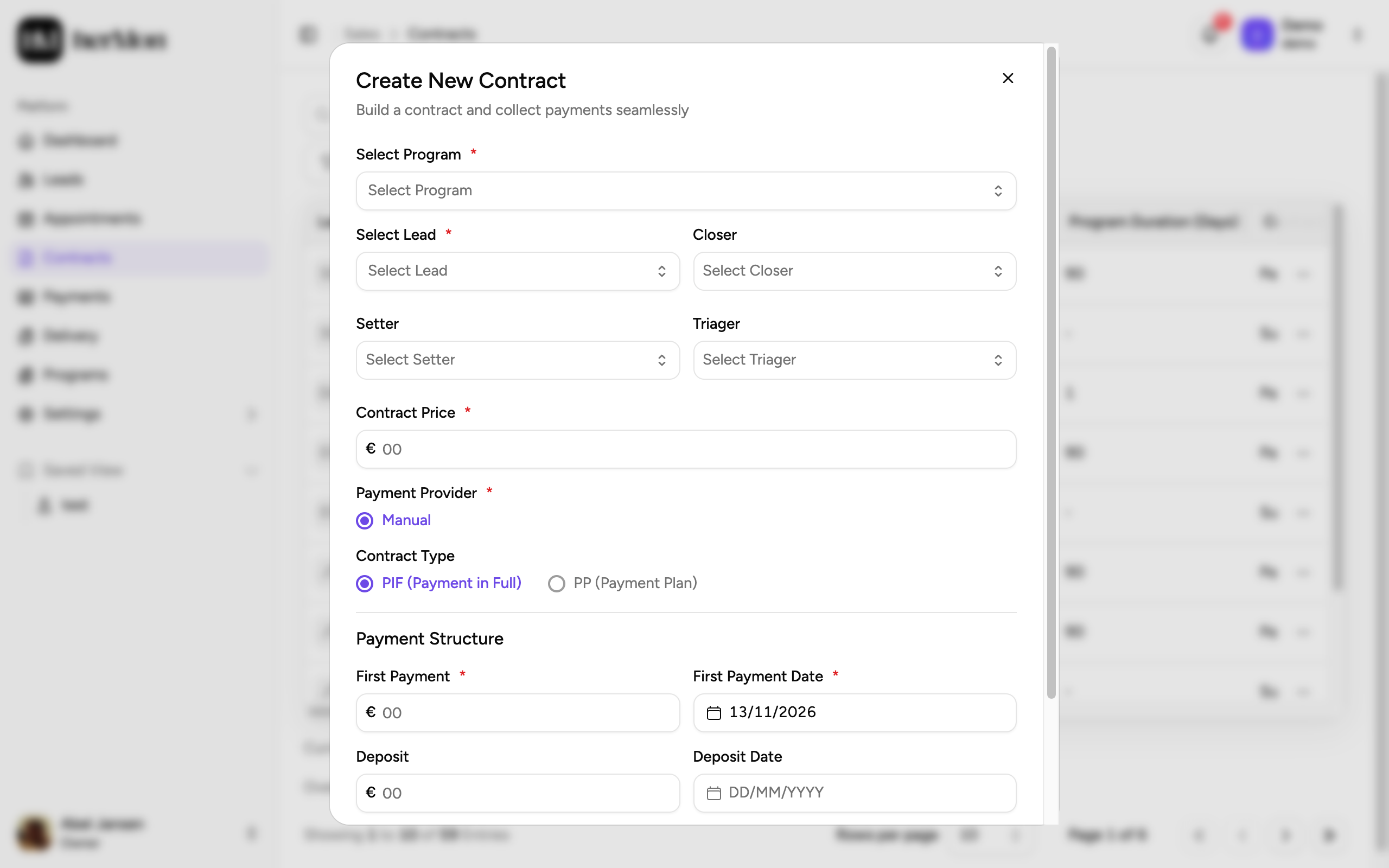
Select the program and the lead. Check the Closer, Setter and Triager: they are the people credited with this deal on the dashboard.
Set the price and the payment structure
Enter the price and choose the contract type:
- PIF (Payment in Full): one payment for the whole amount.
- PP (Payment Plan): a first payment, an optional deposit, and a number of instalments per week or month.
The payments together must add up to the contract price. If they do not, Hermon shows a Payment mismatch warning and you cannot save until it is fixed.
Create the contract
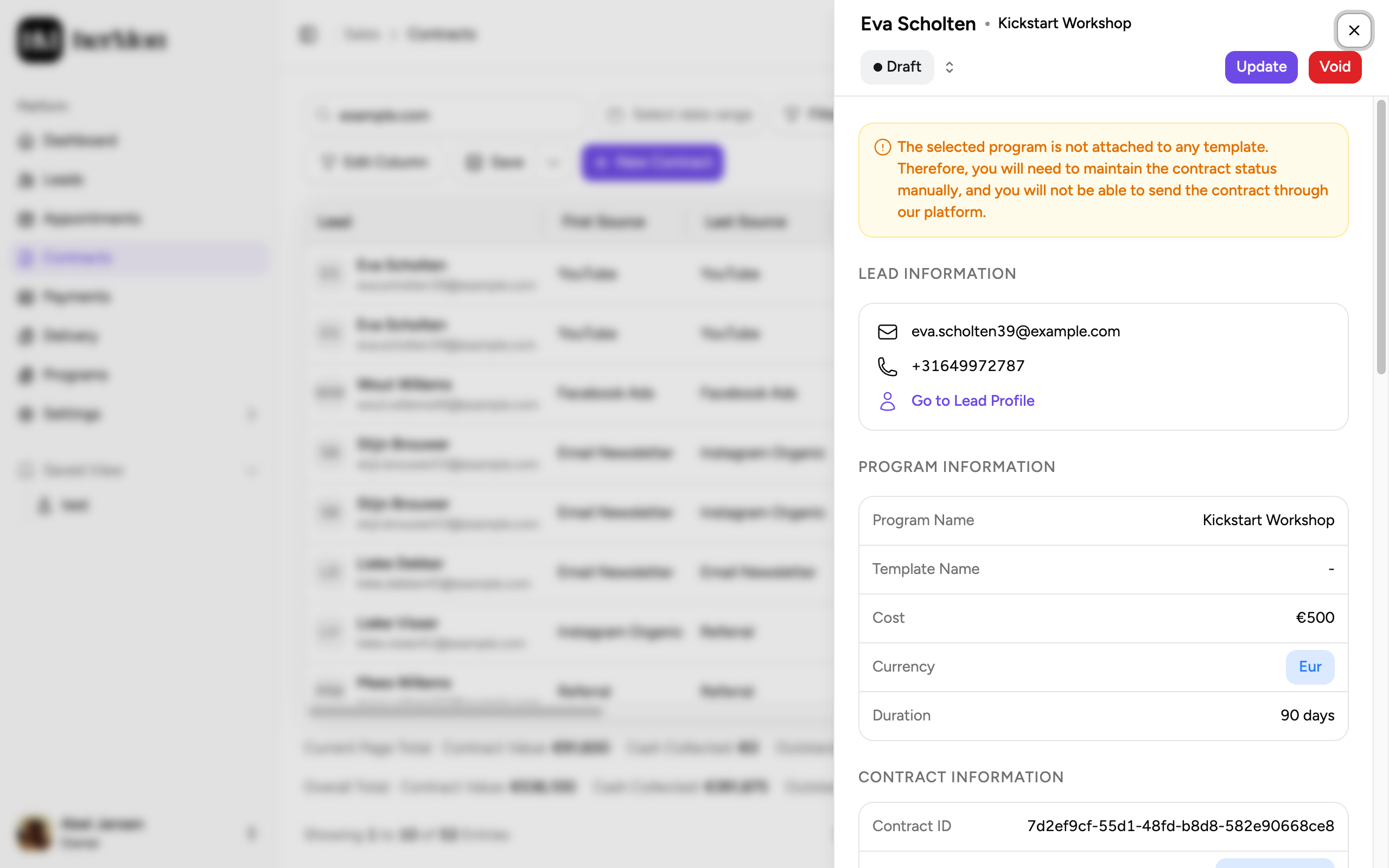
Click to create the contract. The dialog closes and the contract panel opens, showing the program, the payment schedule and the status Draft.
Send it for signature
In the contract panel, click Generate Preview to check the document, then Send Contract. The lead receives it by email, and the status moves on by itself as they open and sign it. Copy Link gives you the signing link to share in a chat.
If the program has no template, change the status yourself with the status badge at the top of the panel, for example from Sent to Signed once you have the signed copy.
Record payments
Open the contract. The payment section lists every scheduled payment with its amount, due date and status, and holds the actions for each payment.
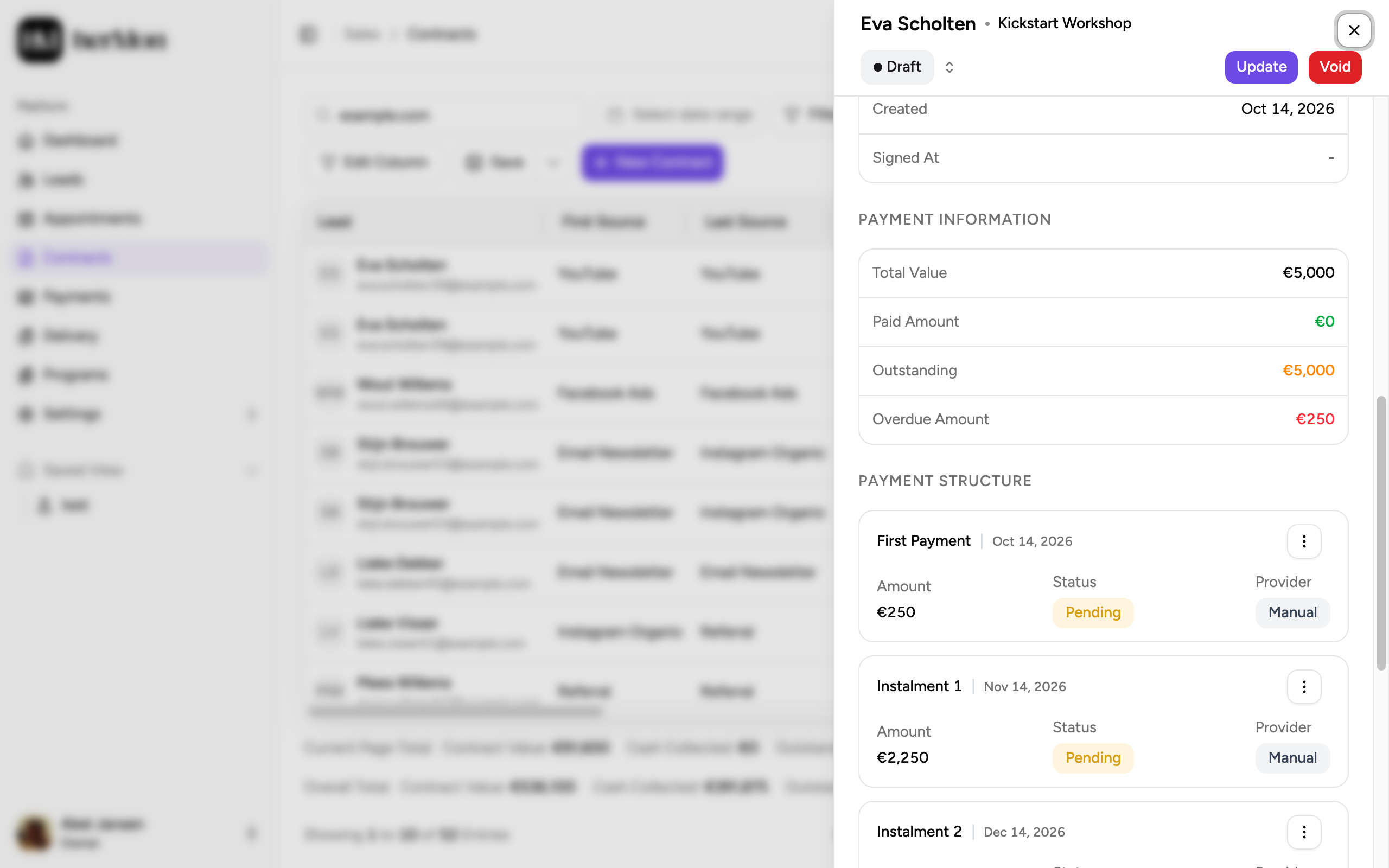
- Online payments through Stripe, Mollie or Whop are marked as paid automatically when the lead pays with the payment link.
- Manual payments, such as a bank transfer, you mark as paid yourself.
- Add Payments in the contract panel adds an extra payment to the schedule.
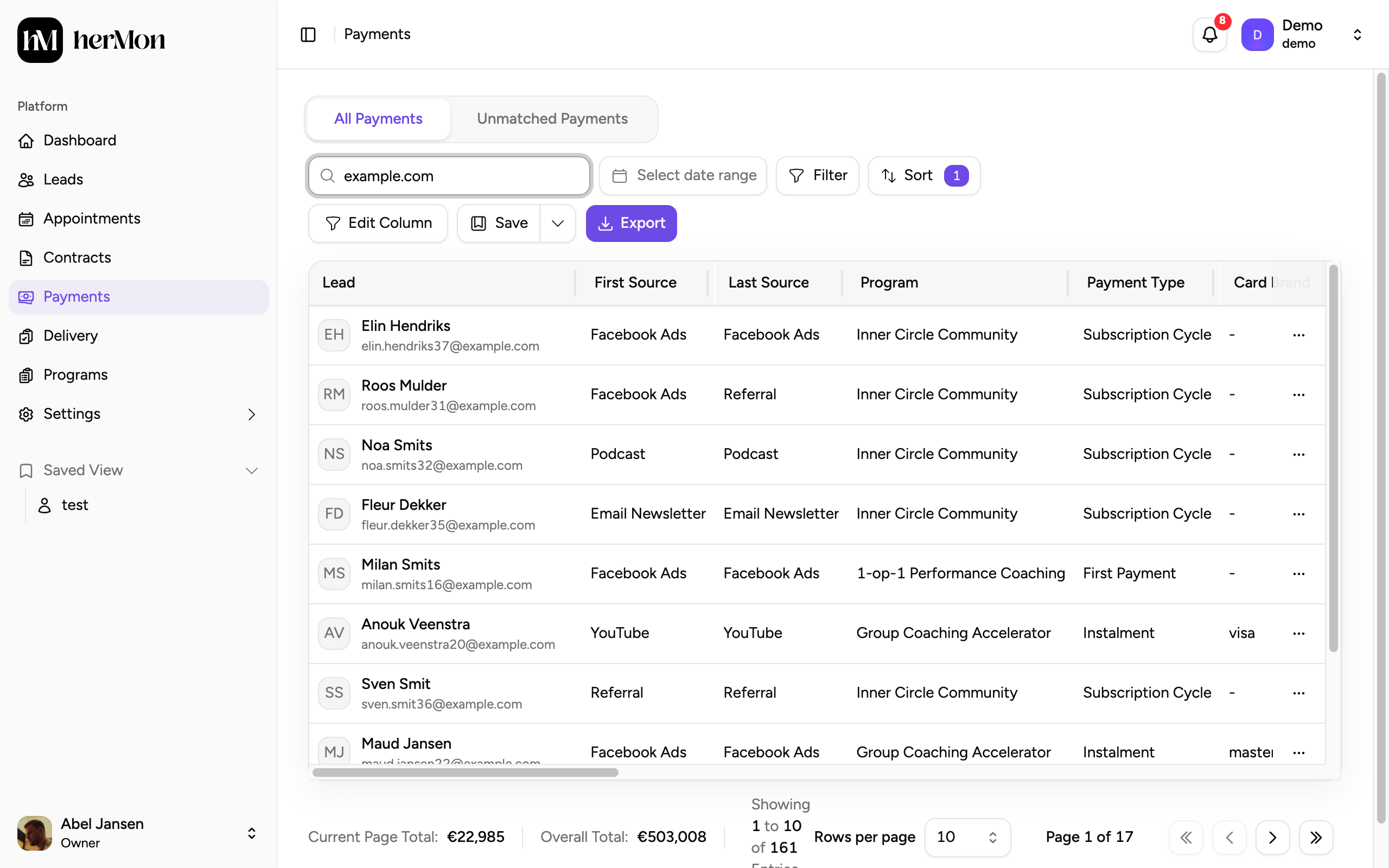
Every payment also appears on the Payments screen, where you can filter by status, provider and date, and read the totals at the bottom of the table.
Good to know
Changing a contract. Use Update in the contract panel to change program, price or schedule. It is not available for voided contracts or for subscriptions that are active or cancelled.
Voiding a contract cancels all future payments. Payments that are already paid stay as they are and must be refunded separately. You always enter a note with the reason.
Deleting is only possible while a contract is still a Draft, and only for Owners and Sales Managers.
A payment came in that Hermon could not link. Payments from your processor that do not match a contract land under Unmatched Payments on the Payments screen, where Owners can attach them to the right contract.
Who can do what. Setters, Triagers and Analysts can view contracts but not create, update or void them.