Invite your team and connect integrations
Give each team member the right role, and connect your booking, payment, contract and marketing tools so data flows into Hermon by itself.
Two things turn an empty workspace into a working one: the people who use it and the tools that feed it. Both are set up from the Settings menu.
Invite a team member
Open Team Invitations
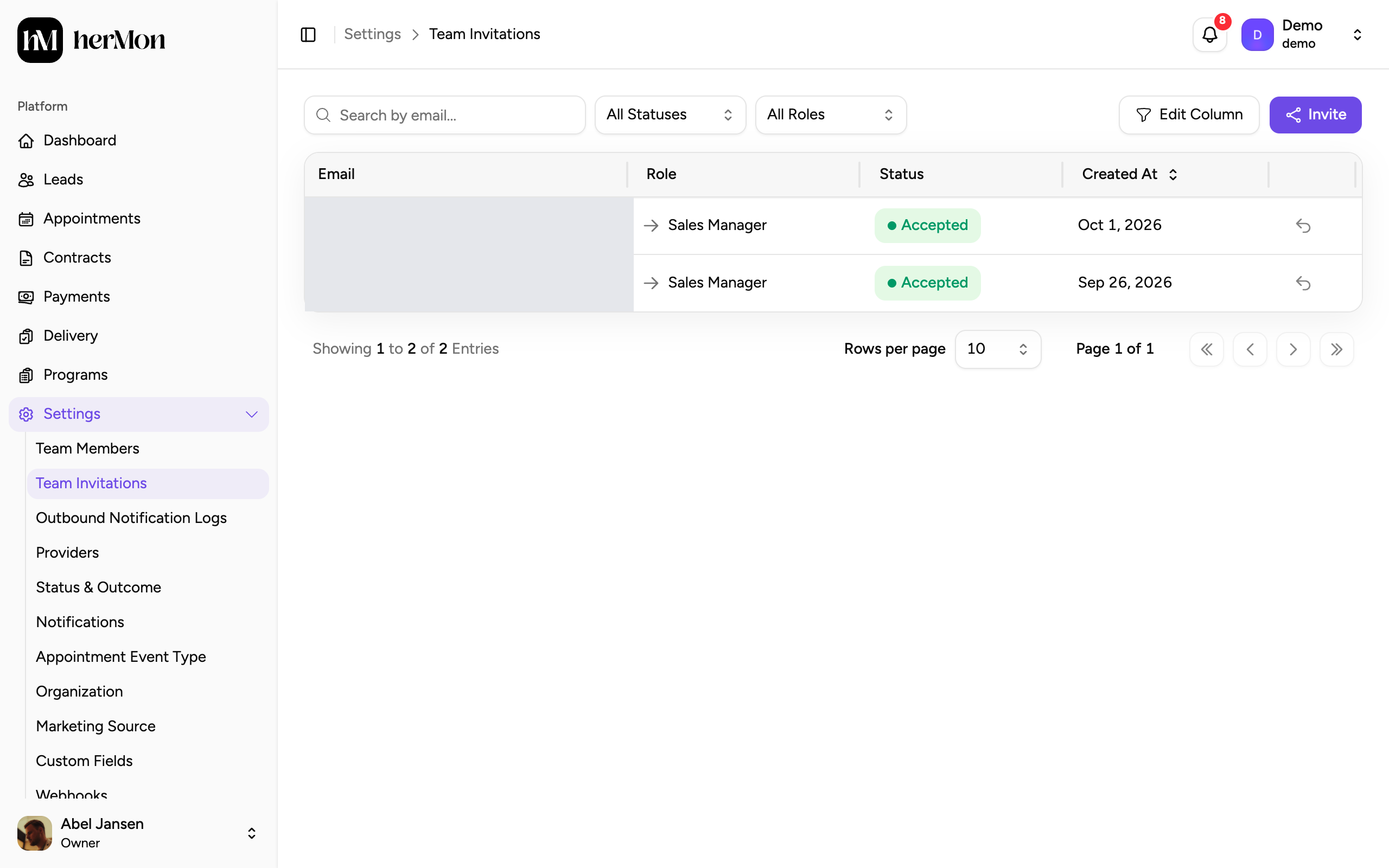
In the left sidebar, open Settings and choose Team Invitations. The list shows every invitation you have sent and its status.
Send the invitation
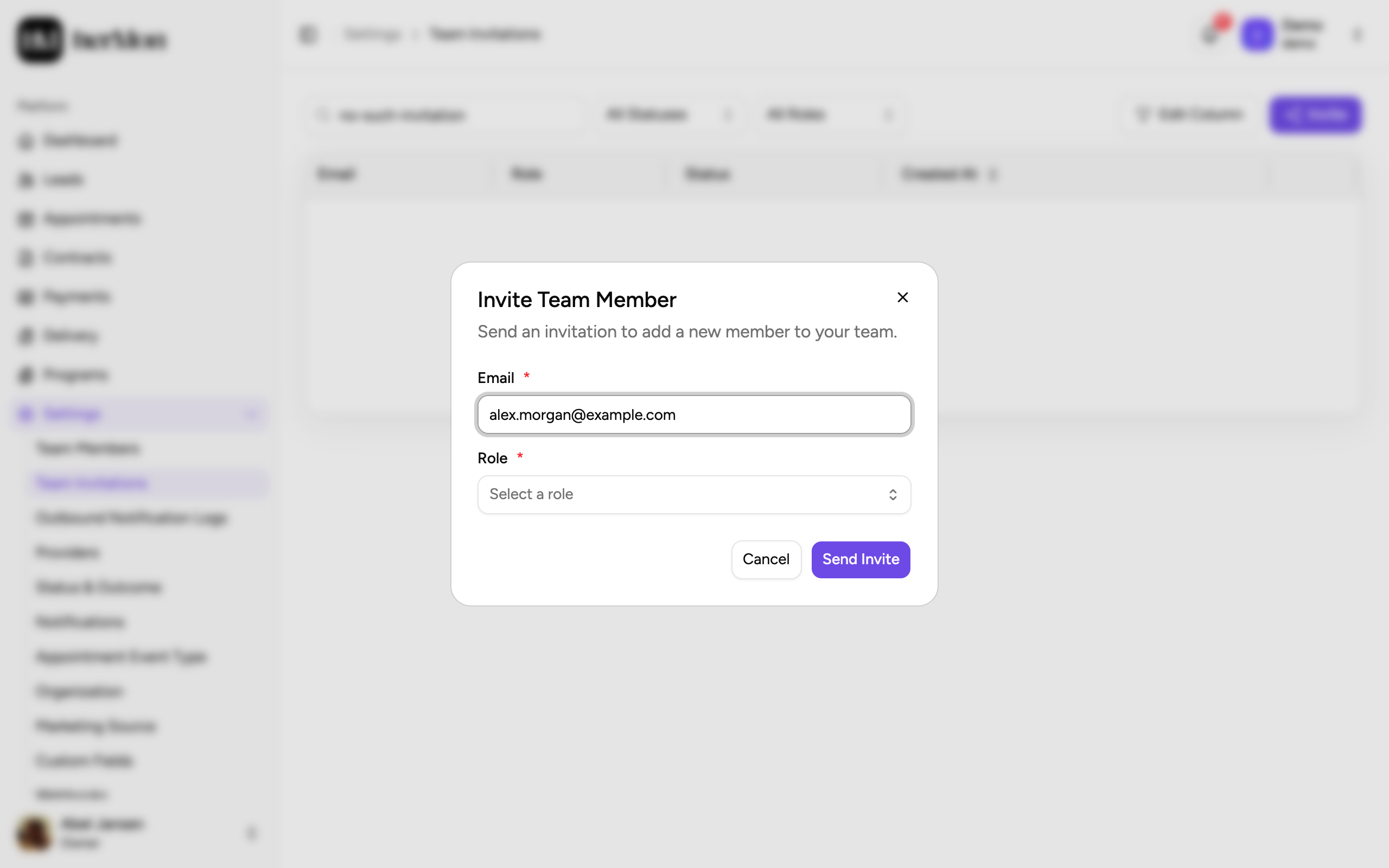
Click Invite. Enter the person's Email, choose their Role and click Send Invite. They receive an email with a link to join your workspace.
Check that they joined
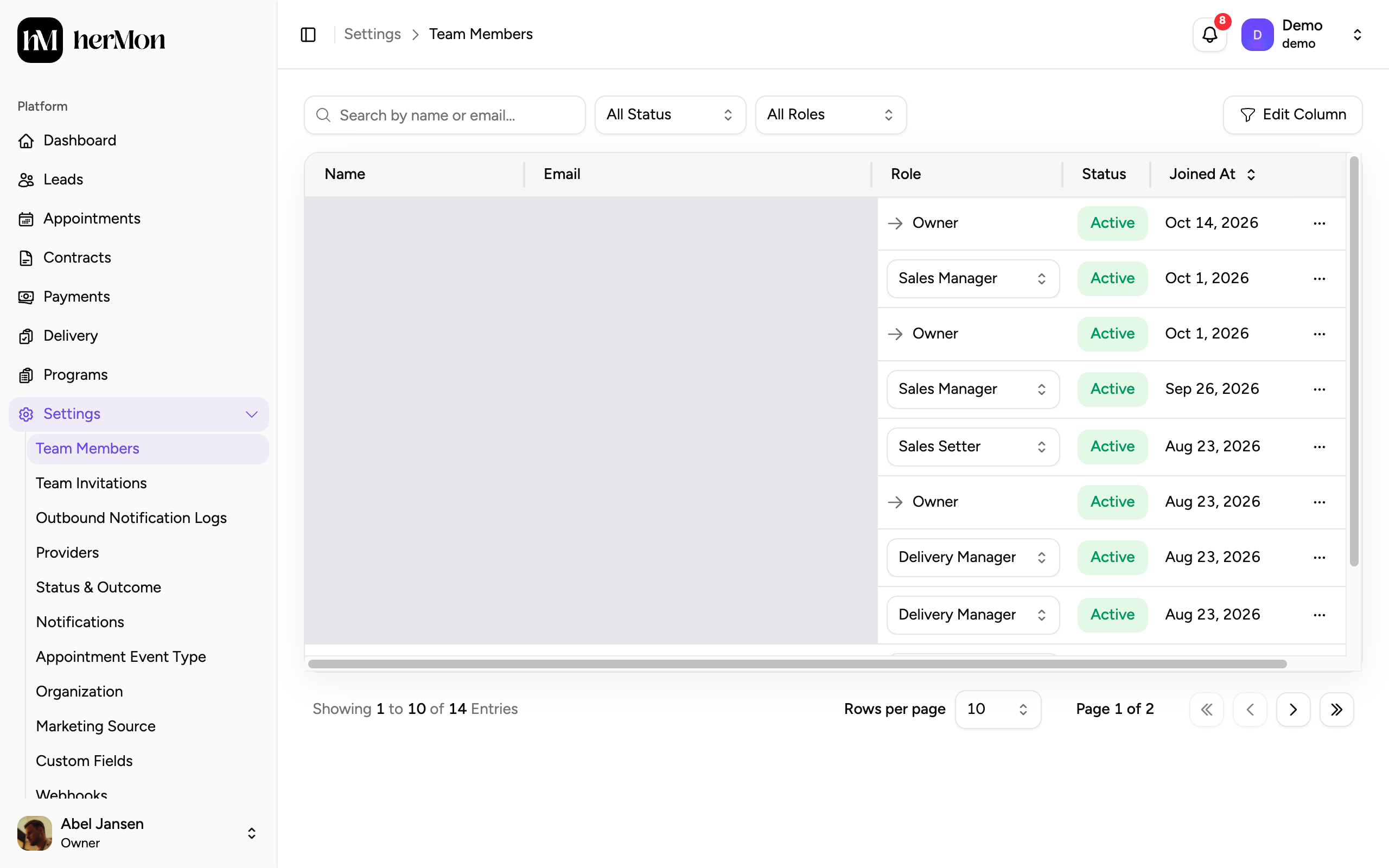
Once the invitation is accepted, the person appears under Settings, then Team Members. An invitation that is still pending can be revoked from the Team Invitations list.
Which role to choose
| Role | Meant for | Works in |
|---|---|---|
| Owner | Founders and admins | Everything, including Organization settings and Providers |
| Sales Manager | Head of sales | Leads, appointments, contracts, payments, and most settings |
| Sales Rep | Closers | Leads, appointments, contracts, payments |
| Setter | Appointment setters | Leads and appointments. Can view contracts and payments. |
| Triager | Pre-call qualifiers | Leads and appointments. Can view contracts and payments. |
| Delivery Manager | Head of delivery | Delivery, programs and appointments |
| Delivery Rep | Coaches and account managers | Delivery and appointments |
| Analyst | Reporting and finance | Can view everything in the main screens, cannot change anything |
Owners can invite every role. Sales Managers can invite Sales Reps, Setters and Triagers, and Delivery Managers can invite Delivery Reps.
To change a role later, an Owner picks a new one in the Role column under Team Members. It applies right away. When someone leaves, use Archive Member in their row menu. Their saved views are deleted with it.
Connect an integration
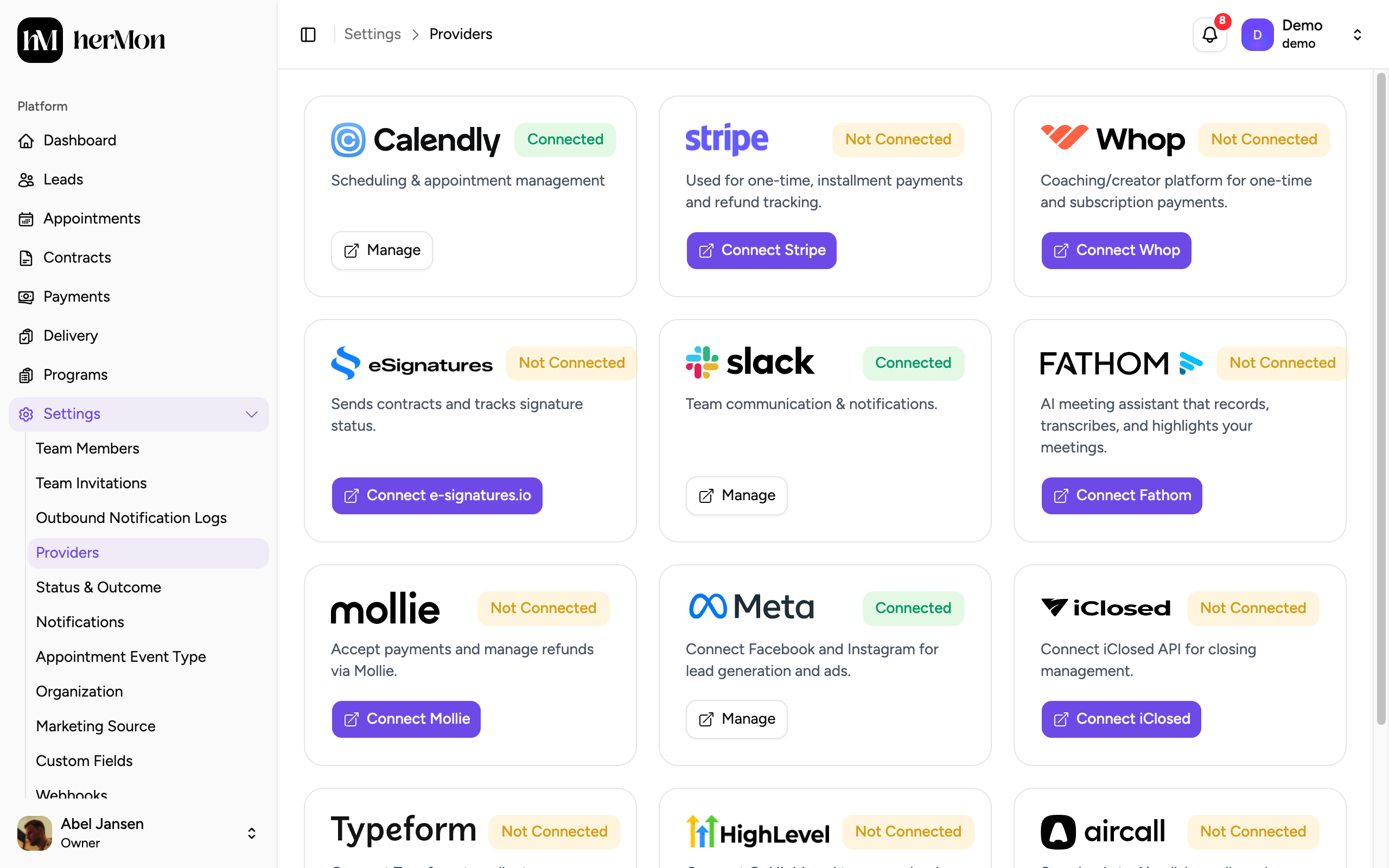
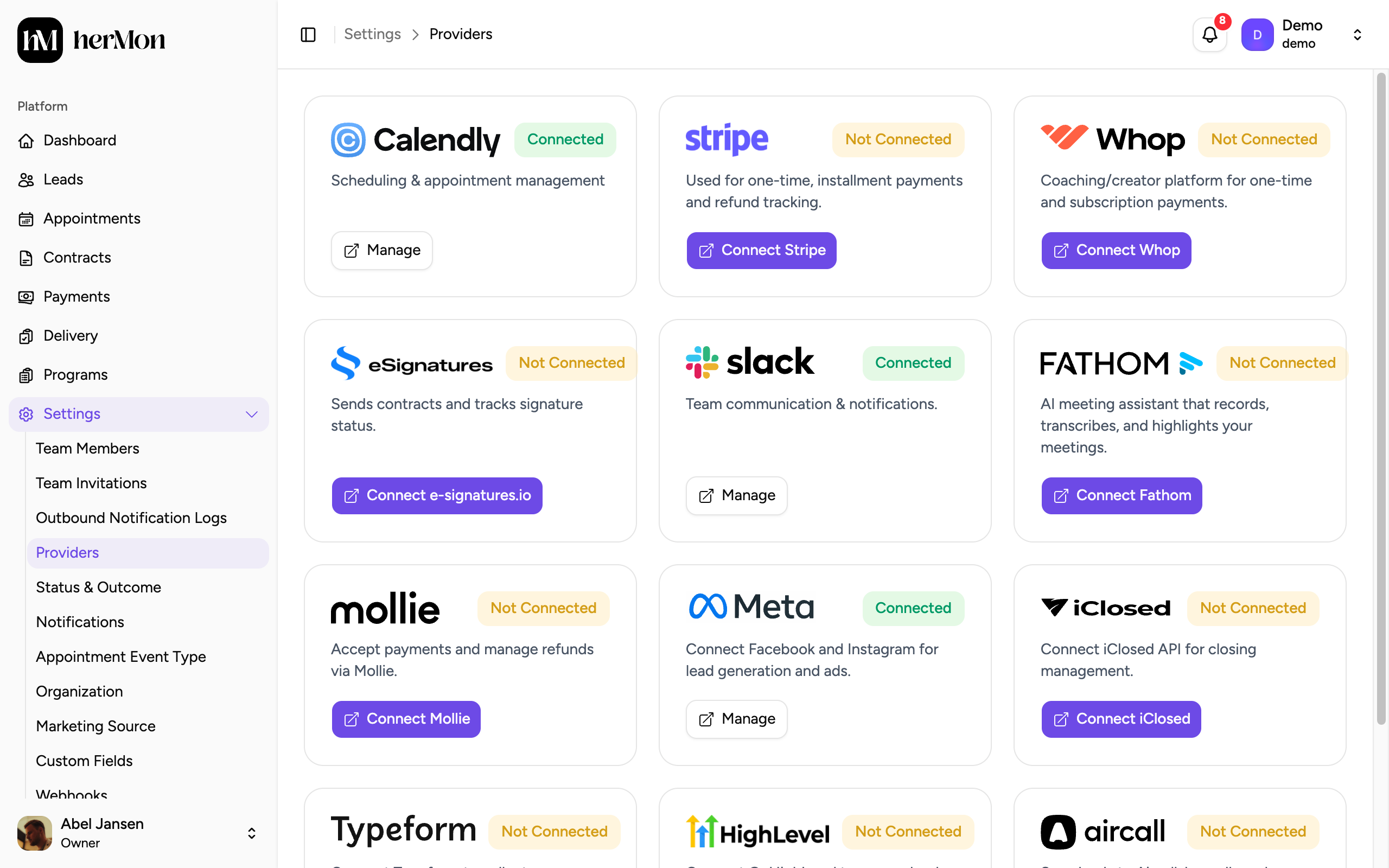
Only Owners can open Providers.
Watch the flow
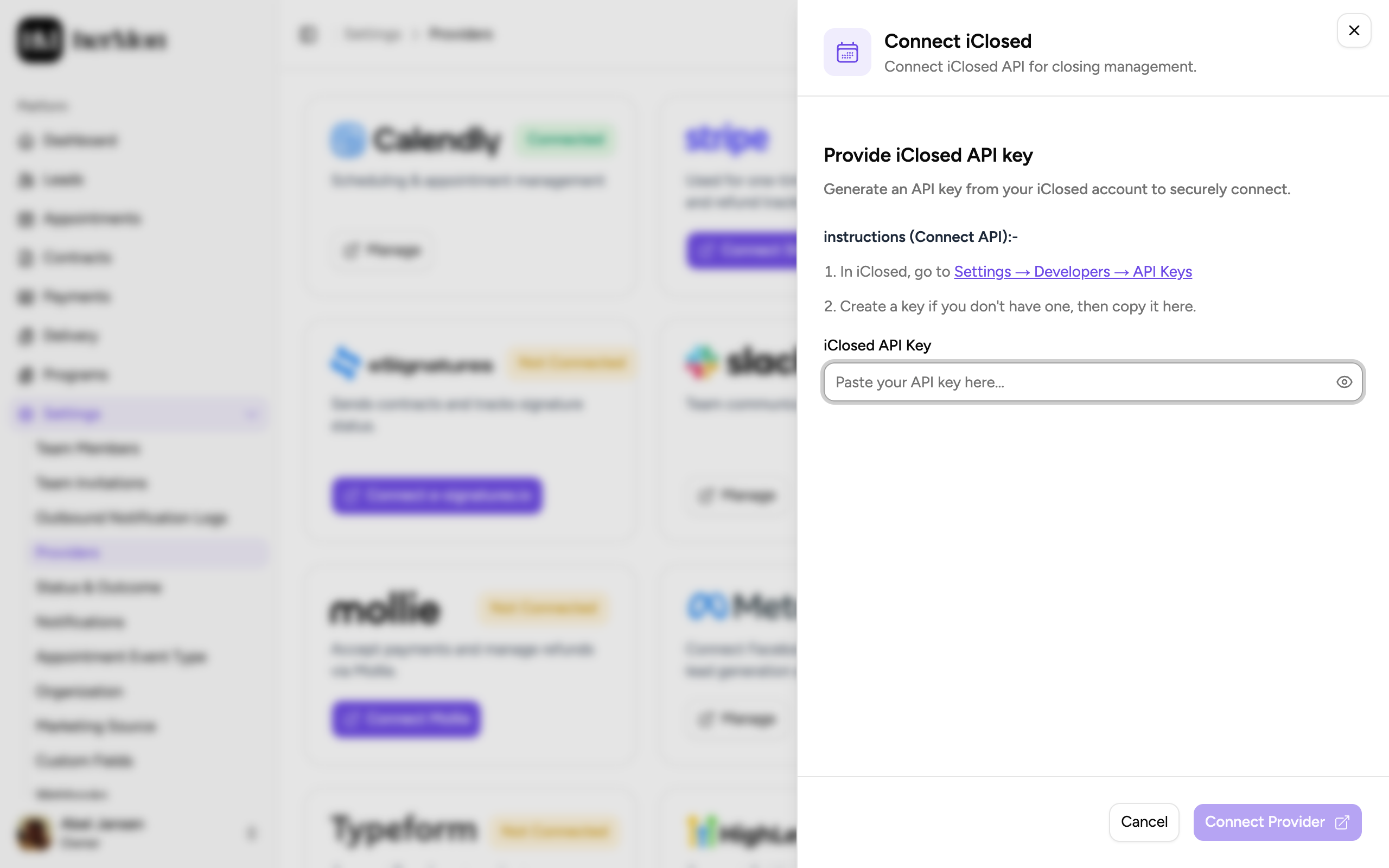
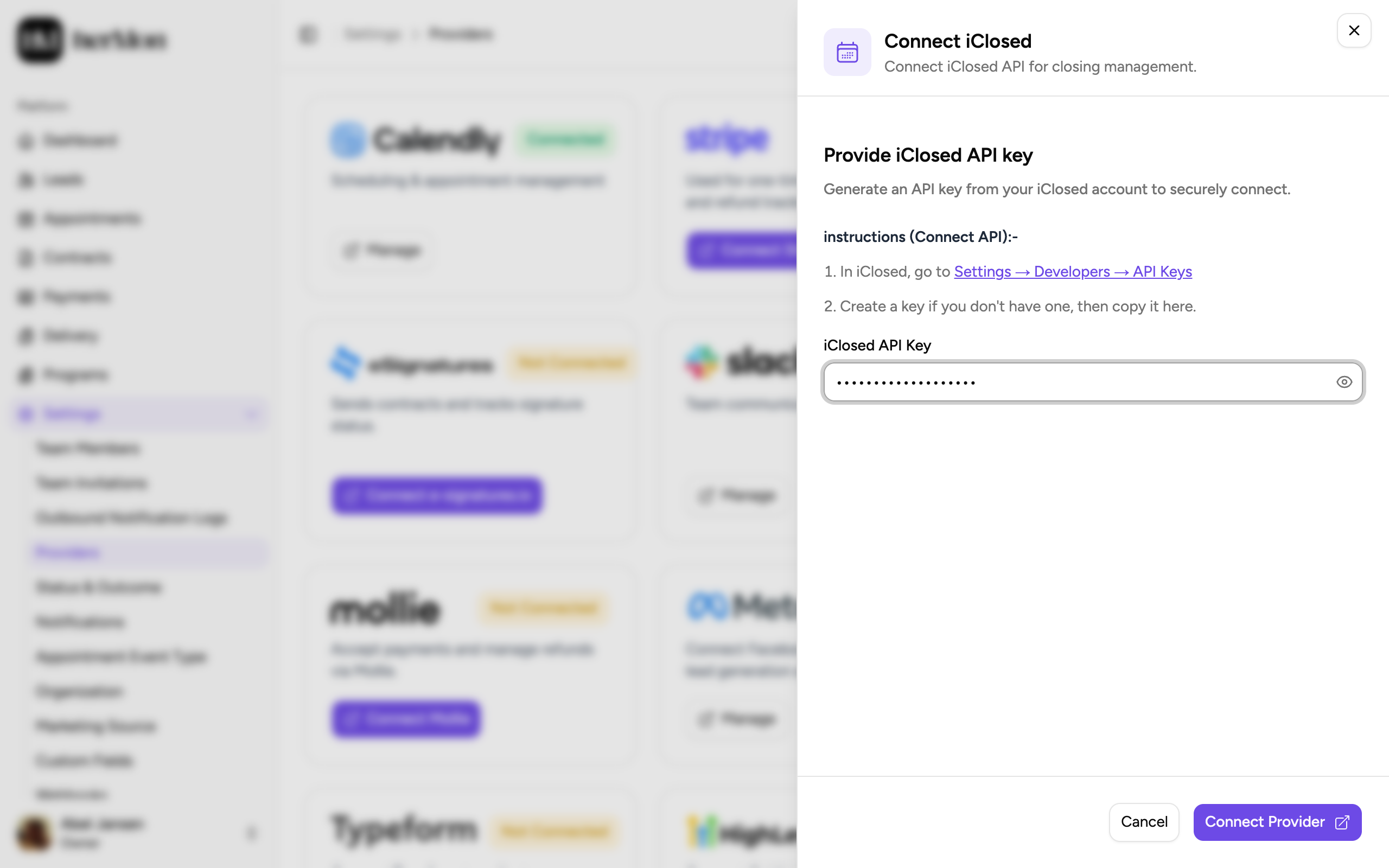
Connect a tool with an API key
What each tool needs
| Tool | Used for | What you paste | Extra setup |
|---|---|---|---|
| Calendly | Booked calls | Personal Access Token | None. Requires the Calendly Standard plan or higher. |
| iClosed | Booked calls | API key | Add Hermon's webhook URL in iClosed |
| GoHighLevel | Booked calls | Private Integration Token and Location ID | Create two workflows in GoHighLevel |
| Stripe | Payments | Secret key | None |
| Mollie | Payments | API key | None |
| Whop | Payments | Company API key | None |
| eSignatures | Contracts | Secret token | None |
| Fathom | Call recordings | API key | None |
| Typeform | Forms and opt-ins | Personal Access Token | Choose which forms to track |
| Meta | Ad attribution | Nothing, you log in with Facebook | Choose ad accounts and campaigns |
| Slack | Team notifications | Nothing, you approve in Slack | Choose a channel per notification |
For most tools Hermon sets up the connection in the background as soon as you connect. Two tools need one more step from you:
- iClosed: after connecting, click Manage on the iClosed card and copy the Endpoint URL under Webhook configuration. Add it in iClosed under Settings, Developer, Webhooks, with the events for scheduled, cancelled and rescheduled calls, call outcomes, and created and updated contacts.
- GoHighLevel: after connecting, the panel shows a Created URL and a Rescheduled URL. In GoHighLevel, create one workflow triggered by Customer Booked Appointment and one by Appointment Status Changed, each with a Webhook action that posts to the matching URL. Publish both.
Check a connection
A card can show one of six statuses. Only Connected means data is flowing.
Not Connected
API Verified
key accepted
Webhook Pending
waiting for the last step
Connected
Warning or Broken means the connection needs attention. Click Manage to see when the last successful sync was and what the last error says.
Good to know
A key is rejected. It was usually copied incompletely, or it is a test key where a live key is needed. Create a new key and try again.
Connect Provider stays grey until the key field has content.
Meta or Slack stays on Not Connected after you were sent back to Hermon: the authorization was cancelled or denied. Start again from the card.
Disconnecting is done with the red Disconnect button at the bottom of the Manage panel. You can reconnect later. For iClosed and GoHighLevel, also remove the webhook in that tool.
Colleagues cannot see Team Invitations? Only Owners, Sales Managers and Delivery Managers can.