Set up notifications
Read your own notifications, send team updates to Slack channels with your own message text, and check the log when a message did not arrive.
Hermon has two kinds of notifications. Every team member gets personal notifications inside the app. On top of that, Hermon can post a message in a Slack channel when something happens, so the whole team sees it. Hermon calls these outbound notifications.
Personal notifications work for everyone without setup. The Slack messages are set up by an Owner. Owners and Sales Managers can check afterwards what was sent.
Read your own notifications
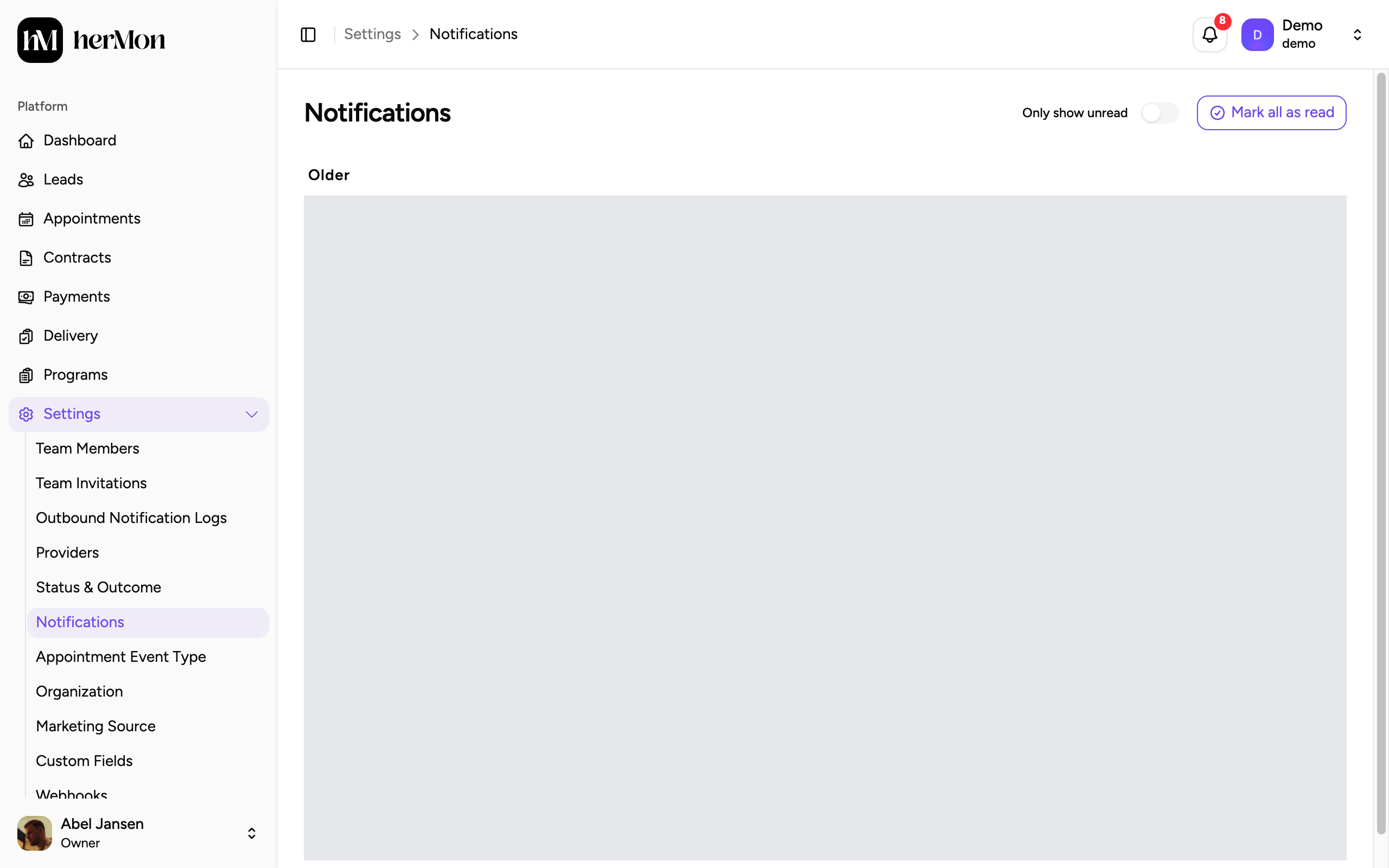
Click Settings, then Notifications. The list is grouped into Today, Yesterday and Older. Click a notification to open the lead, appointment or contract it is about. That also marks it as read.
Switch on Only show unread to hide what you have already seen, or click Mark all as read to clear the list.
Send notifications to a Slack channel
You need the Owner role and a connected Slack workspace. Connecting Slack is described in Invite your team and connect integrations.
Open the Slack panel
Click Settings, then Providers. Click Manage on the Slack card.
Find the Slack notifications table
Scroll to Slack notifications. Each row is one message Hermon can send.
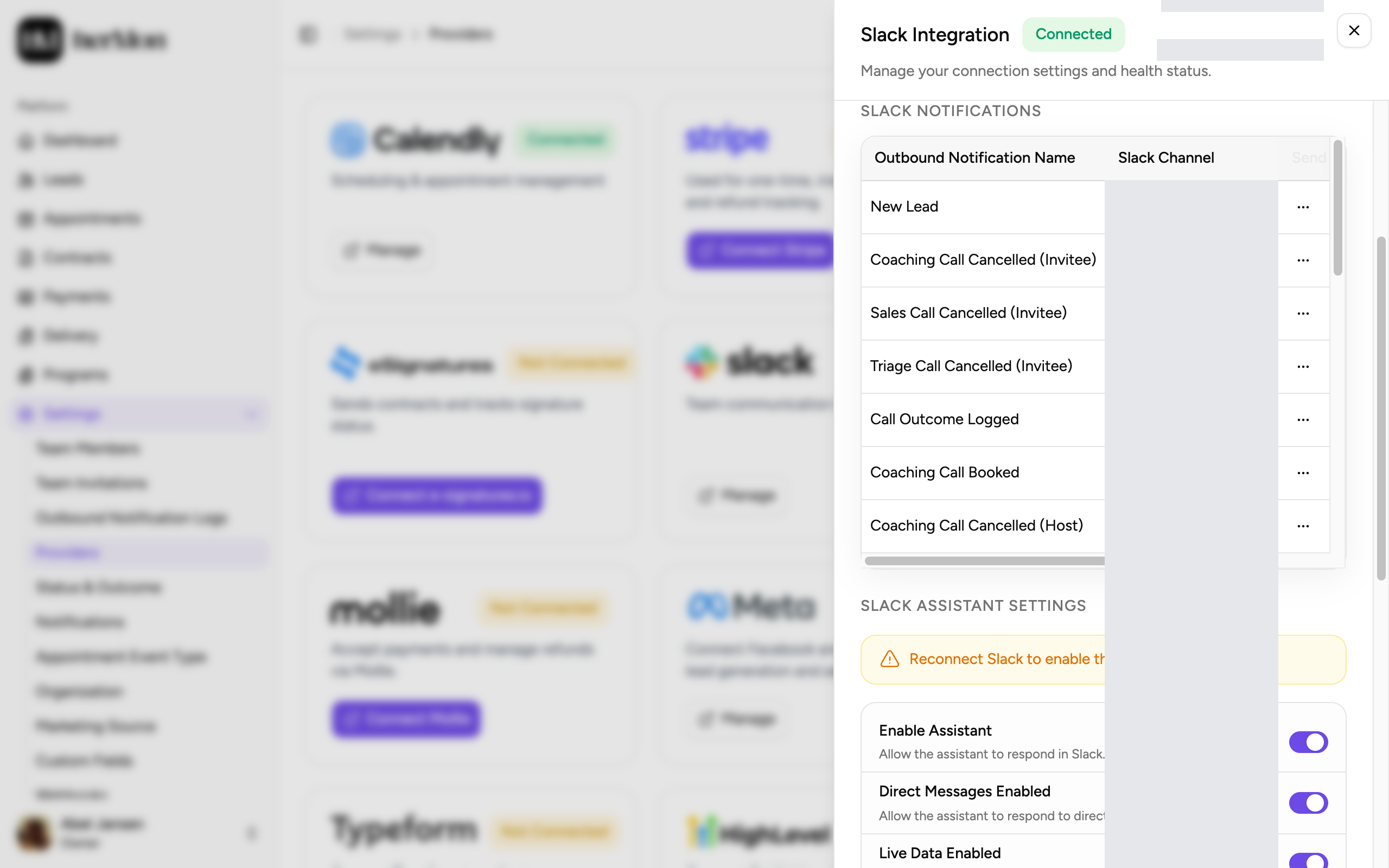
1. The channel the message goes to. 2. Switch the message on or off. 3. The row menu with View details, Edit and Trigger. Choose a channel
In the Slack channel column, pick the channel for that message.
Switch the notification on
Turn on the switch in the Send column. This only works after you have chosen a channel.
Choosing a channel and flipping the Send switch are saved straight away. There is no Save button.
Change the message text
Every notification has a message template. You can rewrite it in your own words.
Open the template
In the Slack notifications table, open the menu at the end of the row and choose Edit.
Copy the variables you need
The Template Variable Guide lists the variables this notification can use. A variable is a placeholder between double curly braces. Hermon replaces it with the real value when the message is sent. Click a variable to copy it.
Write the message
Type your text in Message and paste the variables where the values should appear. You can also change the Outbound Notification name.
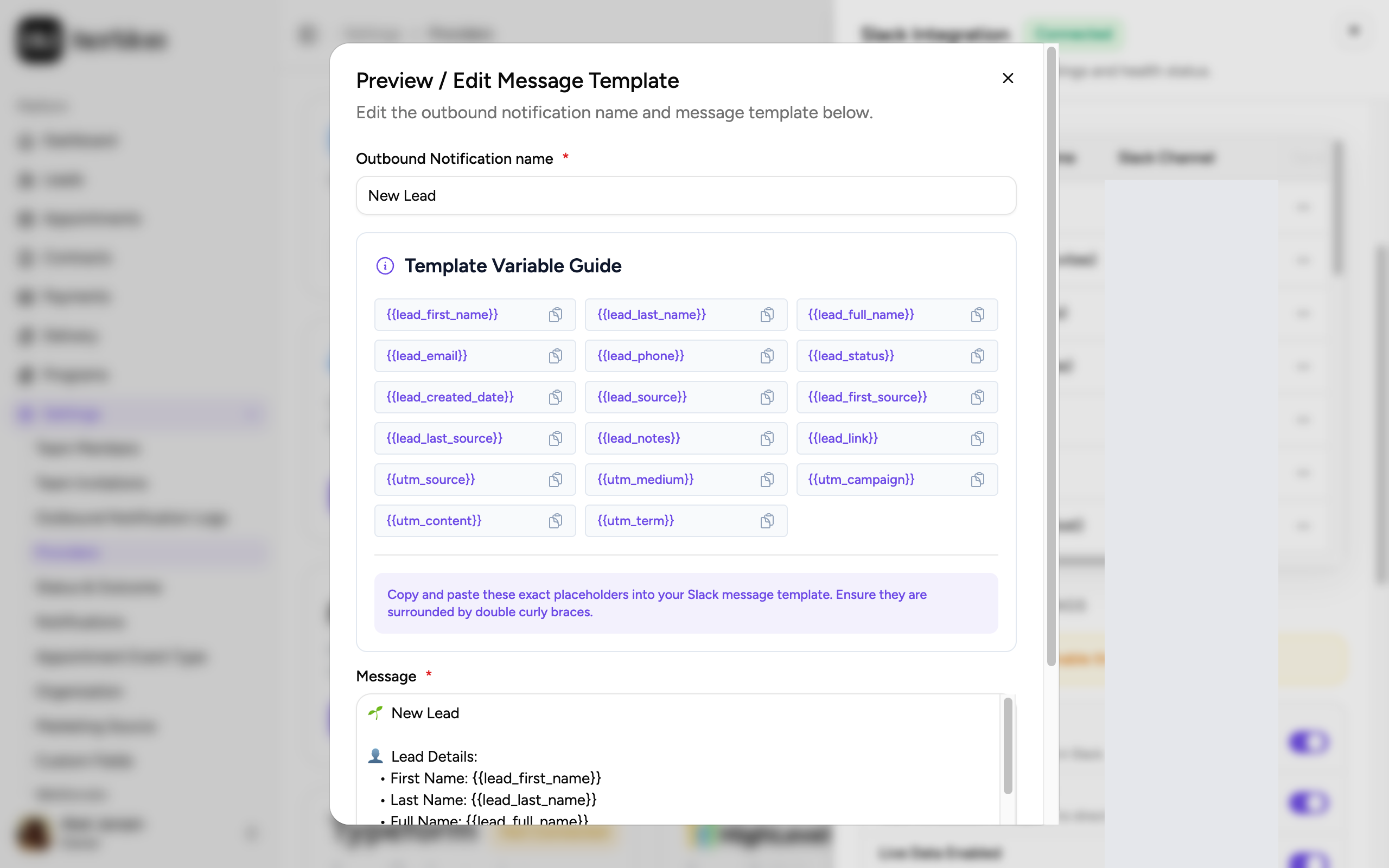
1. The variables you can use. 2. Your message text. Click Save
The new text is used from the next message on. To read a template without editing it, click its row in the table. The Message template preview panel opens.
To send a notification by hand, choose Trigger from the row menu and confirm. A new message is posted in the channel right away.
Check the log when a message did not arrive
Open the log
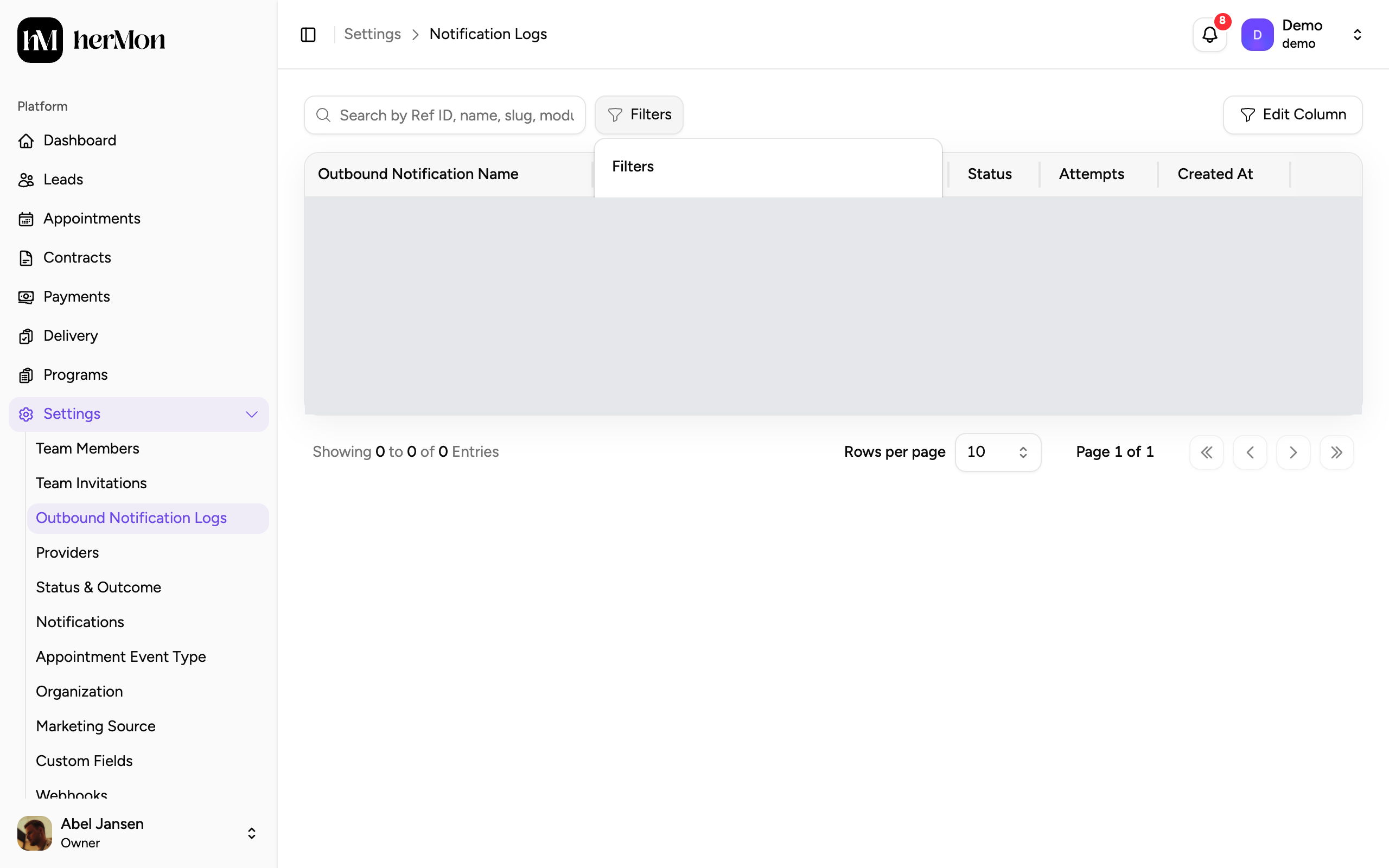
Click Settings, then Outbound Notification Logs. Every message Hermon tried to send has a row.
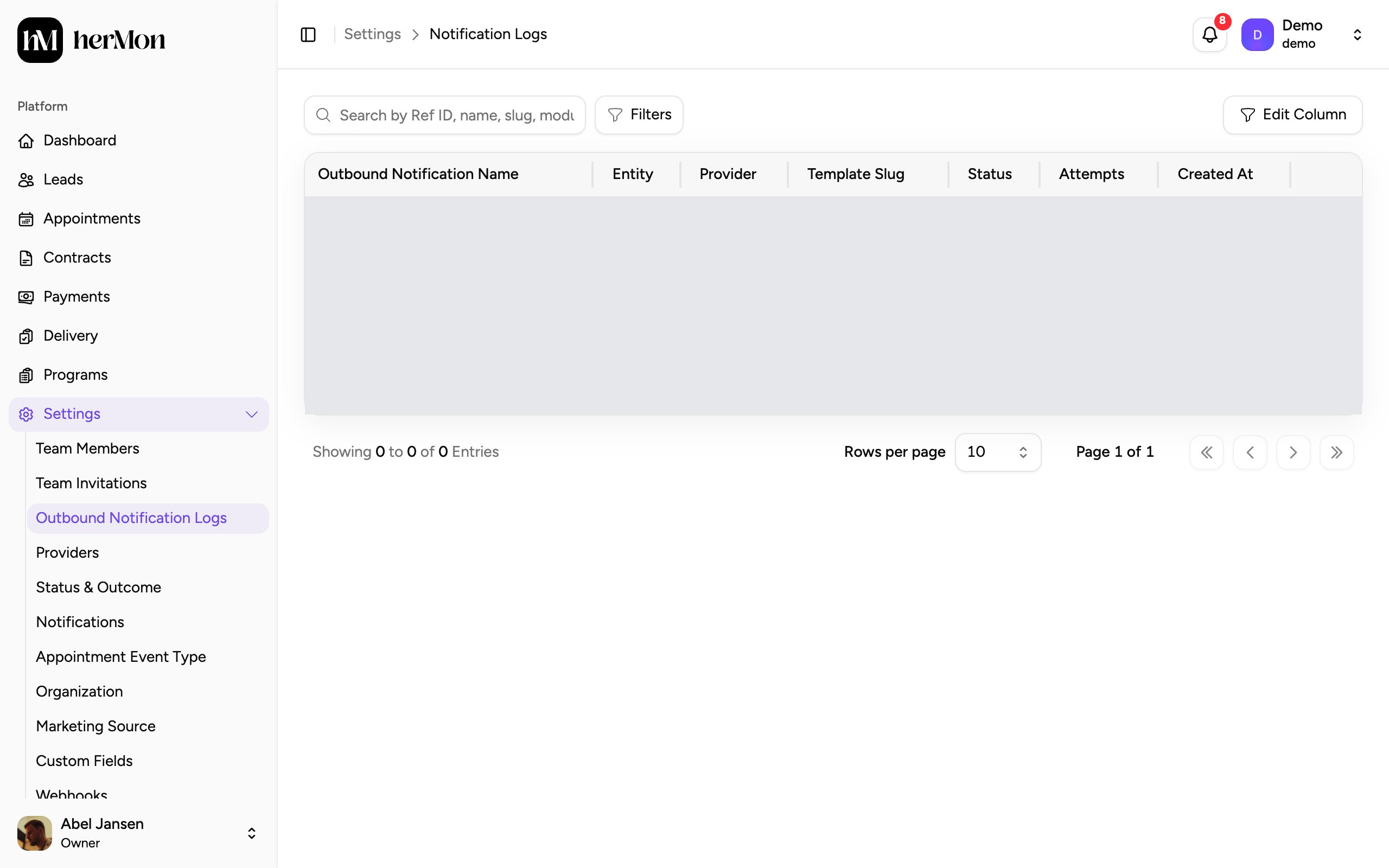
1. Search. 2. Filters. 3. Sent or Unsent. Filter on what was not sent
Click Filters and set Sent Status to Not sent. You can also filter by Entity, which is Lead, Appointment or Contract.
Open the row
Click a row. The panel shows the Attempt Count, the Error Message if there is one, and a Message Preview of what was sent.
Send it again
For a message with the status Unsent, open the row menu, choose Trigger and confirm with Retry.
Good to know
No row in the log for a message you expected. Check in the Slack panel that the notification has a channel and that Send is on.
A missing permissions error. Slack sometimes needs newer permissions. Reinstall the Slack app when Hermon asks for it.
Use the exact variable. A variable only works when it is spelled exactly as in the guide, with the double curly braces around it.
Who sees what. Every role can open Notifications. Outbound Notification Logs is for Owners and Sales Managers. Providers is for Owners only.