Update, void and refund
Read contract and payment statuses, change a contract after it was created, void a deal that fell through, record refunds and delete a draft.
Deals change after the call. A client wants another payment plan, a contract is cancelled, a payment has to go back. This article explains what each status means and how to make those changes.
Creating a contract and recording payments is covered in Create a contract and record payments.
Contract statuses
Draft
created, not sent yet
Sent
out for signature
Viewed
opened by the lead
Signed
the deal is closed
With eSignatures connected, a contract moves through these steps by itself. You can also move it by hand with the status badge at the top of the contract panel. Only the next steps are offered: a draft can go to Sent, a sent contract to Viewed, Signed or Withdrawn, and a viewed contract to Signed or Withdrawn.
Three statuses end the line:
- Signed. The lead moves to your Won status, and payments that were still Draft become Pending.
- Withdrawn. The signature request is taken back.
- Voided. The contract is cancelled. This is not in the status list: use the Void button.
Payment statuses
| Status | Meaning | What you can do |
|---|---|---|
| Draft | Scheduled on a contract that is not signed yet. | Update, mark as paid, delete |
| Pending | Open and waiting for the money. | Update, mark as paid, delete |
| Paid | The money came in. | Refund or mark as refunded |
| Failed | An attempt to collect it did not succeed. | Update, mark as paid, delete |
| Lost | Closed without being collected. | Kept for your records |
| Refunded | The money went back to the client. | Kept for your records |
Open the menu on a payment in the contract panel to find these actions. You see only the actions that fit the payment and your role.
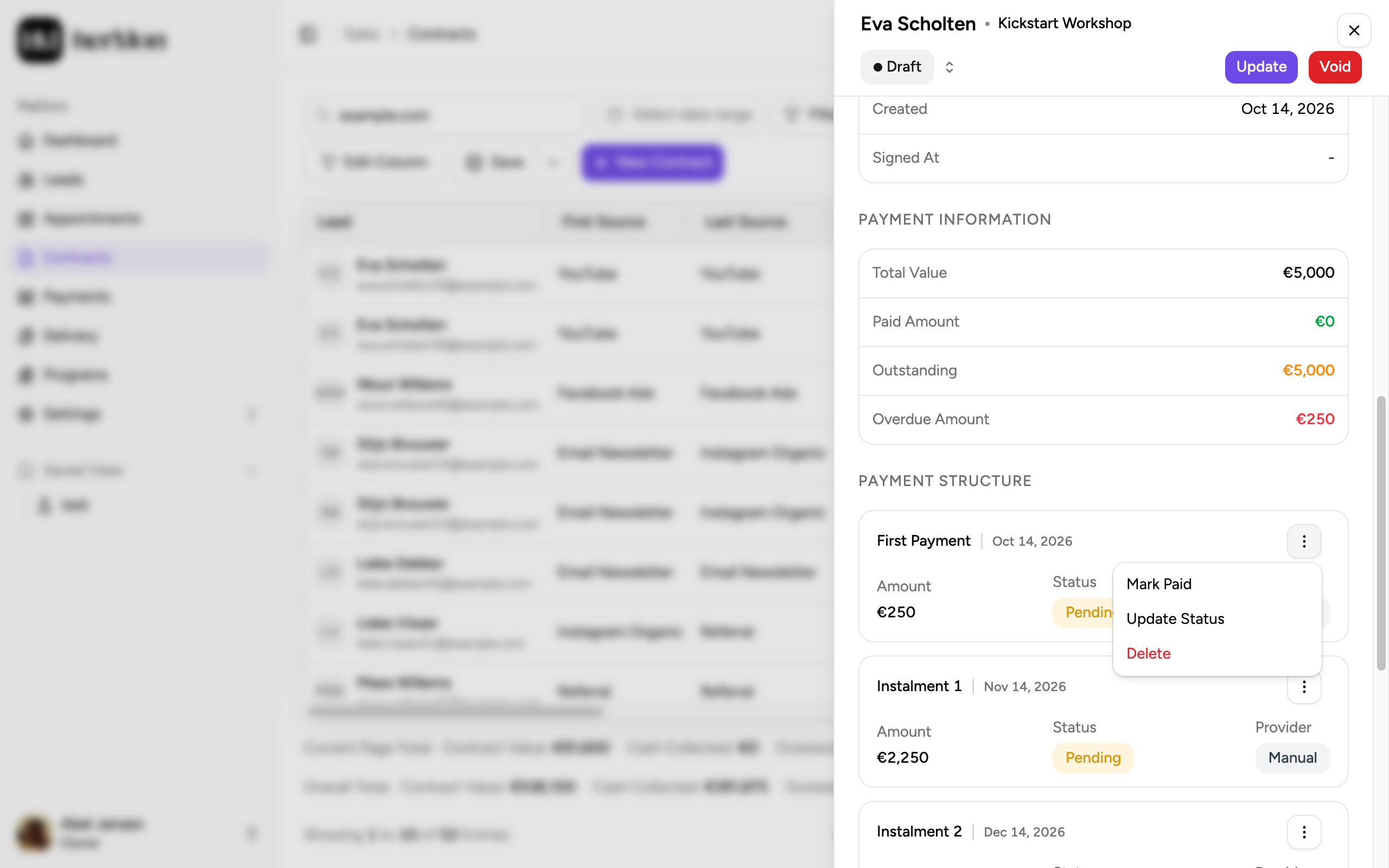
Update a contract
Open the contract
Click Contracts in the left sidebar and click the contract.
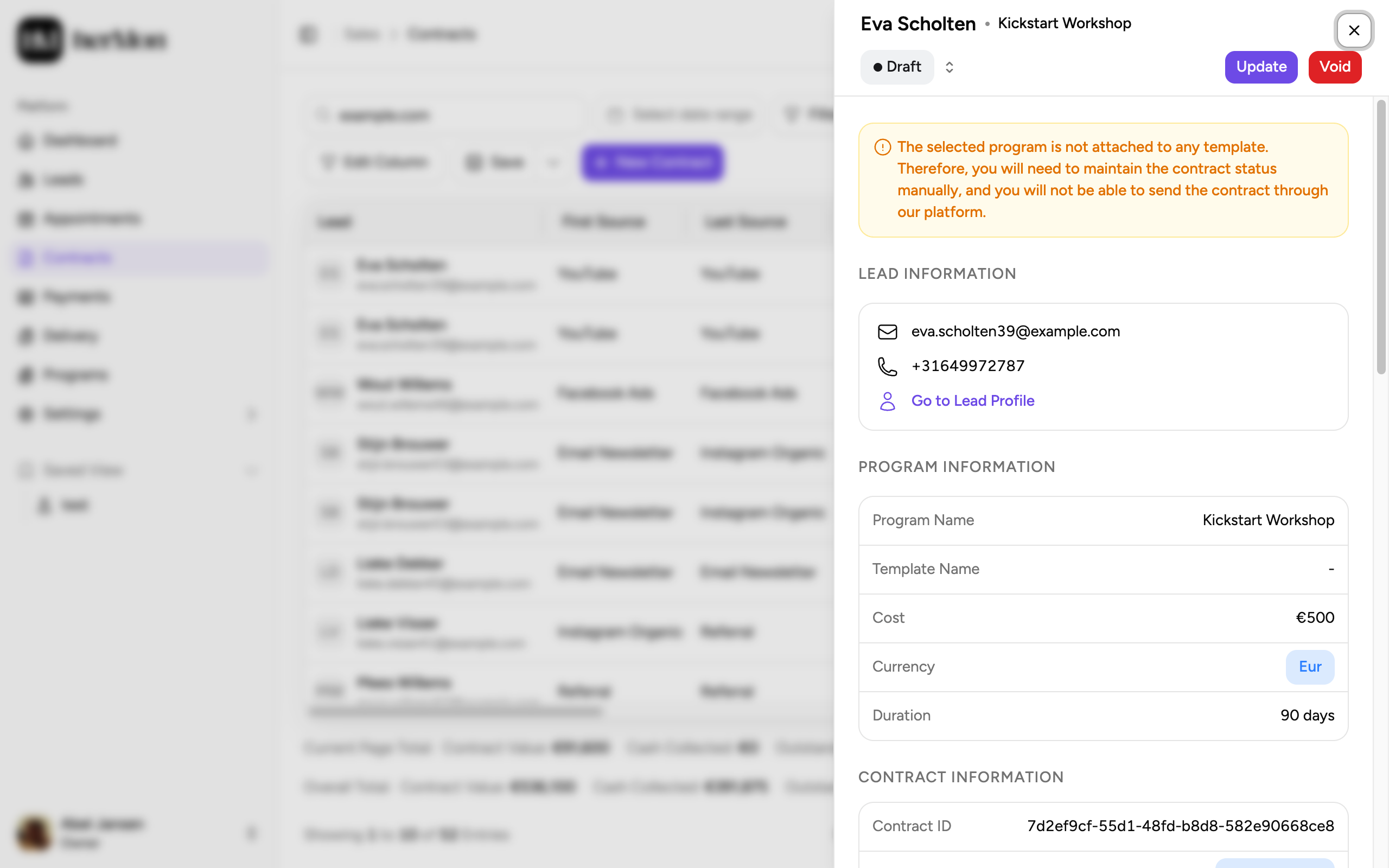
1. Update the contract. 2. Void the contract. Click Update
Click Update in the panel, or choose Update from the row menu in the list. The Update Contract dialog opens.
Make your changes
You can change the program, the lead, the Closer, Setter and Triager, the price, the contract type, the payment provider and the payment schedule.
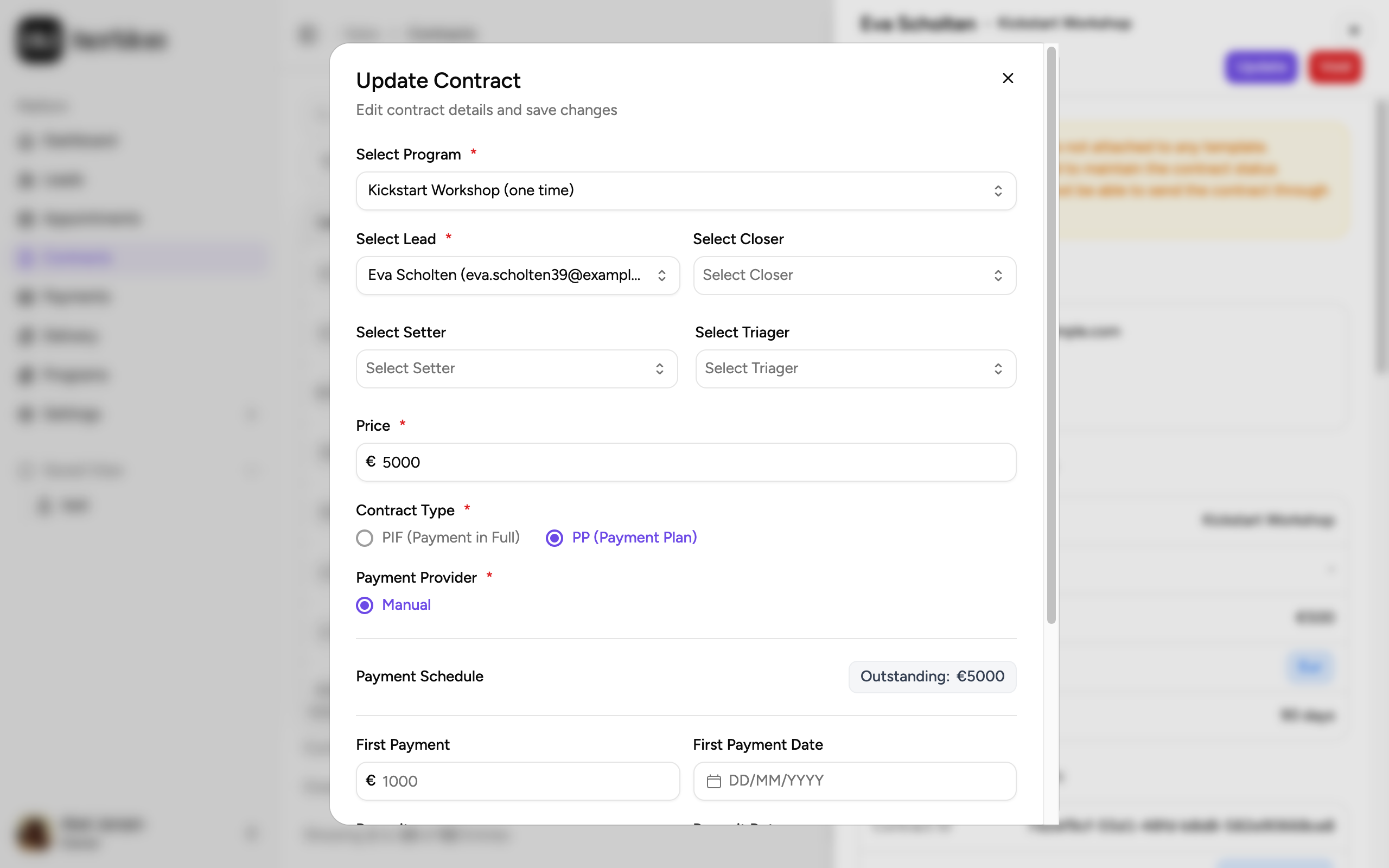
Check the totals and save
The unpaid payments must add up to the price minus what was already collected. If they do not, you see PAYMENT MISMATCH and cannot save. Click Update Contract.
What to expect when you change the schedule:
- Paid and refunded payments are never touched. Only the open payments are rebuilt.
- The price cannot go below the amount already collected.
- Existing payment links expire for payments you edit. Online payments get a new link.
- A contract that is out for signature goes back to Draft. If you change the payment structure of a Sent or Viewed contract, the signature request is withdrawn and you send the contract again.
Void a contract
Void a contract when the deal is off. You can void in any status, as long as the contract is not already voided or fully paid.
Click Void
Open the contract and click Void, or choose Void from the row menu.
Enter the reason
Fill in the Note. It is required and is shown on the contract afterwards, with the date and the person who voided it.
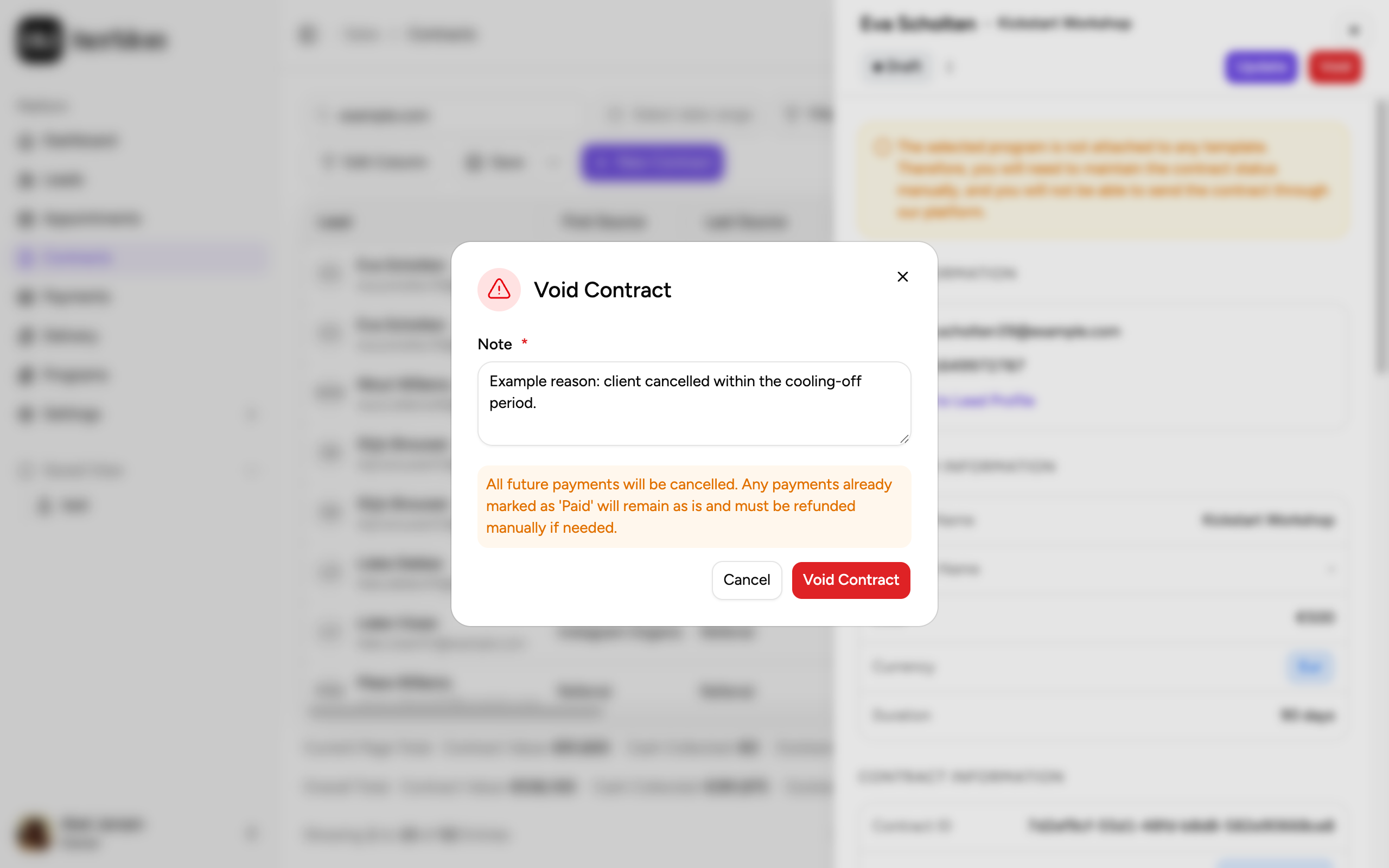
1. The reason for voiding. 2. Confirm. Confirm
Click Void Contract.
Voiding cannot be reversed. All open payments are cancelled, payment and checkout links stop working, and an active subscription is cancelled at the provider. Payments that are already Paid stay as they are: refund them separately if the client gets money back.
Refund a payment
How you refund depends on how the payment came in. Open the menu on a Paid payment.
| Payment came in through | Action | Who | What happens |
|---|---|---|---|
| Stripe, Mollie or Whop | Refund | Owner, Sales Manager | Hermon starts the refund at the provider. The payment becomes Refunded once the provider confirms. |
| Manual, such as a bank transfer | Mark Refunded | Owner, Sales Manager, Sales Rep | You send the money back yourself and record it here. A reason is required. |
For Stripe and Mollie payments, and for manual payments, you can choose between Full Refund and Partial Refund. A partly refunded payment gets a Partially Refunded badge.
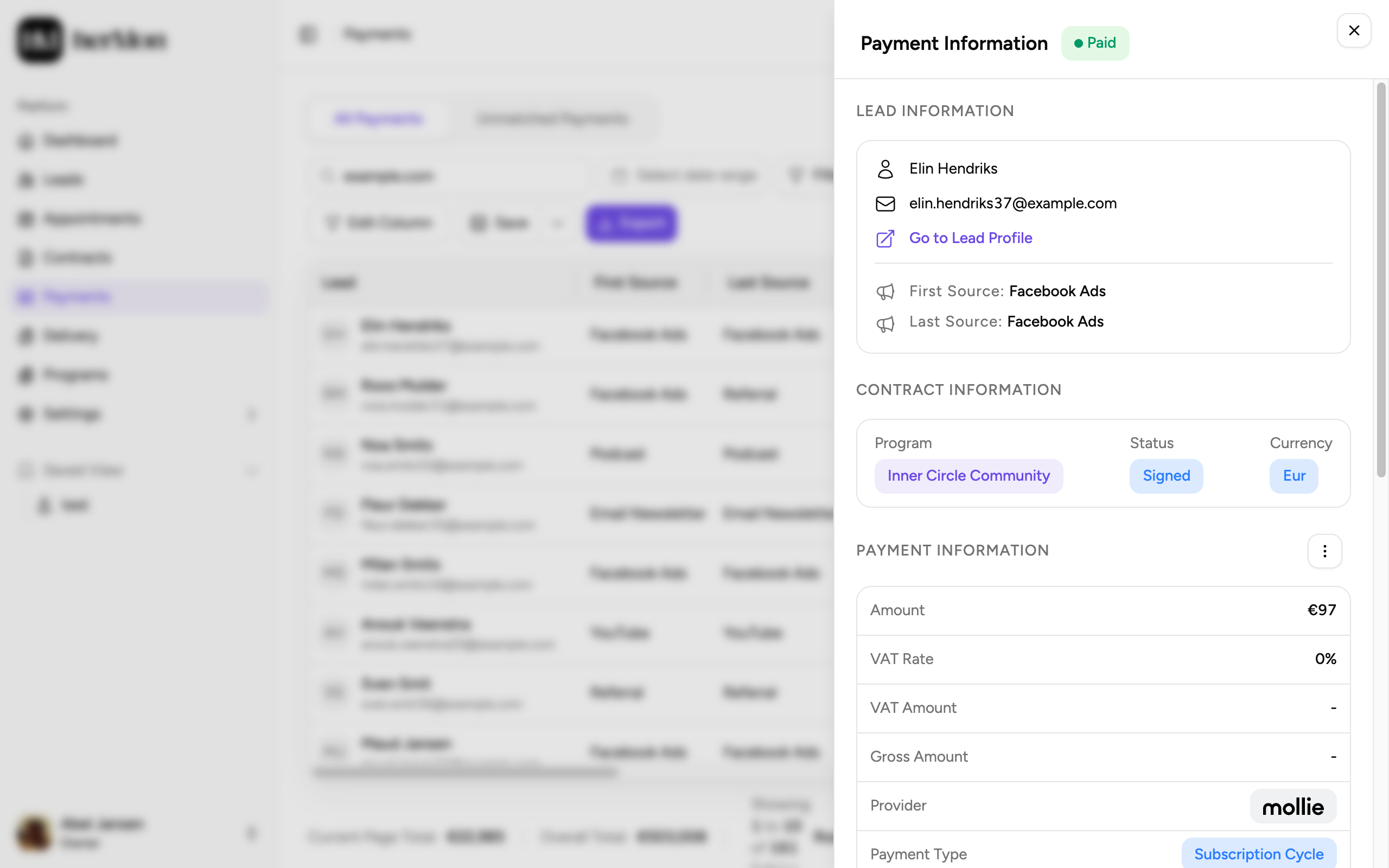
Click a payment to open its detail panel. Refunds are listed there under REFUND INFORMATION.
Delete a draft
Owners and Sales Managers can delete a contract while it is still a Draft: choose Delete from the row menu on the Contracts screen and confirm with Delete Contract. A draft that already has a paid, lost or refunded payment cannot be deleted. Void it instead.
Good to know
Update is missing. It is hidden on voided contracts and on subscriptions that are active or cancelled.
Marking as paid. For a manual payment you can upload a proof of payment. For an online payment, Owners and Sales Managers enter the payment ID from the provider.
Owner-only actions. Owners can set a payment to any status with Update Status, change the sign date of a signed, withdrawn or voided contract, and delete a voided contract with a reason.
Setters, Triagers and Analysts can view contracts and payments, but not update, void or refund them.