Track Typeform forms
Connect Typeform, choose which forms Hermon follows, and bring in the responses you already have.
If people apply or opt in through a Typeform, Hermon can collect those responses and turn them into leads. You connect your Typeform account once and then choose, per form, whether Hermon should follow it.
Hermon only listens to the forms you track. A new form in Typeform is not followed until you add it here.
Before you start
You need the Owner role in Hermon and a Typeform account that can create a personal access token.
Connect Typeform
Create a token in Typeform
In Typeform, open the menu next to your username in the upper left corner and click Account. Open Personal tokens and click Generate a new token. Give it a name, choose the scopes, click Generate token and copy the token.
Open Providers in Hermon
Click Settings, then Providers, and find the Typeform card.
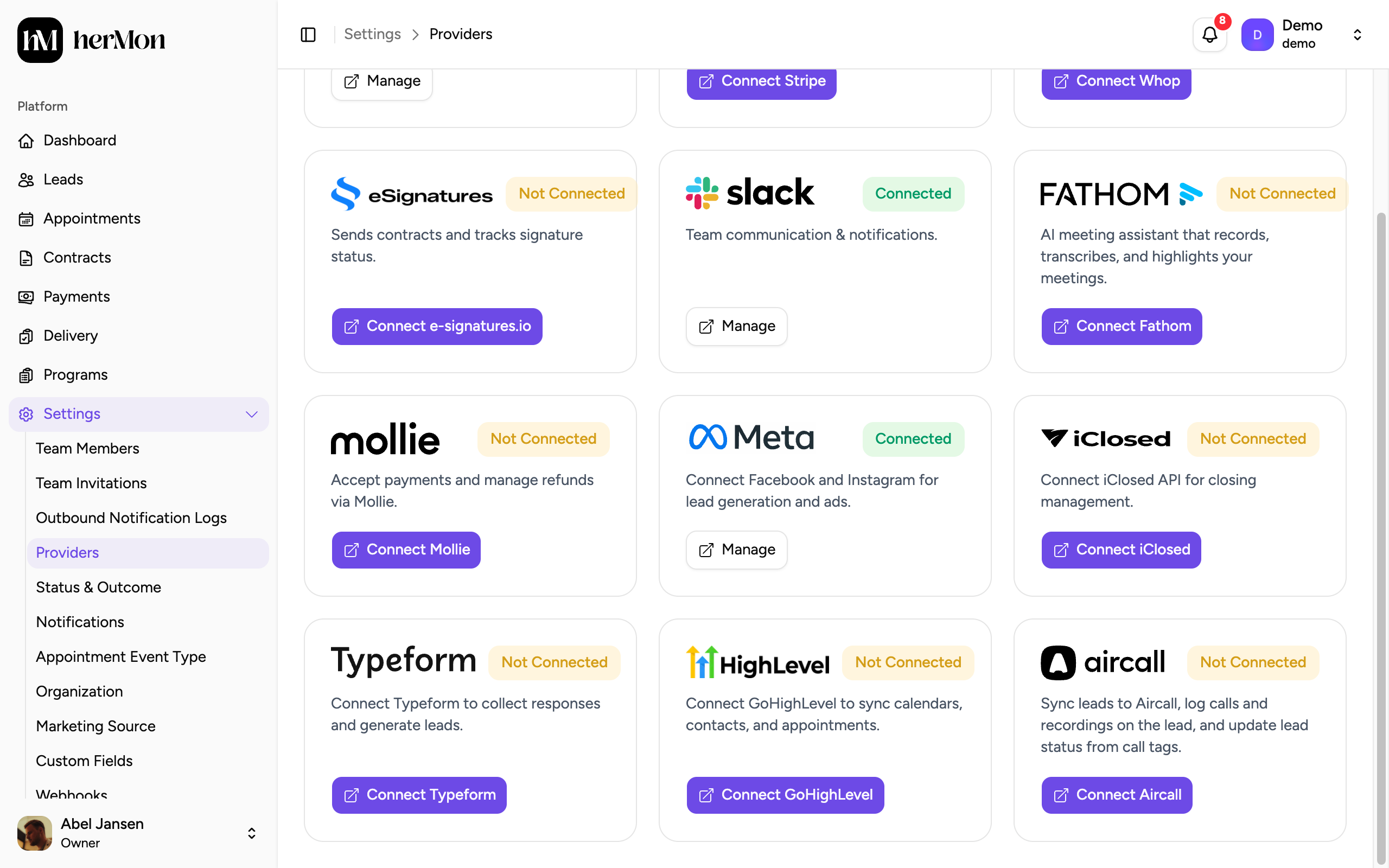
Click Connect Typeform
A panel opens with the same instructions and links to the right pages in Typeform.
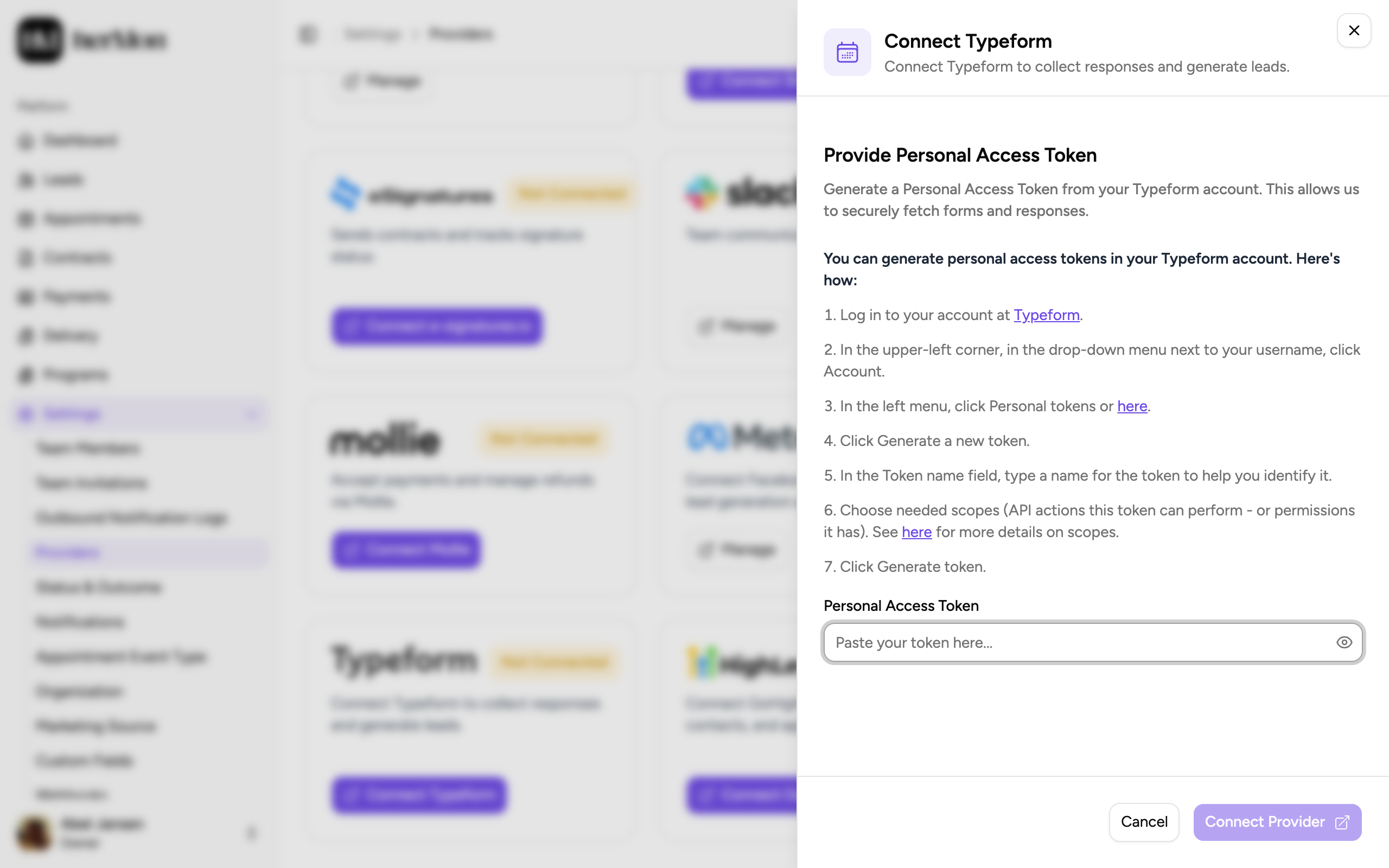
Paste the token
Paste it in Personal Access Token. Click the eye icon if you want to check what you pasted.
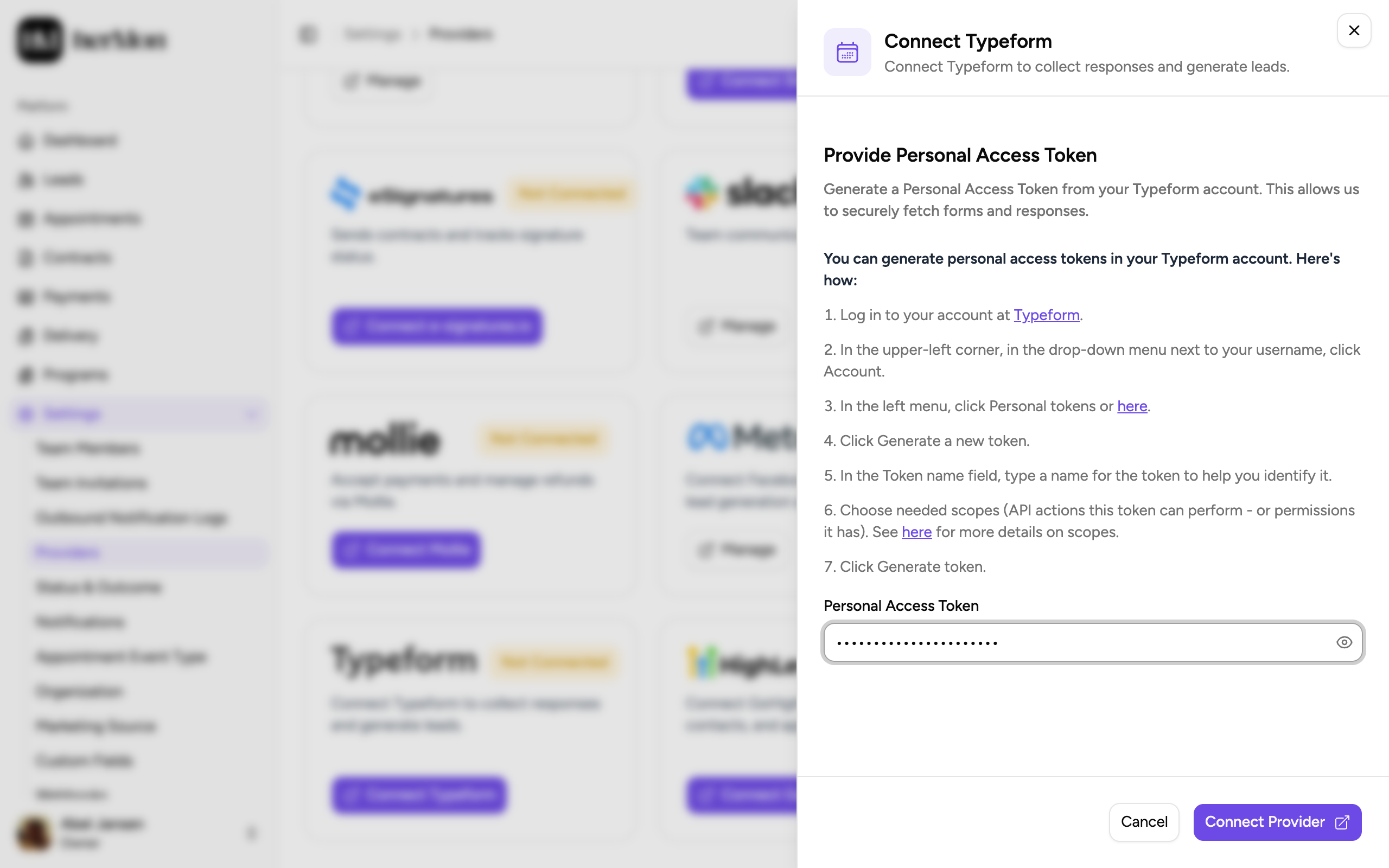
1. Paste the token here. 2. Connect. Click Connect Provider
The Typeform card shows Connected and its button changes to Manage. Hermon loads your Typeform workspaces right away.
Choose the forms to track
Open the Typeform panel
Click Manage on the Typeform card. The Tracked Forms table is empty the first time.
Open your workspaces
Click See all workspaces. Each Typeform workspace is a card with its number of forms. Click Sync Workspaces if a workspace is missing.
Open a workspace
Click the workspace that holds your form. A workspace without forms cannot be opened. Click Sync Workspace if a new form is not listed yet.
Tick the forms
Tick each form you want to follow and click Set Tracked Forms.
Decide on backfill
In Configure Tracked Forms, set Backfill per form. True also brings in the responses the form already has. False only follows new responses.
Click Save
The forms now show Tracked and appear in the Tracked Forms table of the Typeform panel.
Connect
paste your token
Sync
workspaces and forms load
Track
tick the forms
Backfill
optional import of earlier responses
Live
new responses arrive
Follow the backfill
Open the workspace again to see how the import is going. Each form has a Backfill Status and, once it is done, an Import Completed time. If a backfill fails, the reason is in the Backfill Error column and a Retry button appears next to the status.
The Tracked Forms table in the Typeform panel shows the same in short: the form, its workspace, whether the Webhook is Active, the backfill status and when the form was Last Synced.
Stop tracking a form
Open the workspace
Click Manage on the Typeform card, then See all workspaces, then the workspace of the form.
Choose Untrack Form
Open the menu at the end of the row and choose Untrack Form.
Confirm
Click Untrack. Hermon stops receiving responses from this form.
You do not have to set up anything inside Typeform apart from the token. Hermon adds the link to each form when you track it and switches it off again when you untrack the form.
Good to know
The checkbox of a form is greyed out. That form is already tracked. Untrack it first if you want to set it up again.
Can Backfill says No. Earlier responses of that form cannot be imported. New responses still come in once the form is tracked.
The token is rejected. It was probably copied incompletely. Generate a new token in Typeform and try again. Connect Provider stays greyed out as long as the field is empty.
Disconnecting Typeform. Open Manage and click Disconnect at the bottom of the panel. You can reconnect later.
Only Owners can open Providers. For the other integrations, see Invite your team and connect integrations.