Set up delivery and task statuses
Rename, recolour and add the statuses your delivery team uses for deliveries and for tasks, and choose which one is the primary status.
Deliveries and tasks each have their own list of statuses. Hermon gives you a working set to start with. You can rename them, change their colours and add your own, so the Delivery board and the task board use the words your team uses.
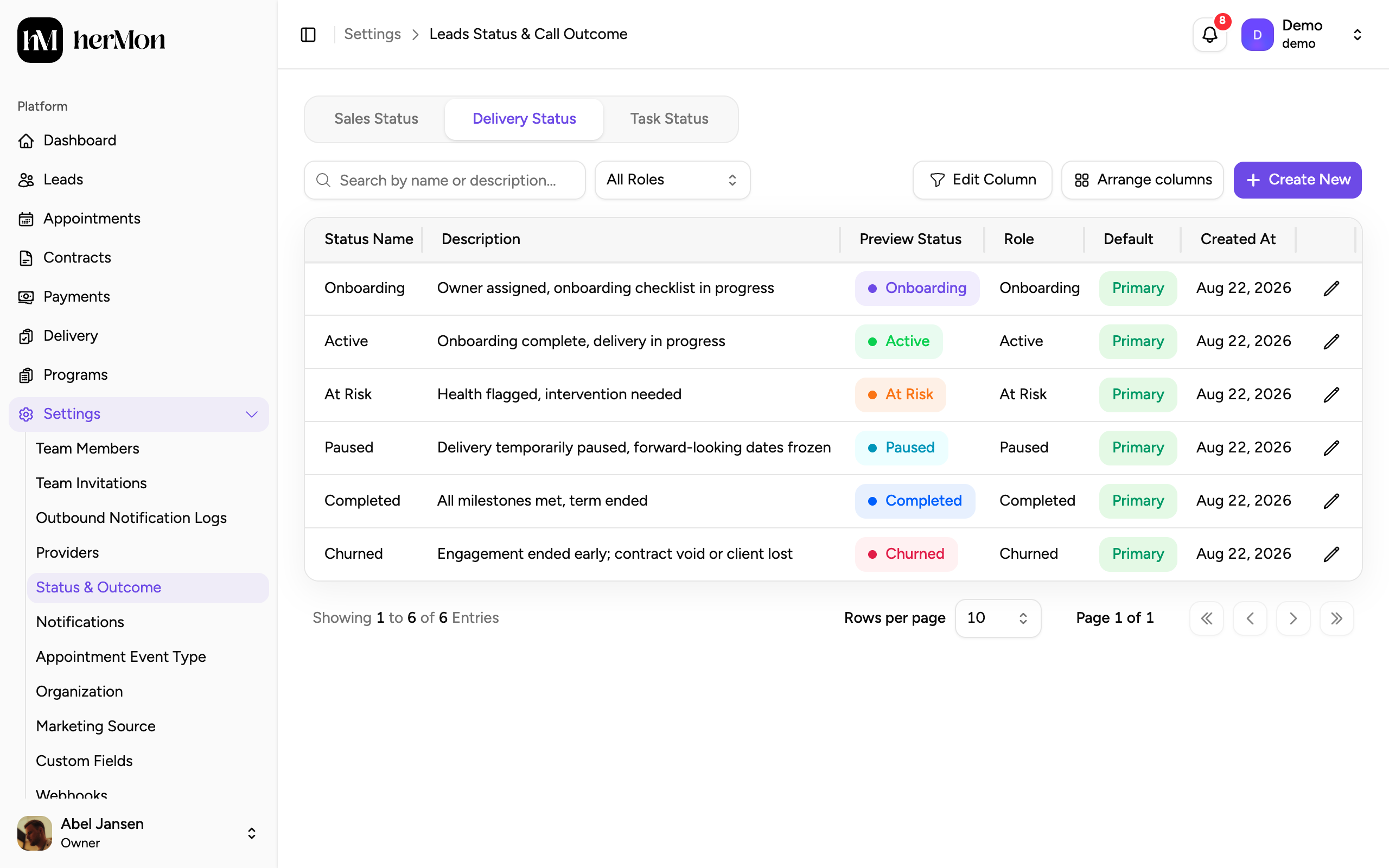
You manage both lists under Settings, then Status & Outcome, on the tabs Delivery Status and Task Status. Engagement statuses are called delivery statuses in the app.
Owners and Delivery Managers can create and edit these statuses. Delivery Reps can open both tabs to read them. Other roles do not see the two tabs.
How statuses work
Every status has a role. The role is the fixed meaning behind the name, and Hermon uses it for its rules. You can have several statuses with the same role, for example "Active" and "Active - VIP".
| List | Roles | What you start with |
|---|---|---|
| Delivery Status | Onboarding, Active, At Risk, Paused, Completed, Churned | One status per role, with the same name as the role |
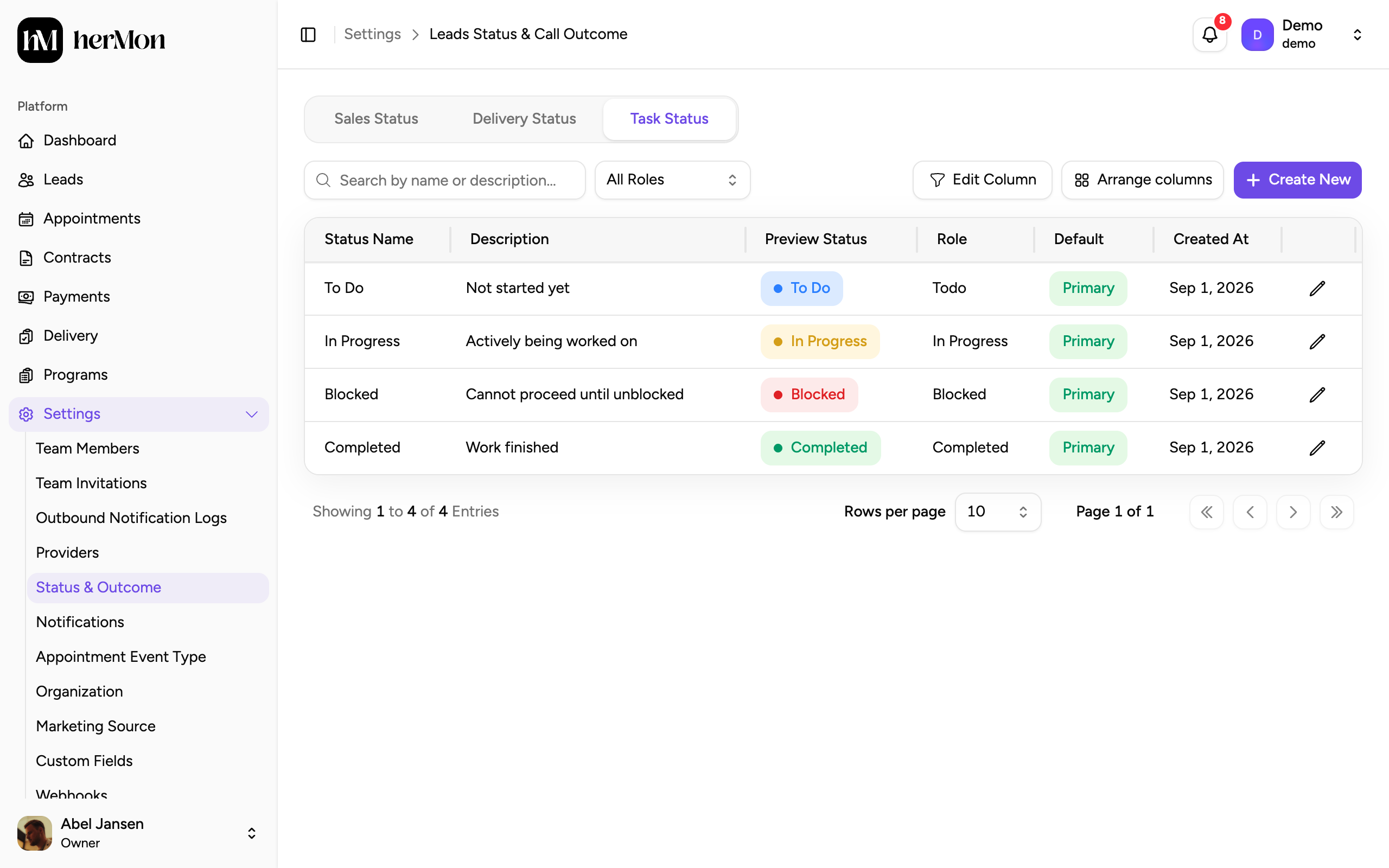
| Task Status | To Do, In Progress, Blocked, Completed | To Do, In Progress, Blocked and Completed |
Within each role, exactly one status is the Primary one. The others are Secondary. Hermon uses the primary status whenever it sets a status by itself:
- a new delivery gets the primary Onboarding status,
- a delivery whose onboarding steps are all done moves to the primary Active status,
- a new task gets the primary To Do status.
Create a status
Open the right tab
Go to Settings, then Status & Outcome. Click Delivery Status for deliveries or Task Status for tasks.
Start a new status
Click Create New.
Name it and choose the role
Enter a Name of 2 to 50 characters and pick the Role it belongs to. A short Description helps your team know when to use it.
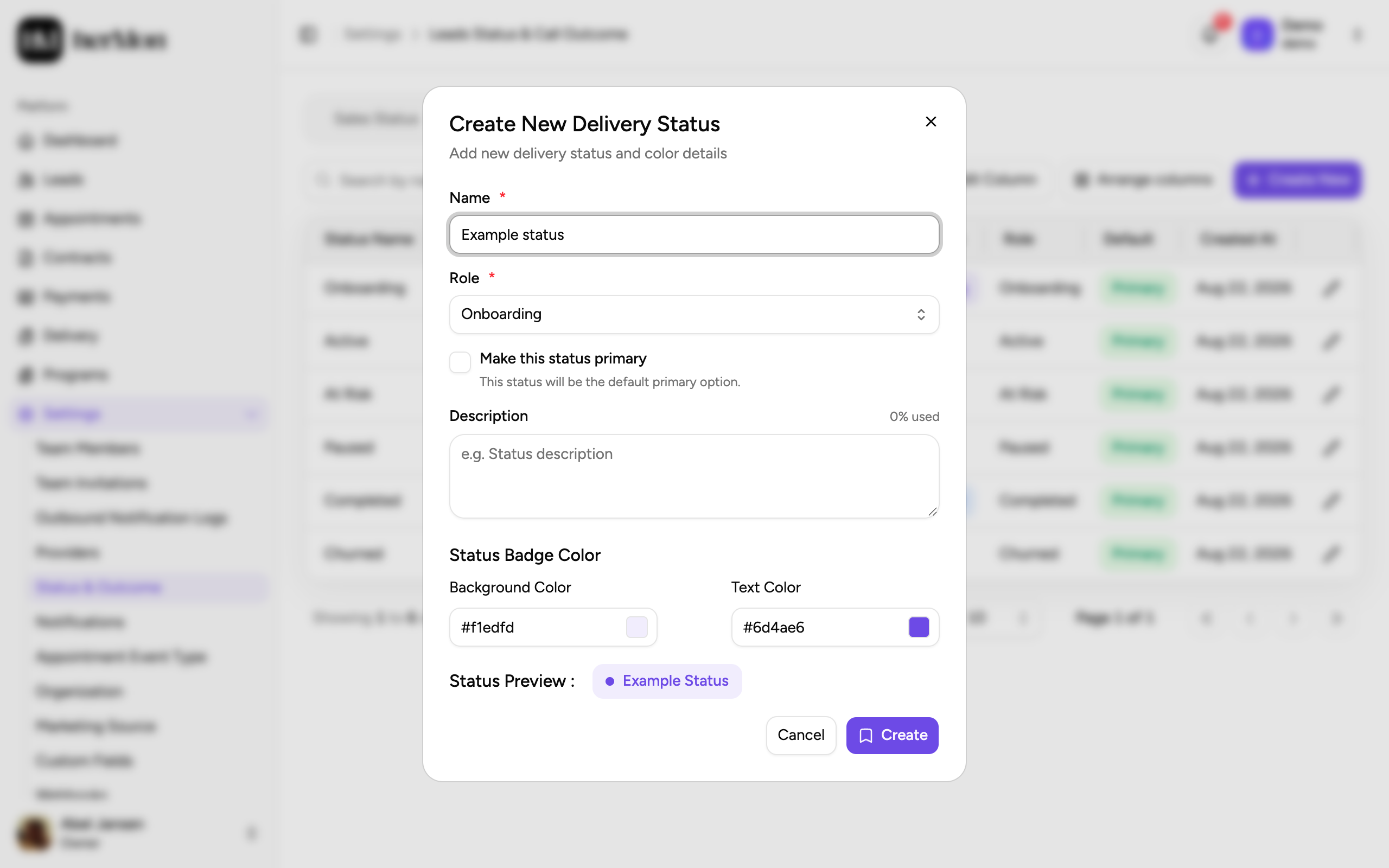
1. The role decides how Hermon treats the status. 2. Make it the default for that role. Pick the colours
Under Status Badge Color, set the Background Color and Text Color. Type a colour code or click the swatch. The Status Preview shows the result.
Decide if it is the primary status
Tick Make this status primary if this should become the default status for its role. Click Create.
Edit a status
Click a row, or the pencil at the end of it, to open the status. Change the name, description, colours or the primary setting and click Update. Deliveries and tasks that use the status show the new name and colours straight away.
The Role of an existing status cannot be changed, and statuses cannot be deleted. If you no longer want a status, rename it or hide its column on the board.
Change the primary status
Open the status that should become the default for its role, tick Make this status primary and click Update. The status that was primary before becomes secondary.
A role always keeps one primary status. If you untick the box on the current primary, another status with the same role takes over. When it is the only status with that role, Hermon refuses the change. Create a second status for the role first.
Arrange the board columns
Each status is a column on the board: delivery statuses on the Delivery board, task statuses on the task board inside a delivery.
Open the dialog
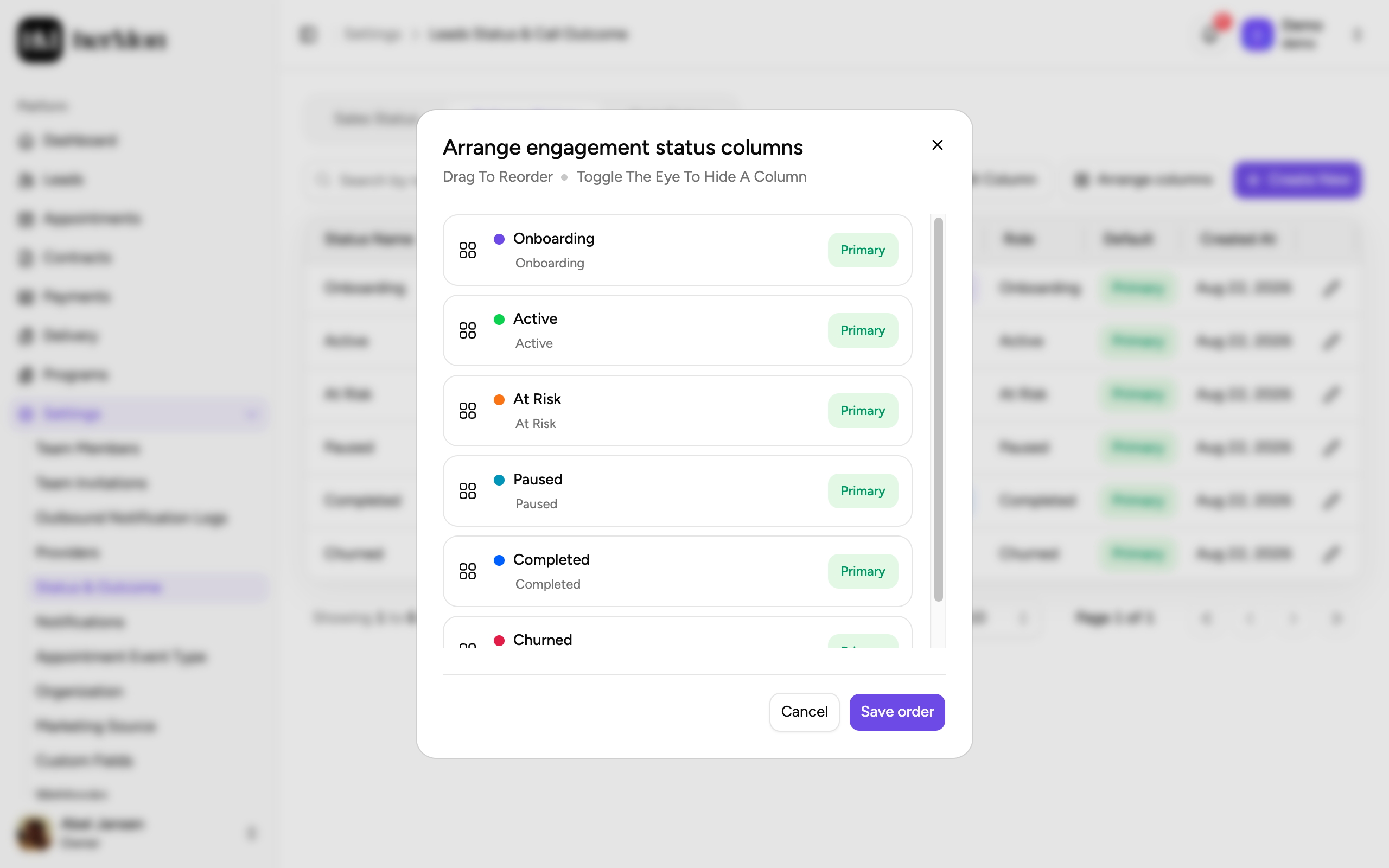
On the Delivery Status or Task Status tab, click Arrange columns.
Reorder and hide
Drag a status to change its position. Click the eye to hide a column you do not use.
Save
Click Save order.
Primary statuses cannot be hidden, and a board always keeps at least one visible column.
Task statuses
The Task Status tab works the same way as the Delivery Status tab: the same columns, the same Create New dialog and the same rules for the primary status.
Good to know
Names must be unique. Two delivery statuses cannot have the same name, and neither can two task statuses. Capital letters do not make a difference.
The first status of a role is always primary. If a role has no status yet, the one you create becomes its primary status, whether you tick the box or not.
The role limits the next step. When you change the status of a delivery, Hermon only offers statuses whose role is allowed after the current one. A Paused delivery, for example, can only go to Active or Churned. See Work inside an engagement.
Pausing. You do not pick a Paused status by hand. Use Pause Delivery on the delivery page and Hermon sets the status for you.
Finding a status. Use the search box and the All Roles filter above the table. The Default column shows which status is primary.
Sales statuses for leads and appointments live on the Sales Status tab of the same screen.