Understand roles and permissions
Choose the right role for each team member and know what every role can see and do in Hermon.
Every team member has exactly one role. The role decides which screens appear in the sidebar, whether someone sees the whole team's numbers or only their own, and which actions are available.
Hermon has eight roles. Five are for the sales side, two for delivery after the sale, and one is a view-only role.
The eight roles
In the app, some roles are written slightly differently: Sales Reps, Sales Setter and Delivery Reps.
| Role | Give it to | In short |
|---|---|---|
| Owner | The business owner or the person who runs the workspace | Sees and can do everything, including integrations, organization settings and roles |
| Sales Manager | The person who leads the sales team | Whole sales team, plus team, marketing sources, custom fields and webhooks |
| Sales Rep | Closers who take sales calls | Leads, calls, contracts and payments. Dashboard shows their own records. |
| Setter | People who book calls for closers | Same screens as a Sales Rep. Dashboard shows their own records. |
| Triager | People who take triage calls before the sales call | Same screens as a Sales Rep. Dashboard shows their own records. |
| Delivery Manager | The person who leads client delivery | Delivery, programs and appointments. No leads, contracts or payments. |
| Delivery Rep | Coaches and client success staff | Delivery and appointments only |
| Analyst | A bookkeeper, advisor or anyone who only needs to look | Can view the sales and delivery screens, cannot change anything, no Settings |
Which screens each role sees
| Screen | Roles |
|---|---|
| Dashboard, Appointments | All roles |
| Leads, Contracts, Payments | Owner, Sales Manager, Sales Rep, Setter, Triager, Analyst |
| Delivery | Owner, Delivery Manager, Delivery Rep, Analyst |
| Programs | Owner, Delivery Manager, Analyst |
Under Settings:
| Settings item | Roles |
|---|---|
| Status & Outcome, Notifications | All roles except Analyst |
| Team Members, Team Invitations, Custom Fields, Appointment Event Type | Owner, Sales Manager, Delivery Manager |
| Outbound Notification Logs, Marketing Source, Webhooks | Owner, Sales Manager |
| Providers, Organization | Owner only |
What differs inside a screen
Two roles can open the same screen and still see different things.
| Action | Who can do it |
|---|---|
| Filter the dashboard by team member | Owner, Sales Manager, Analyst. Sales Reps, Setters and Triagers see their own records. |
| Create and edit leads, book calls, log outcomes | Owner, Sales Manager, Sales Rep, Setter, Triager |
| Create contracts and record payments | Owner, Sales Manager, Sales Rep, Setter, Triager |
| Delete or merge leads | Owner, Sales Manager |
| Change a lead's First Source and Last Source by hand | Owner, Sales Manager |
| Add and edit sales statuses | Owner, Sales Manager |
| Connect integrations, set currency and timezone, manage the API key | Owner |
| Change someone's role, archive a team member | Owner |
Who can invite whom
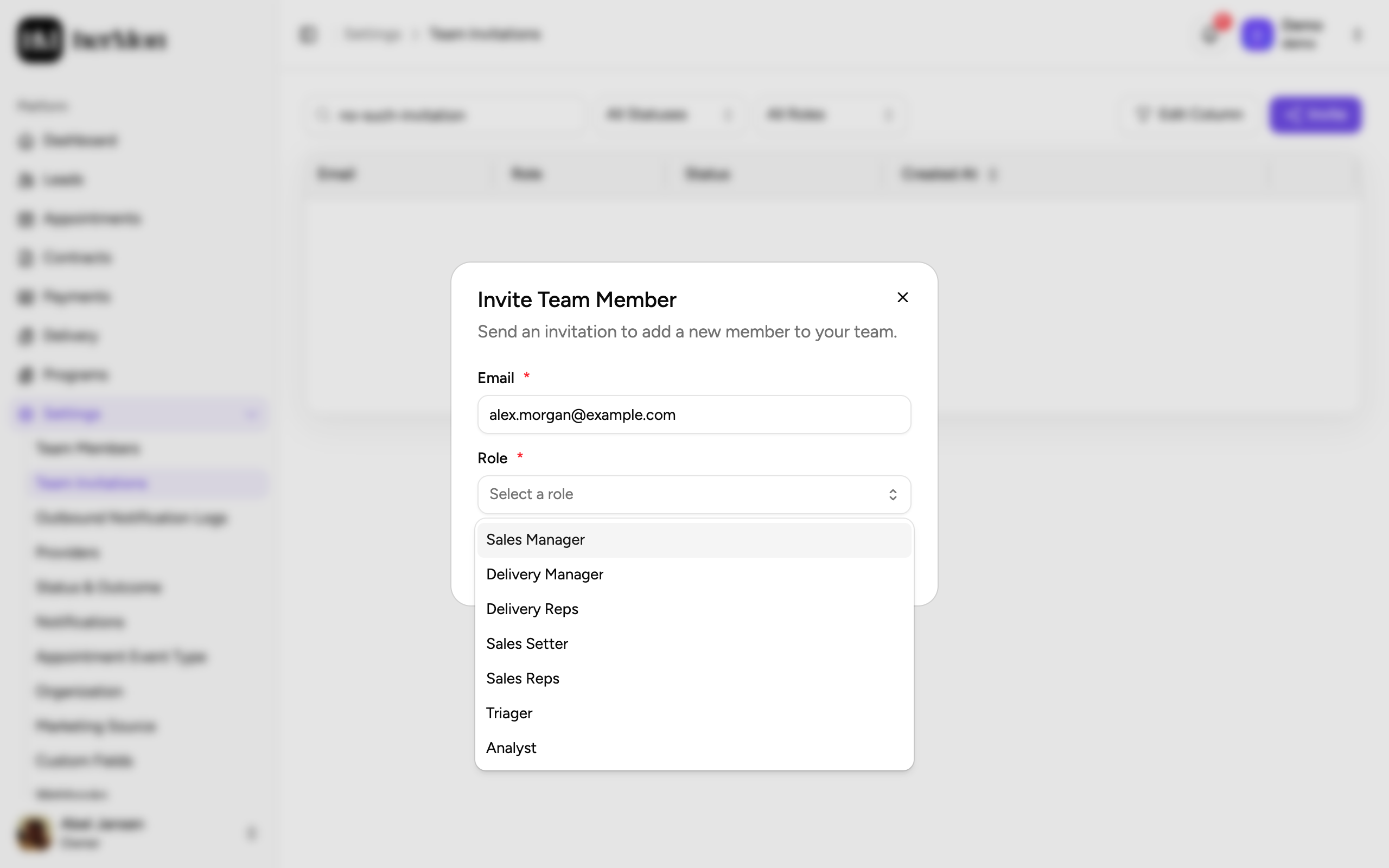
Invitations are sent from Settings, then Team Invitations. The roles you can pick depend on your own role. The steps are in Invite your team and connect integrations.
| You are | You can invite |
|---|---|
| Owner | Sales Manager, Sales Rep, Setter, Triager, Delivery Manager, Delivery Rep, Analyst |
| Sales Manager | Sales Rep, Setter, Triager |
| Delivery Manager | Delivery Rep |
Change someone's role
Only an Owner can change a role after someone has joined.
Open Team Members
Click Settings in the left sidebar, then Team Members.
Find the person
Search by name or email, or use the role filter.
Pick the new role
Click the dropdown in the Role column and choose the new role. You see Role updated successfully when it is saved.
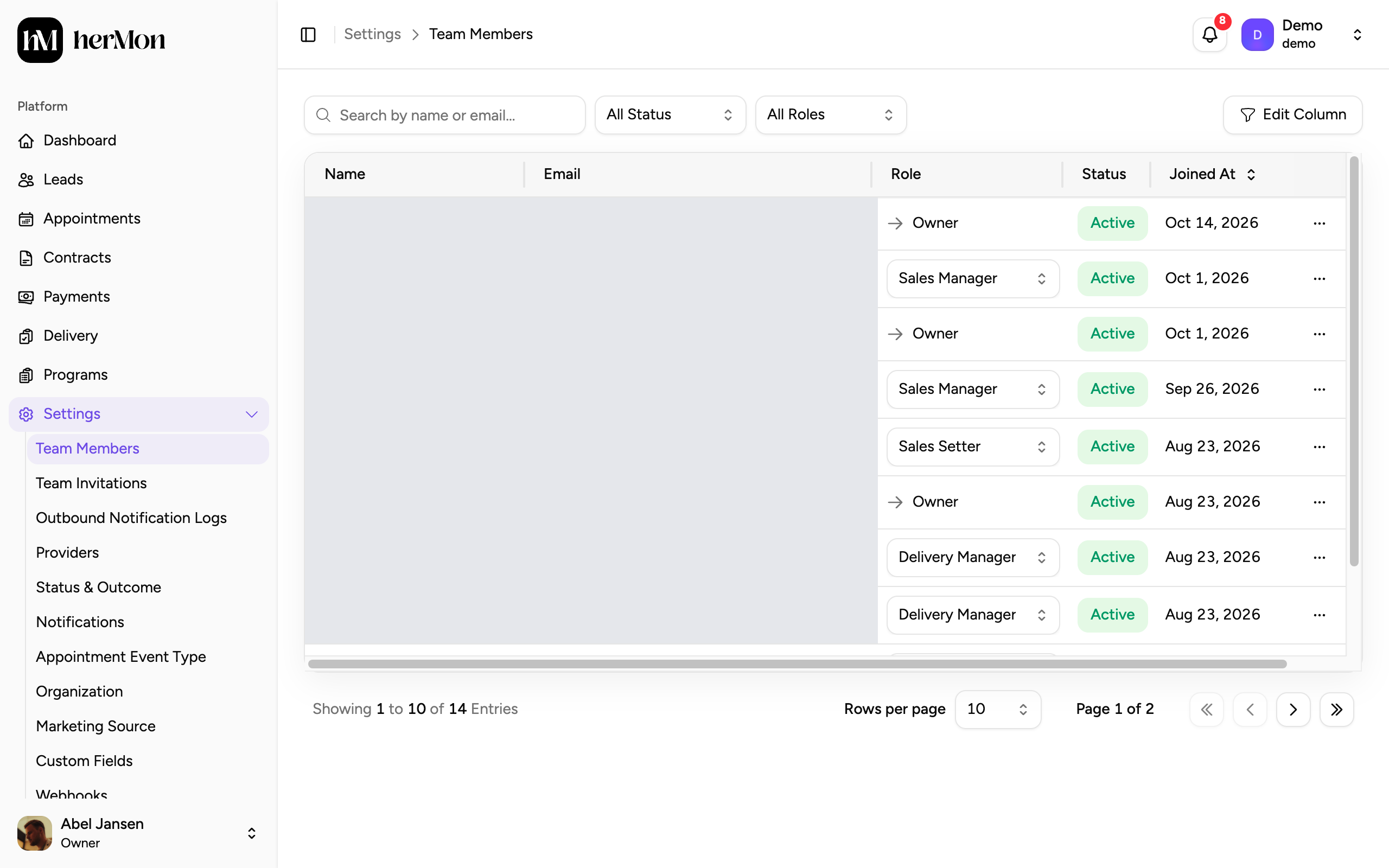
1. The Role column. Owners see a dropdown here.
A role change is saved the moment you pick it. There is no confirmation step, so check that you are on the right row.
Good to know
You cannot change your own role, and the role of another Owner cannot be changed from this list. For everyone who is not an Owner, the Role column is plain text.
How to pick a role. Start from what the person does every day. If they take sales calls, choose Sales Rep. If they book calls for others, choose Setter. If they only need to read numbers, choose Analyst. Give Sales Manager or Owner only to people who should see the whole team and change the setup.
Analysts cannot change anything. They can open leads, calls, contracts, payments, delivery and programs, but the buttons to edit are hidden or disabled, and they have no Settings menu.
Delivery roles do not see sales data. Delivery Managers and Delivery Reps cannot open Leads, Contracts or Payments.
Someone left the team? An Owner can choose Archive Member from the row menu in Team Members. The person shows as Inactive and can be unarchived later. Archiving also deletes the saved views of that person.
A menu item is missing. That is the role at work. Ask an Owner to check your role in Team Members.