Create and manage programs
Set up the offers you sell, with their price, payment type and contract template, and keep the list tidy by editing and archiving.
A program is an offer you sell: a coaching trajectory, a membership or a commission-based offer. Every contract is created from a program, so the program decides the price, the contract template and whether a delivery is started for the client after signing.
You find programs under Programs in the left sidebar. The list of programs is on the left, the details of the selected program on the right.
Only an Owner can create, change, reorder and archive programs. Delivery Managers and Analysts can open the screen and read the details, but the fields are locked for them.
Before you start
- Set your default currency under Settings, then Organization. Program prices use that currency. See Set up your workspace.
- To pick a Contract Template, your e-signature provider must be connected. Without it the dropdown is disabled and a warning icon appears next to the label. See Invite your team and connect integrations.
Create a program
Open the Programs screen
Click Programs in the left sidebar, then click the plus button next to the search box.
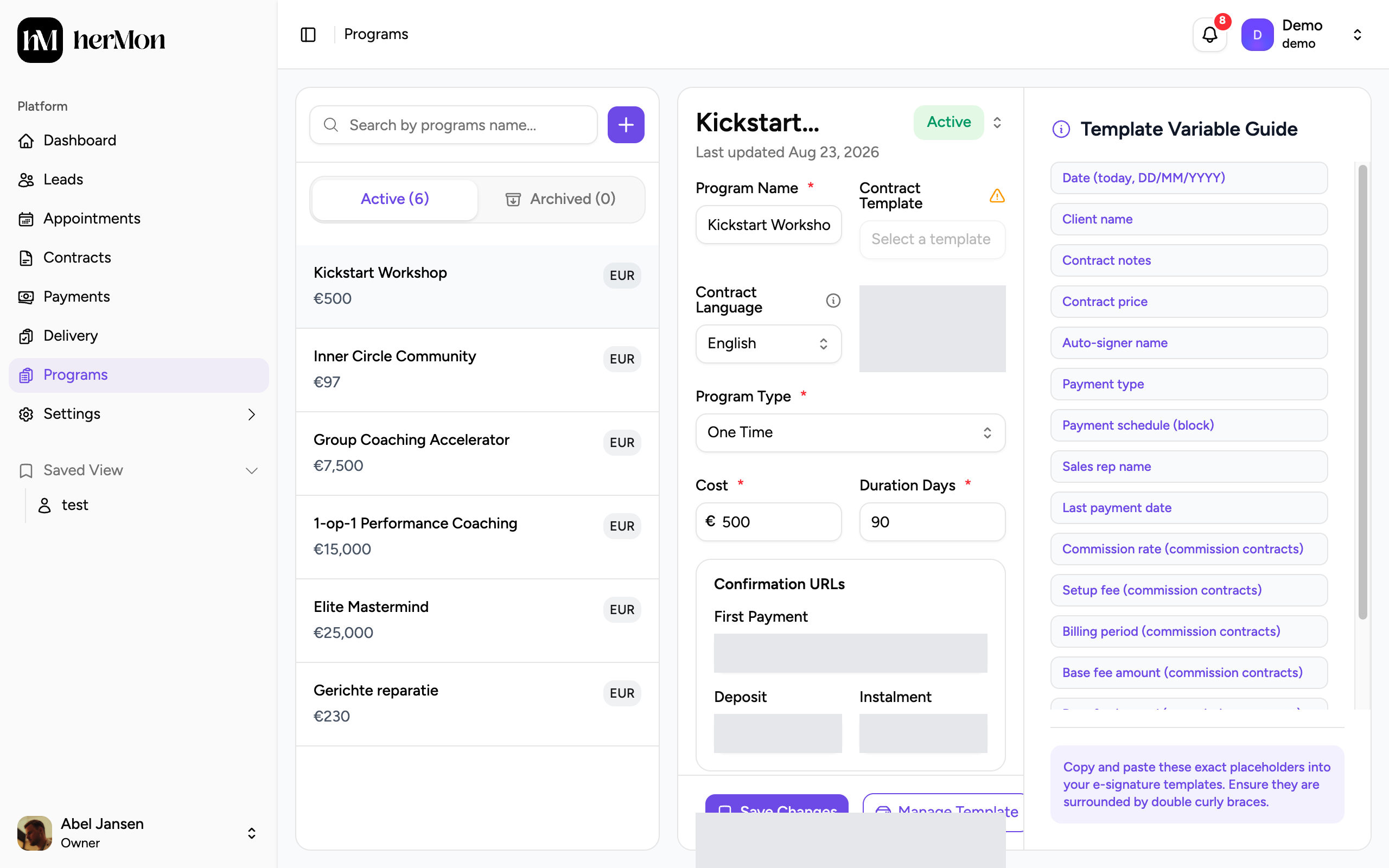
1. Create a program. 2. Active and archived programs. 3. Save your edits. Name the program and choose the contract settings
Enter a Program Name of 3 to 40 characters. Pick a Contract Template, the Contract Language (English or Dutch) and, if a second person signs on your side, a Co-Signer.
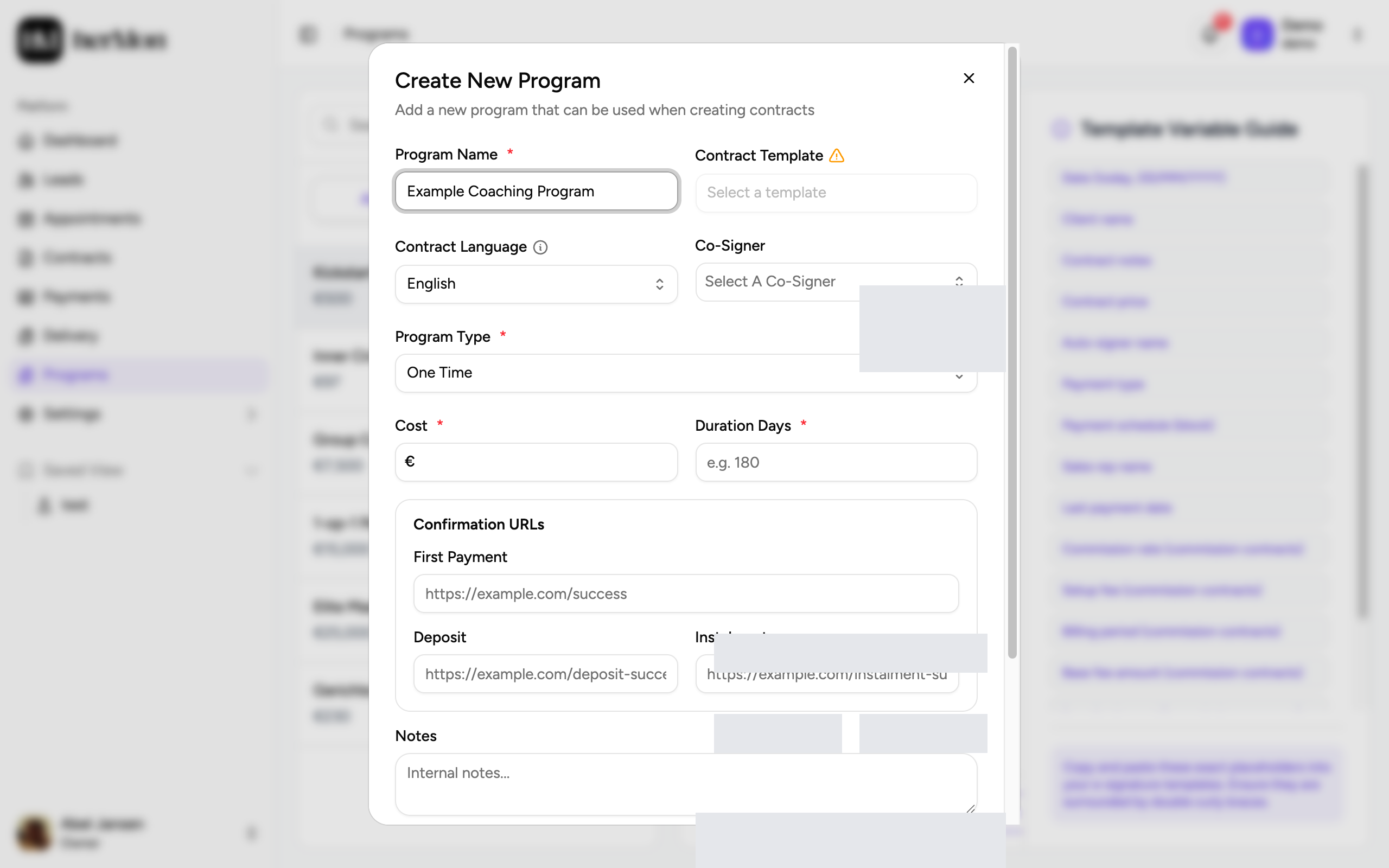
Choose the program type
Pick a Program Type. The fields below it change with your choice.
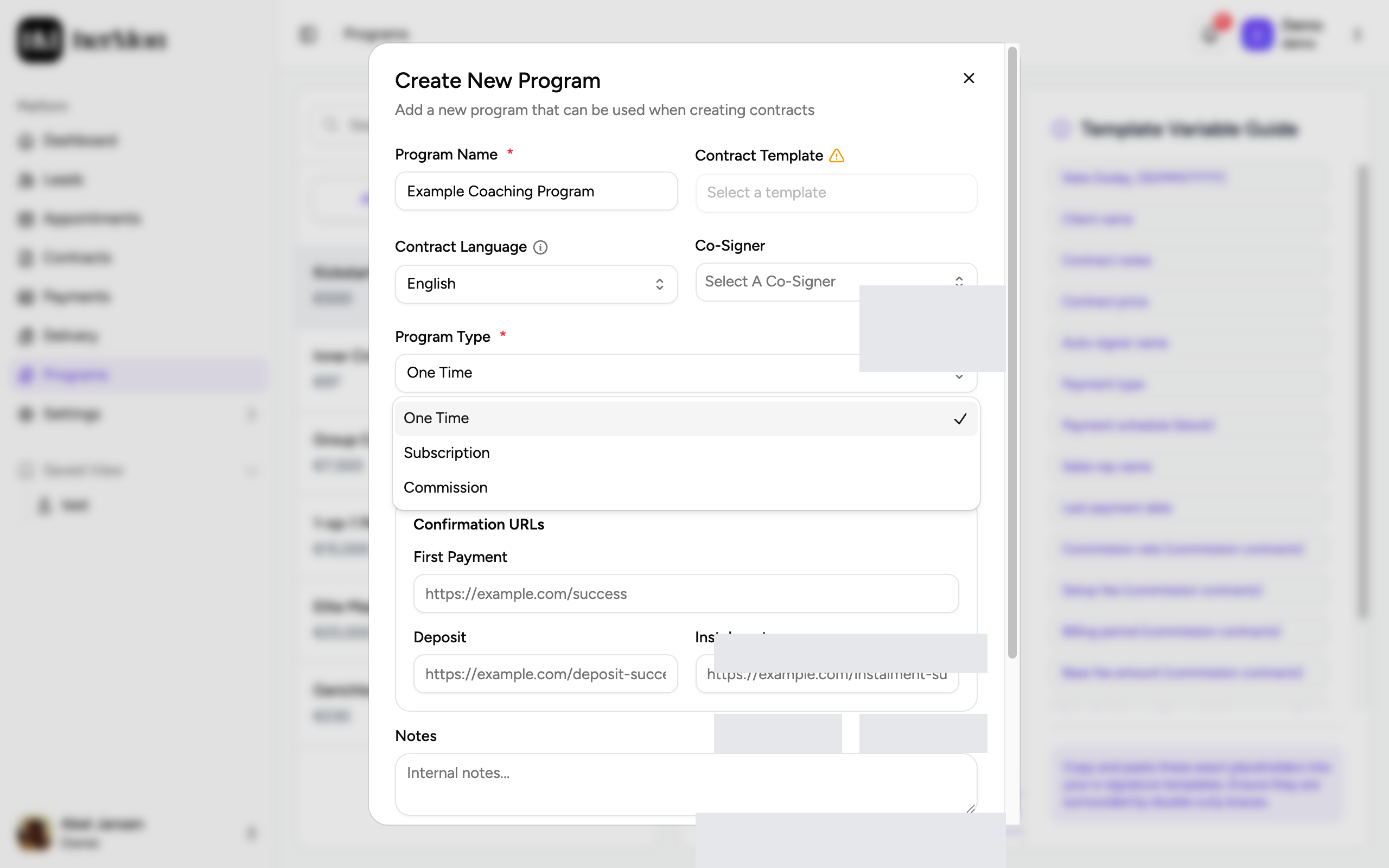
Fill in the price fields
Enter the fields that belong to the type you picked. The table below shows which ones are required.
Set the options and save
Optionally add Confirmation URLs (the page a client lands on after paying, starting with
https://) and internal Notes. Tick the checkboxes you need, then click Create & Active Program. The new program opens on the right and can be used in contracts straight away.
Program types
| Program Type | Use it for | Required fields |
|---|---|---|
| One Time | A fixed price for a fixed period, paid in full or in instalments | Cost, Duration Days |
| Subscription | A recurring amount with no fixed end | Cost, Billing Cycle |
| Commission | A percentage-based fee, with an optional recurring base fee | Commission Rate (%), Billing Cycle, Duration Days |
For a commission program you can also set a Recurring Base Fee with its own amount and billing cycle. Switch on Ongoing (No end date) or enter the number of cycles it runs.
The three checkboxes
| Checkbox | What it does |
|---|---|
| Send the contract without requiring an initial payment. | The contract goes to the client directly and no upfront payment is requested when you send it. |
| Enable delivery tracking for this program. | A delivery is created for each client who signs, so your delivery team can track status and progress. See Manage delivery engagements. |
| Automatically mark the contract as signed when the First Payment is paid. | For clients who do not work with contracts. No document is created or sent, and the contract counts as signed on the day the first payment is paid. The Contract Template field is switched off. |
Contract templates and variables
The Contract Template dropdown lists the templates from your e-signature provider. Hermon fills in the contract details through placeholders in that template. On a wide screen, the Template Variable Guide on the right lists every placeholder. Click one to copy it, then paste it into your template between double curly braces.
A template can only be linked when it contains the required placeholders. If one is missing, Hermon tells you which when you save.
Edit a program
Click a program in the list, change the fields and click Save Changes. To change the order of the active programs, drag a program up or down in the list.
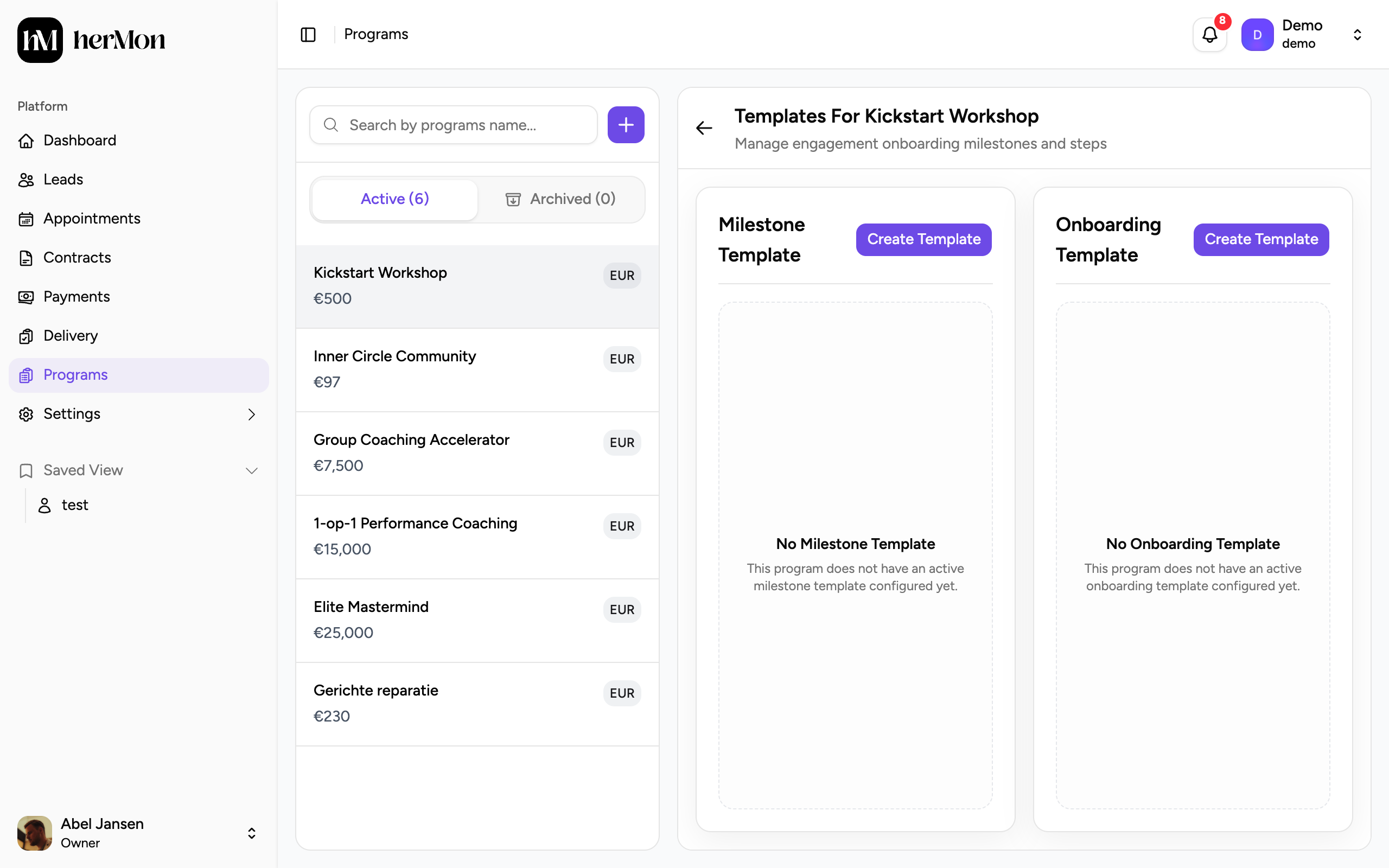
When delivery tracking is on, Manage Template opens the Milestone Template and Onboarding Template for the program. New deliveries start with those milestones and onboarding steps. Delivery Managers can open this page too.
Archive a program
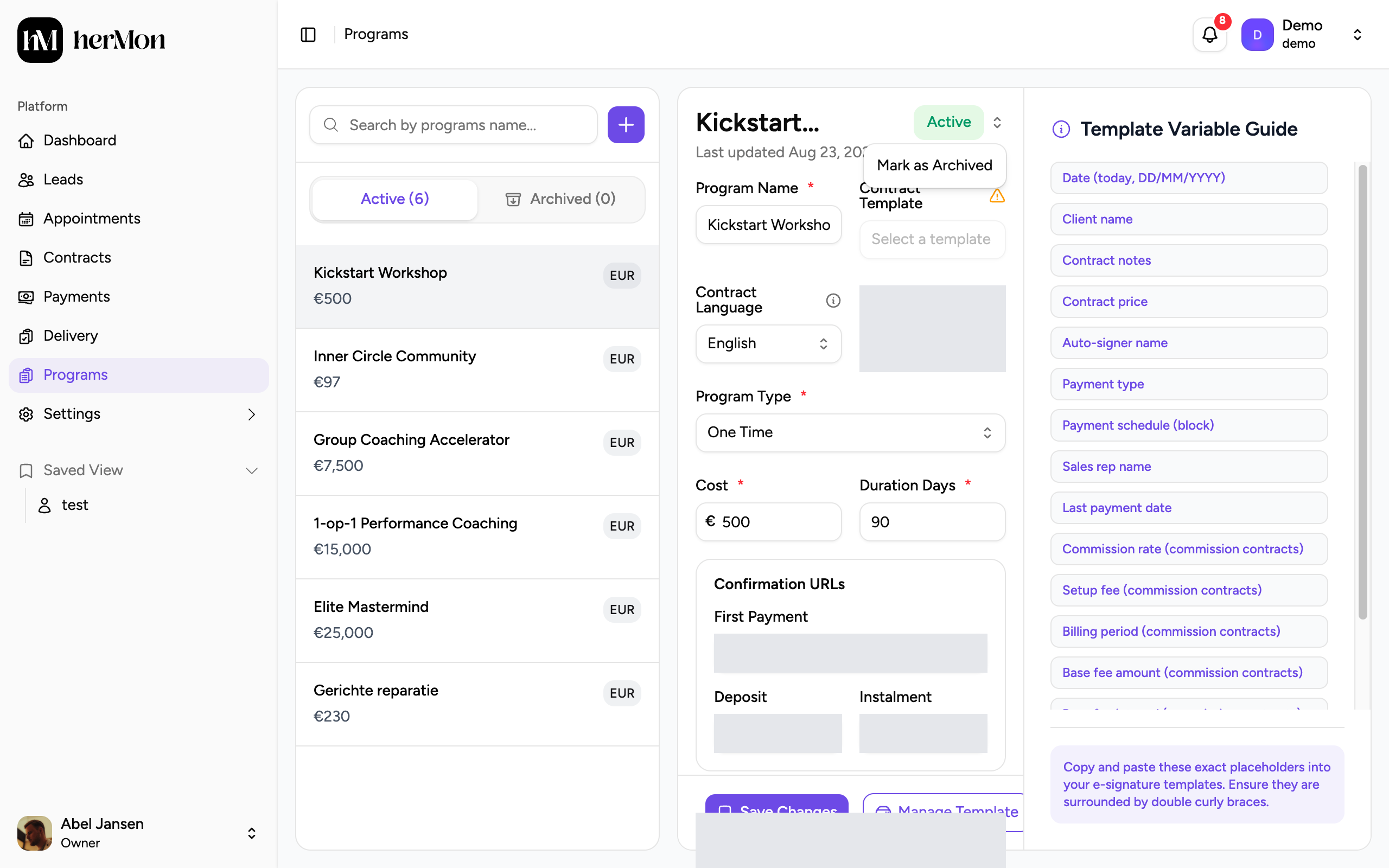
Open the status menu
Select the program and click the Active badge next to its name.
Confirm
Choose Mark as Archived, then click Archive in the dialog. The program moves to the Archived tab.
To bring a program back, open it on the Archived tab, click the Archived badge and choose Mark as Active.
Archiving is safe. An archived program can no longer be chosen for new contracts, existing contracts are not affected, and you can restore the program at any time.
Good to know
Programs cannot be deleted. Archive a program you no longer sell.
Names must be unique. Two active programs cannot share a name. To restore an archived program whose name is in use, rename or archive the other one first.
The program type is fixed once there are contracts. You cannot switch a program to another type after contracts have been created with it. Create a new program instead.
Name rules. A name needs at least one letter and can contain letters, numbers, spaces, hyphens, brackets and the | sign.
Duration. Duration Days must be between 1 and 3650.
Offer Links. For One Time and Subscription programs, an Owner also sees an Offer Links button at the bottom of the details.