Capture opt-ins and track UTMs
Make sure every form submission lands in Hermon with its traffic details, and read where each lead came from.
An opt-in is one form submission by a lead: an application form, a booking form, a webinar sign-up. Hermon keeps every opt-in on the lead, with the answers and the traffic details that came with it. A lead who fills in three forms has one lead record with three opt-ins.
Those traffic details decide the lead's marketing source. That is what lets you see on the dashboard which funnel or ad produced your calls and deals.
How opt-ins arrive
| Route | When it applies | What you do |
|---|---|---|
| Connected tools | Forms and bookings in Calendly, iClosed, GoHighLevel or Typeform | Connect the tool once under Settings, then Providers. See Invite your team and connect integrations. |
| Your own funnel | A landing page or form built outside a connected tool, such as a custom site, Webflow, Framer or Lovable | Have the funnel send each submission to Hermon. See below. |
| By hand | A lead you spoke to elsewhere | Click Create Lead on the Leads screen. See Work with leads and saved views. |
Hermon matches a submission to a lead by email address. A known email adds the opt-in to the existing lead. A new email creates a new lead.
Connecting your own funnel. An Owner creates an API key in the API Key card under Settings, then Organization. Your developer or funnel builder uses that key to send each form submission, with its answers and UTM parameters, to the Hermon opt-in API. Ask them to send a unique reference per submission, so a retry never creates a duplicate. The full instructions are in the developer docs at docs.hermon.io.
See a lead's opt-ins and traffic details
Open the lead
Click Leads in the left sidebar and click the lead.
Open the Opt-ins tab
Click Opt-ins. The number on the tab is the count of submissions. Each card shows the form name, where the submission came from and the date.
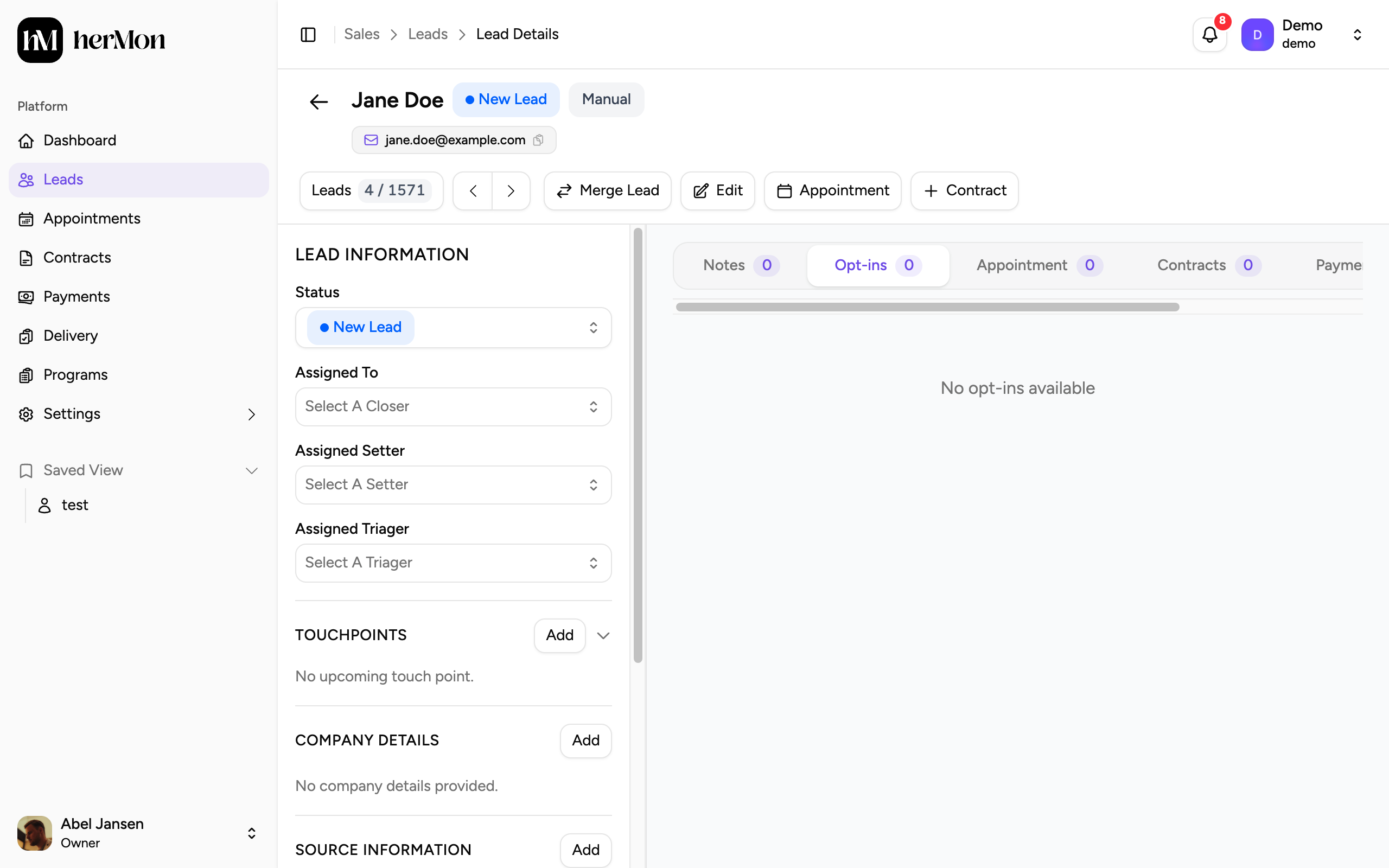
1. The Opt-ins tab. Open one opt-in
Click a card. The panel shows QUESTIONS & ANSWERS with what the lead filled in, and TRAFFIC & MARKETING with the UTM source, medium, campaign, content and term, the referrer and the landing page.
Check the lead's sources
Close the panel and look at Source Information in the left panel of the lead. It shows the First Source, the Last Source and a short Summary.
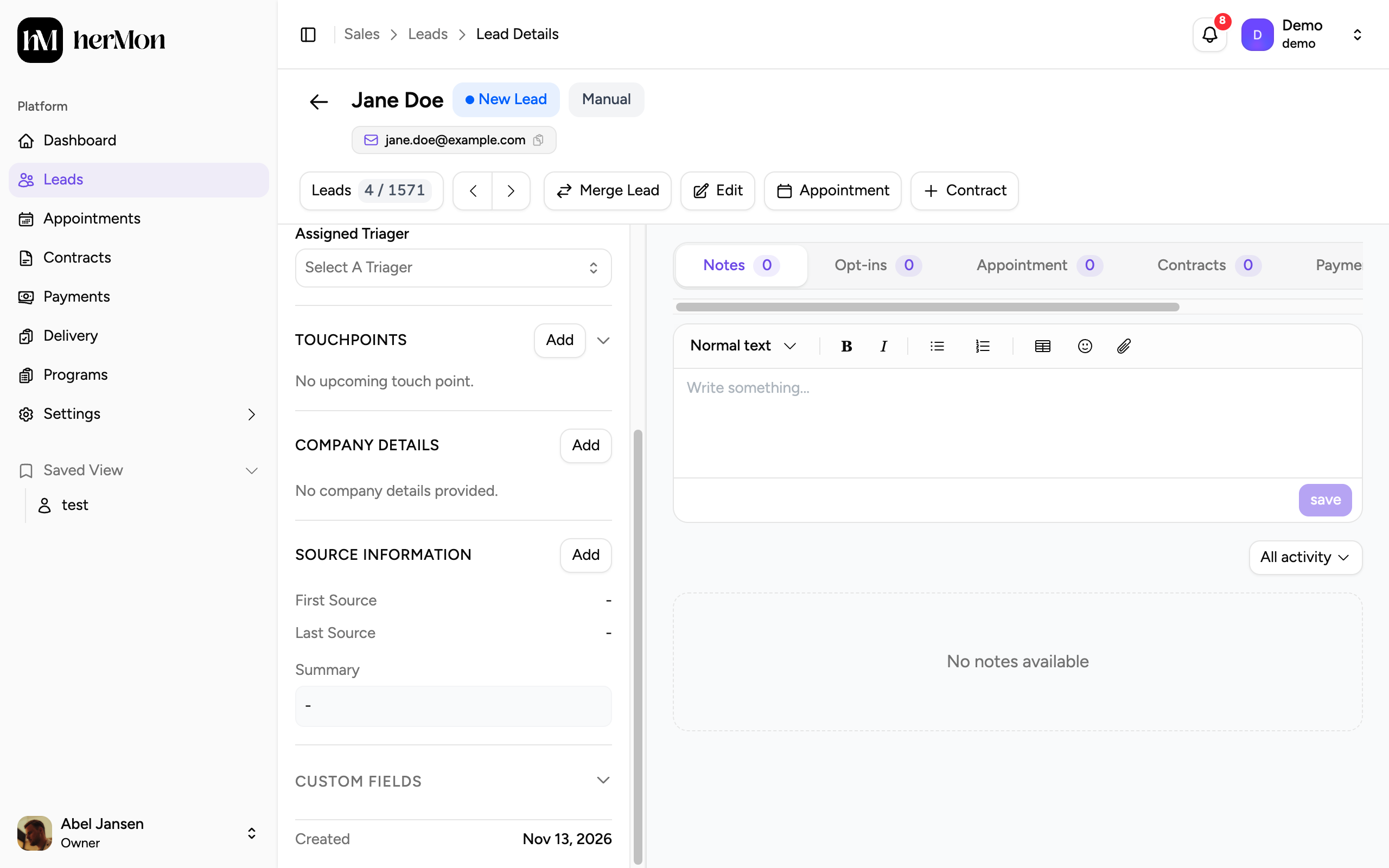
1. First Source. 2. Last Source.
If an opt-in was matched to a Meta ad, the panel also shows Meta Attribution with the campaign, ad set and ad.
First Source and Last Source
When an opt-in arrives, Hermon compares its UTM source with your marketing sources and their aliases. On a match, it updates the lead.
| Field | When it is set | Use it to answer |
|---|---|---|
| First Source | Once, by the first matching opt-in. It does not change after that. | Where did this lead first find us? |
| Last Source | Every time a new matching opt-in arrives | What brought this lead back most recently? |
Only opt-ins move the sources. Booking a call, changing a status or adding a note does not.
Owners and Sales Managers can correct both by hand. Click Update (or Add) next to Source Information, choose the First Source and Last Source, and click Save Changes.
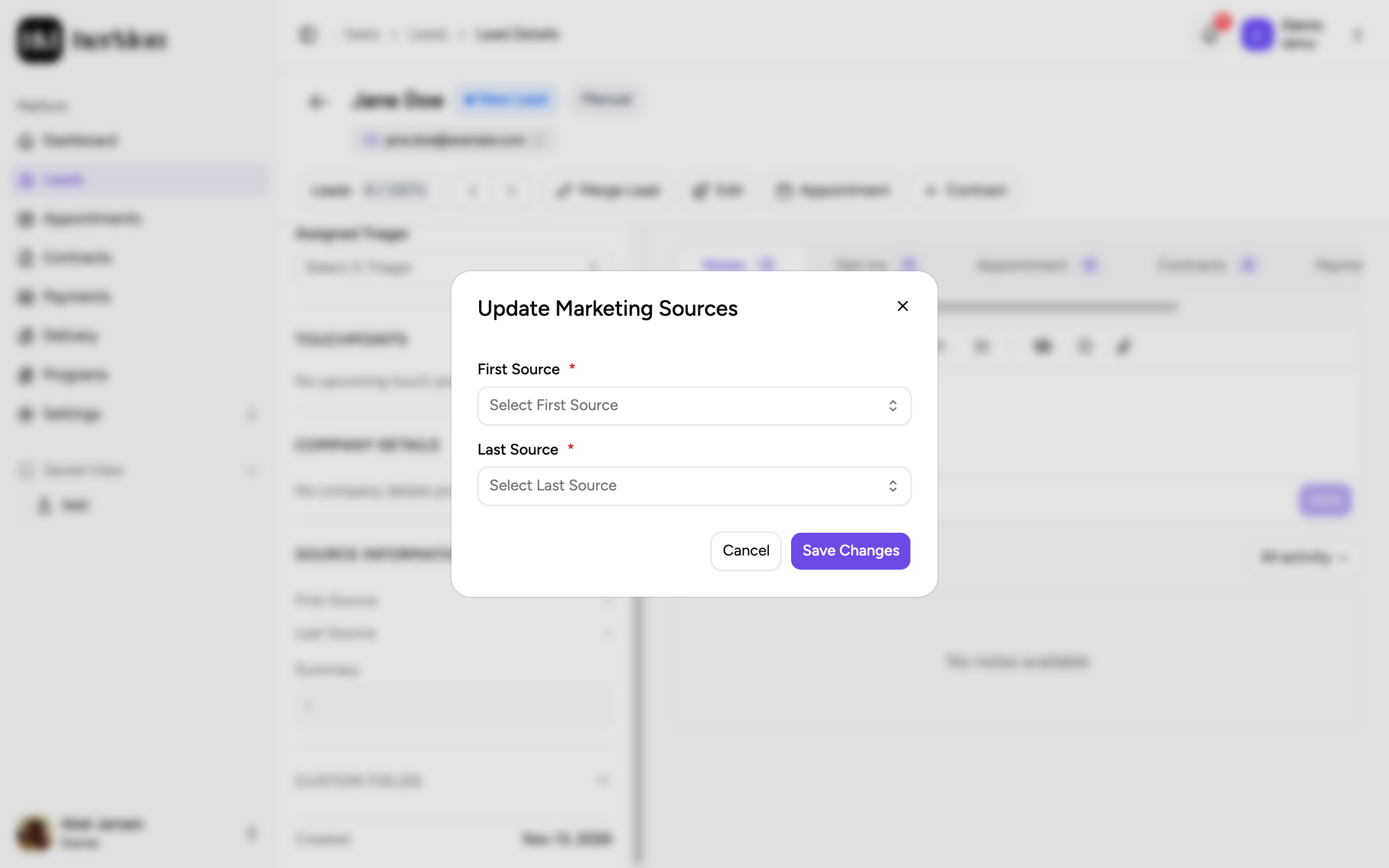
Set up your UTM parameters
A UTM parameter is a tag at the end of a link, such as utm_source=newsletter. Your funnel passes the tags on with the form submission.
For any link. Use a utm_source value that is the name or an alias of one of your marketing sources. See Manage marketing sources.
For Meta ads. Add these five parameters to the URL parameters of every ad. Paste the values with curly braces exactly as shown. Meta fills them in on each click.
| Parameter | Value | Meaning |
|---|---|---|
utm_source | facebook | The traffic comes from Meta |
utm_medium | paid | It is paid advertising |
utm_campaign | {{campaign.name}} | The campaign name |
utm_content | {{adset.name}} | The ad set name |
utm_term | {{ad.name}} | The ad name |
Attribution applies to new opt-ins only. A lead that came in from a paid ad without the campaign parameters cannot be matched to a Meta campaign afterwards, and is left out of the campaign leaderboard.
Good to know
A lead has no source. Either the opt-in had no UTM source, or the value does not match any marketing source or alias. Add the value as an alias, or set the source by hand.
The Last Source changed and I did not expect it. The lead filled in another form with a different UTM source. A lead who first came from a paid funnel and later opts in through a setter's link moves to the setter's source. Filter on First Source when you want a stable picture.
Connected tools pass UTMs on by themselves, as long as the tags are on the link the lead clicked. A custom funnel must forward them with each submission.