Manage subscriptions
Create subscription and commission contracts, get the client onto a checkout link, follow the billing cycles and cancel a subscription when it ends.
Not every offer has a fixed price. A membership is billed every month until the client stops, and a commission deal pays you a share of results. Hermon has a contract type for each: Subscription and Commission.
This article builds on Create a contract and record payments.
How they differ from one-time contracts
The contract type follows from the program. If you select a subscription program, you get a subscription contract. There is no choice between PIF and PP.
| One-time (PIF or PP) | Subscription | Commission | |
|---|---|---|---|
| What you enter | Contract Price | Amount per Cycle | Commission Rate (%) and Billing Cycle |
| Payments | A fixed schedule that adds up to the price | One payment per billing cycle, with no end amount | Per billing cycle, plus an optional recurring base fee |
| One-off extra | Deposit | Setup fee, in one or more instalments | Setup fee |
| Contract panel shows | Total value, paid and outstanding | SUBSCRIPTION INFORMATION and PAYMENT HISTORY | The payments of the contract |
Before you start
- The program is set up as a subscription or commission program.
- For automatic billing, Stripe, Mollie or Whop is connected. See Invite your team and connect integrations.
Create a subscription contract
Start a new contract
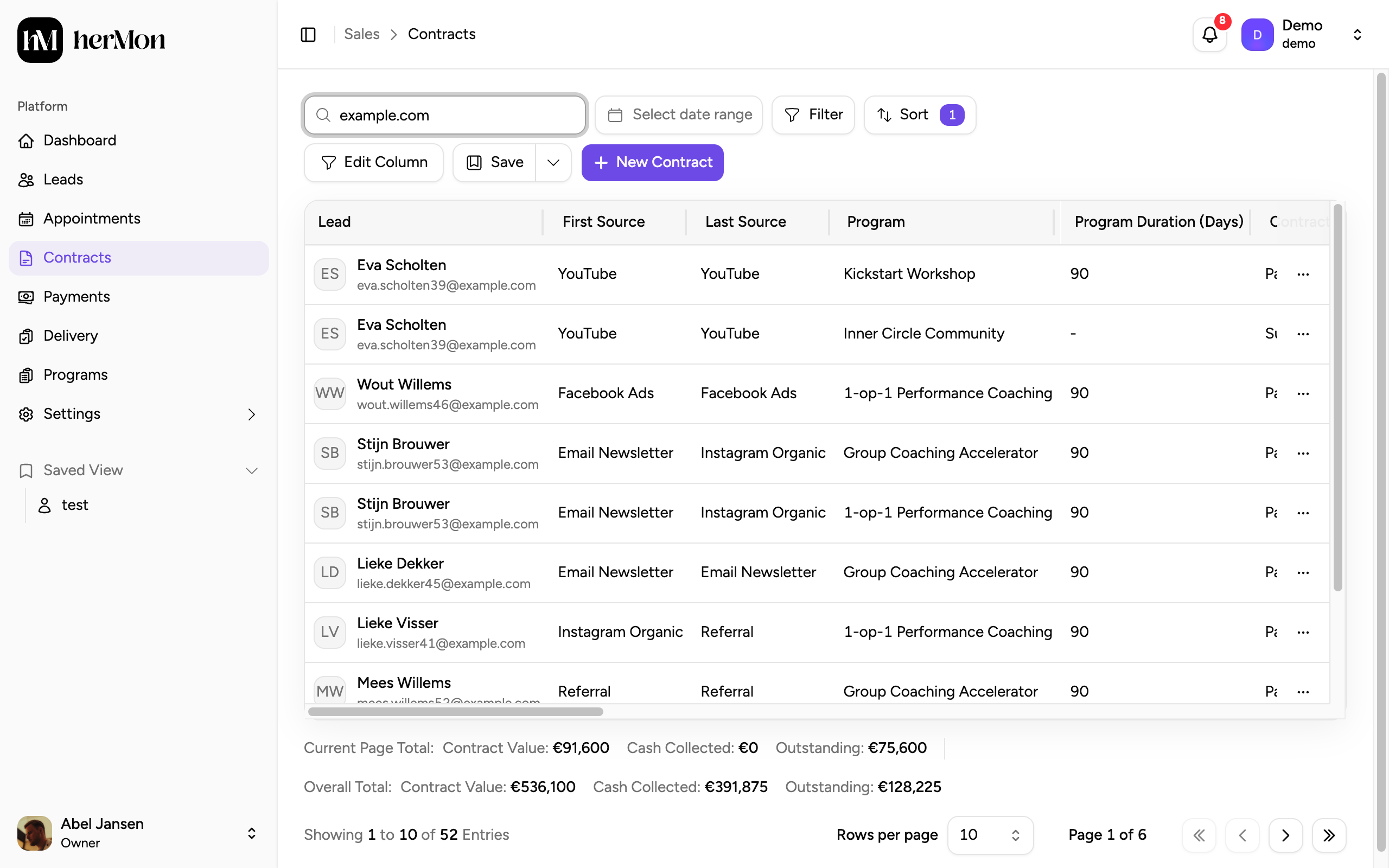
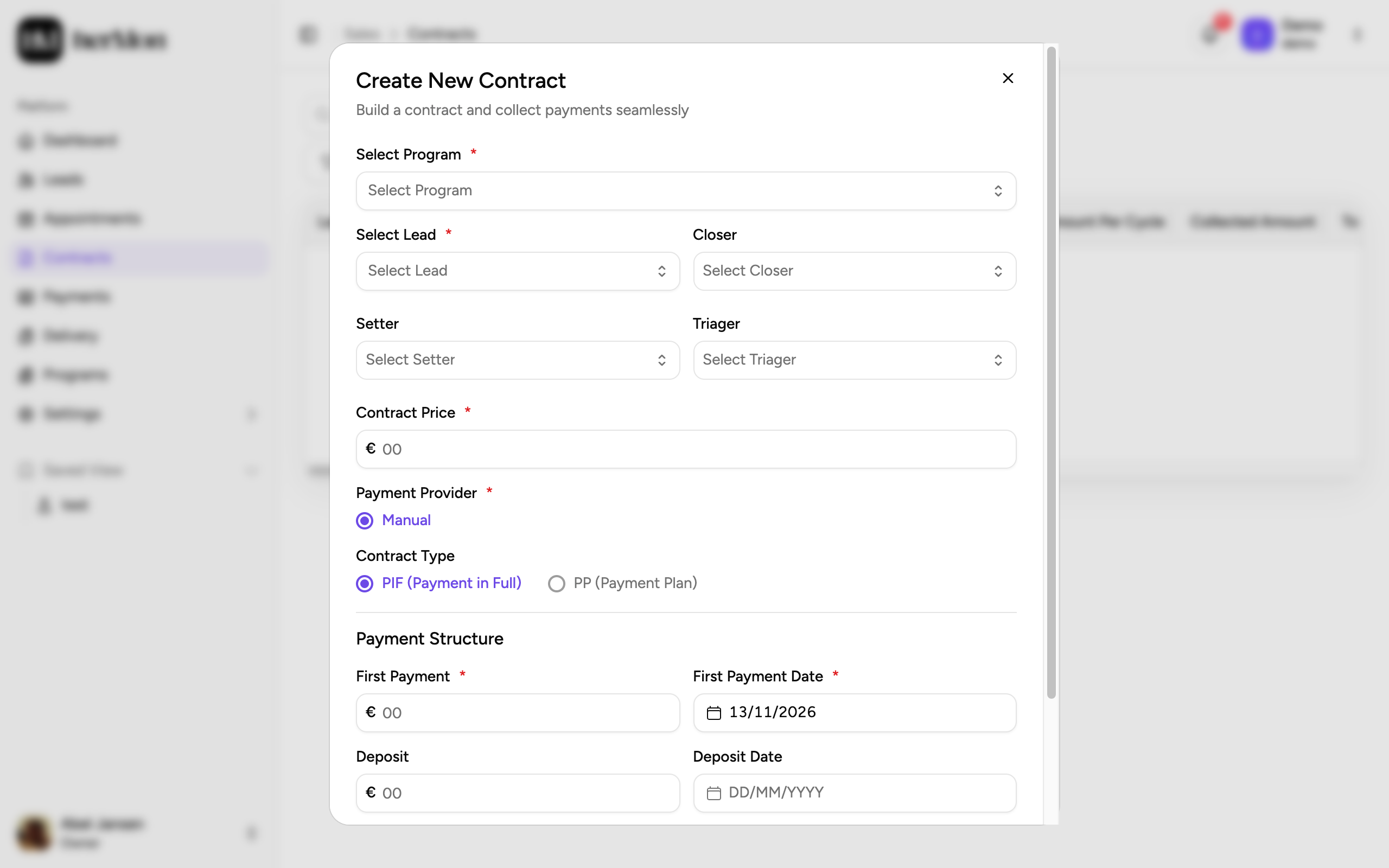
Click Contracts in the left sidebar, then New Contract. Select the subscription program and the lead.
Enter the amount per cycle
Fill in Amount per Cycle. This is what the client pays every billing period.
Choose the payment provider
Under Payment Provider, pick Stripe, Whop, Mollie or Manual. Only providers that are connected and active are shown.
- With Stripe, Whop or Mollie the provider charges the client every cycle and reports each payment to Hermon.
- With Manual you collect the money yourself and record each cycle in Hermon.
Add a setup fee if you charge one
Under Setup Fee Schedule, enter a Setup Fee Amount. With a setup fee, the Number of Instalments is required. Choose the Instalment Cycle: monthly or weekly.
Create the contract
Click Generate Contract. The contract panel opens with the subscription on Pending.
For a commission program the dialog asks for the Commission Rate (%) and the Billing Cycle (monthly, quarterly or yearly). Optionally add a Setup Fee and a Recurring Base Fee with its own billing cycle and start date. The base fee runs for a set Number of Cycles, or without end if you switch on Ongoing (No end date).
Get the client to pay: checkout links
For a subscription with Stripe, Whop or Mollie, the client starts the subscription through a checkout link.
Open the contract
Click the contract in the list and scroll to SUBSCRIPTION INFORMATION. This block shows the status, billing interval, amount per cycle, paid billing cycles, next billing date and provider. Every charge is listed under PAYMENT HISTORY.
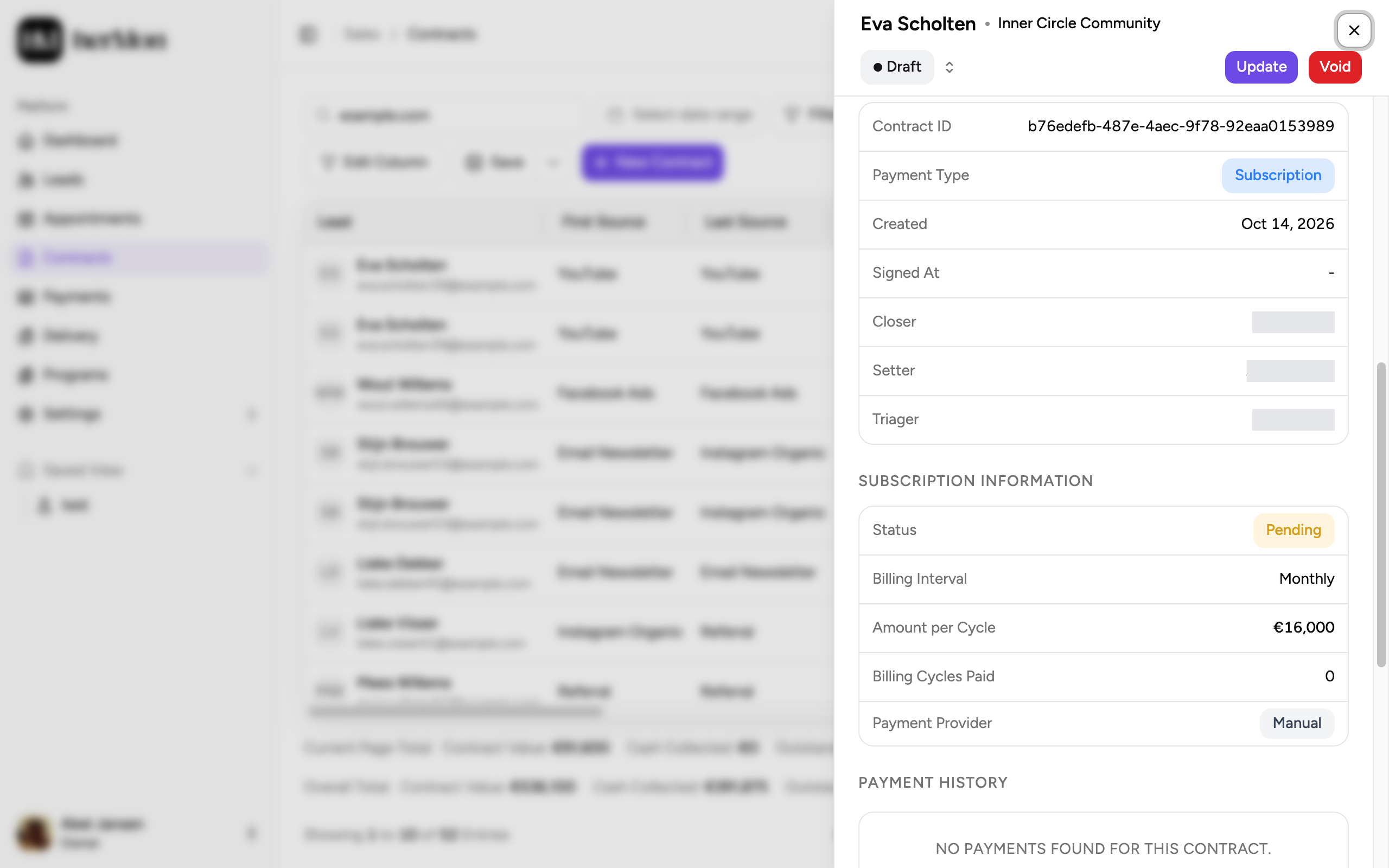
1. The subscription section. 2. The number of paid billing cycles. Generate the link
Click Generate Checkout Link. The link appears under Checkout Links with the status Active.
Share it with the client
Send the link to the client. When they complete the checkout, the provider starts the subscription and it becomes Active in Hermon.
A link is Active, Used or Invalid. Use the pencil next to an active link to change its status or add an internal note. When no link is active or used any more, Regenerate Link creates a new one.
You cannot mark the first payment of a Stripe, Whop or Mollie subscription as paid by hand. It has to go through the provider, because that is when the client gives permission for the recurring charges.
How manual subscriptions add up
With the Manual provider nobody reports payments for you. Use Add Payments in the contract panel to record a cycle and mark it as paid, or attach an incoming payment from the unmatched list. Hermon then works out the totals:
- Collected amount is the sum of all paid payments on the contract, setup fee included.
- Billing Cycles Paid counts paid subscription cycles only. Setup fee payments do not count as a cycle.
- Status moves from Pending to Active when the first subscription cycle is paid. A paid setup fee alone does not activate the subscription.
- Refunds lower the collected amount, and the cycle count if it was a cycle. The subscription stays Active.
For Stripe, Mollie and Whop subscriptions these figures come from the provider.
Cancel a subscription
Owners and Sales Managers can cancel a subscription that is Active or Past Due.
Open the cancel dialog
In the contract panel, click Cancel Subscription next to SUBSCRIPTION INFORMATION.
Choose the timing
Under Cancellation Timing, pick Immediately or At the end of the period. With the second option the client keeps the subscription until the period they paid for is over.
Give the reason
Fill in the Reason. It is required and is shown on the contract afterwards, with the cancellation date.
Confirm
Click Confirm Cancellation.
Subscriptions with Mollie or the Manual provider can only be cancelled Immediately. Once a subscription is cancelled, the contract can no longer be updated.
Good to know
Update is missing. A subscription contract can only be updated while the subscription is Pending. Once it is Active or Cancelled, Update is hidden.
Sending the contract for signature. A subscription contract can be sent once the subscription is Active. A commission contract with a setup fee can be sent once that fee is paid. Programs that allow sending without payment skip this check.
Voiding a subscription contract also cancels the subscription at the provider. See Update, void and refund.
Matching a payment to a subscription. When you attach an unmatched payment to a subscription contract, choose the payment type for a subscription cycle. See Match unmatched payments.