Update your profile
Change your own name, profile photo, email address and password.
Your name and photo are how colleagues recognise you in Hermon, for example next to a notification about something you did. Your primary email address is where Hermon sends its messages to you.
Every team member manages their own profile, whatever their role.
Open your account settings
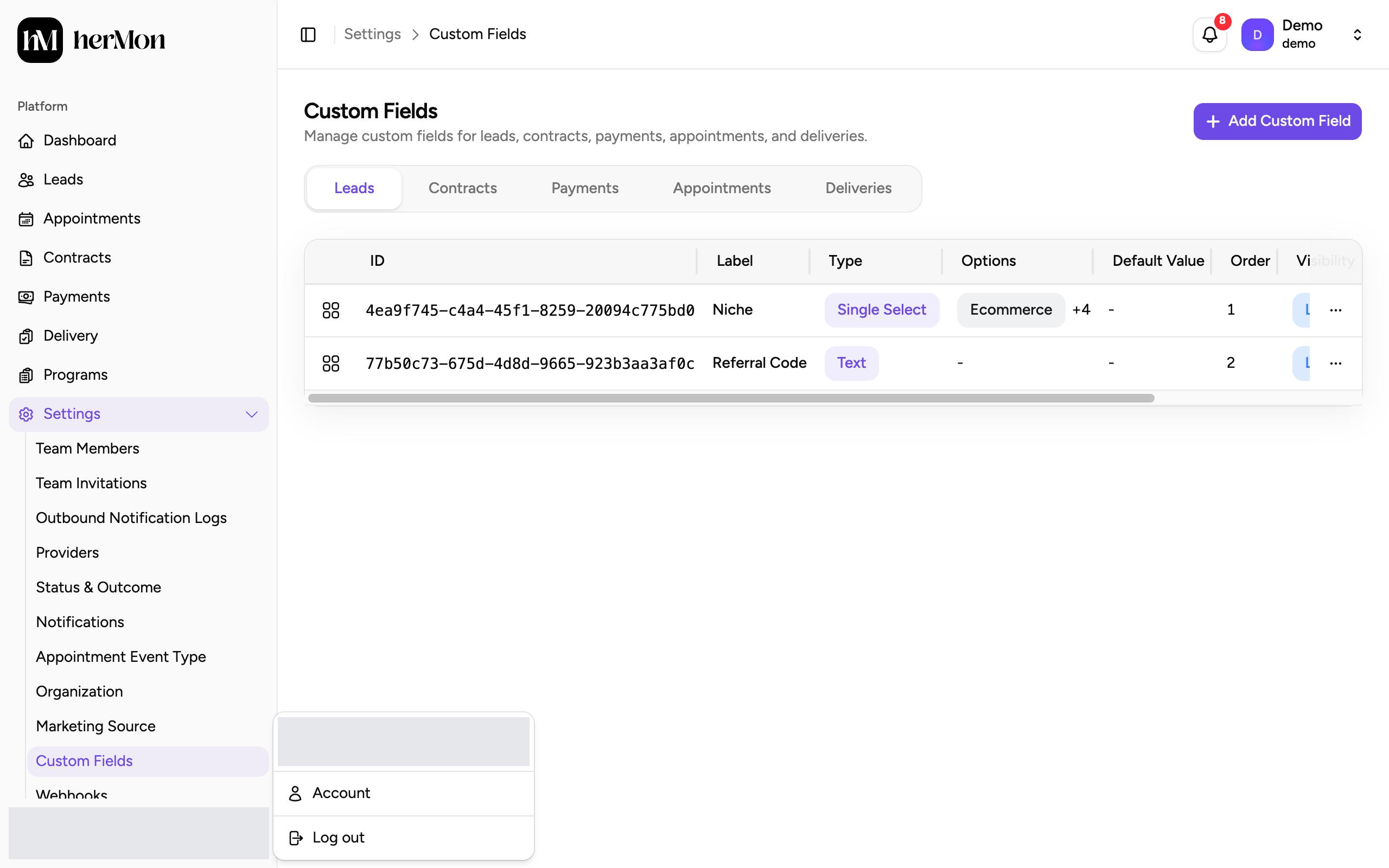
Click your name
Your name is at the bottom of the left sidebar. Click it to open the menu.
Choose Account
The Account Settings screen opens. It has three cards: Personal Information, Email Address and the password card.
Change your name or photo
Upload a photo
Under Profile Picture, click Change Photo and pick an image. The photo is saved as soon as it is uploaded.
Edit your name
Change First Name and Last Name.
Click Save Changes
This saves your name. You see the message "Profile updated successfully".
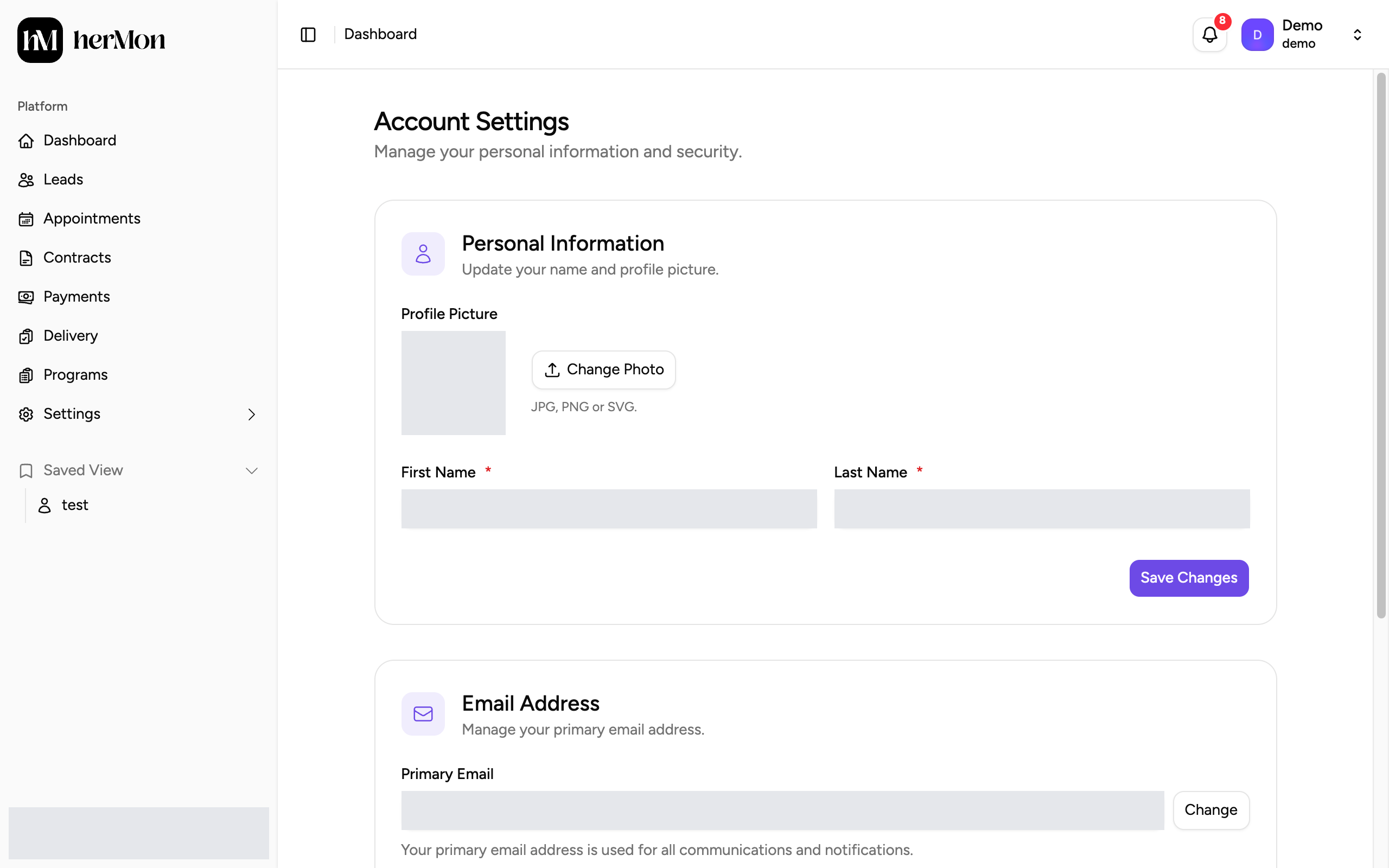
1. Upload a new photo. 2. Save your name.
Change your email address
Click Change
In the Email Address card, click Change next to Primary Email.
Enter the new address
Type it under New Email Address and click Send Verification Code.
Enter the code
Hermon sends a code to the new address. Enter it and click Verify & Update Email.
From then on the new address is your primary email, and Hermon sends its emails there. Hermon may ask you to confirm that it is you before it makes the change.
Your email address only changes after you have entered the code. If you close the dialog before that, your old address stays in place.
Change your password
Go to the password card
Scroll to Update Password. If your account was created with Google sign-in and has no password yet, the card is called Create Password.
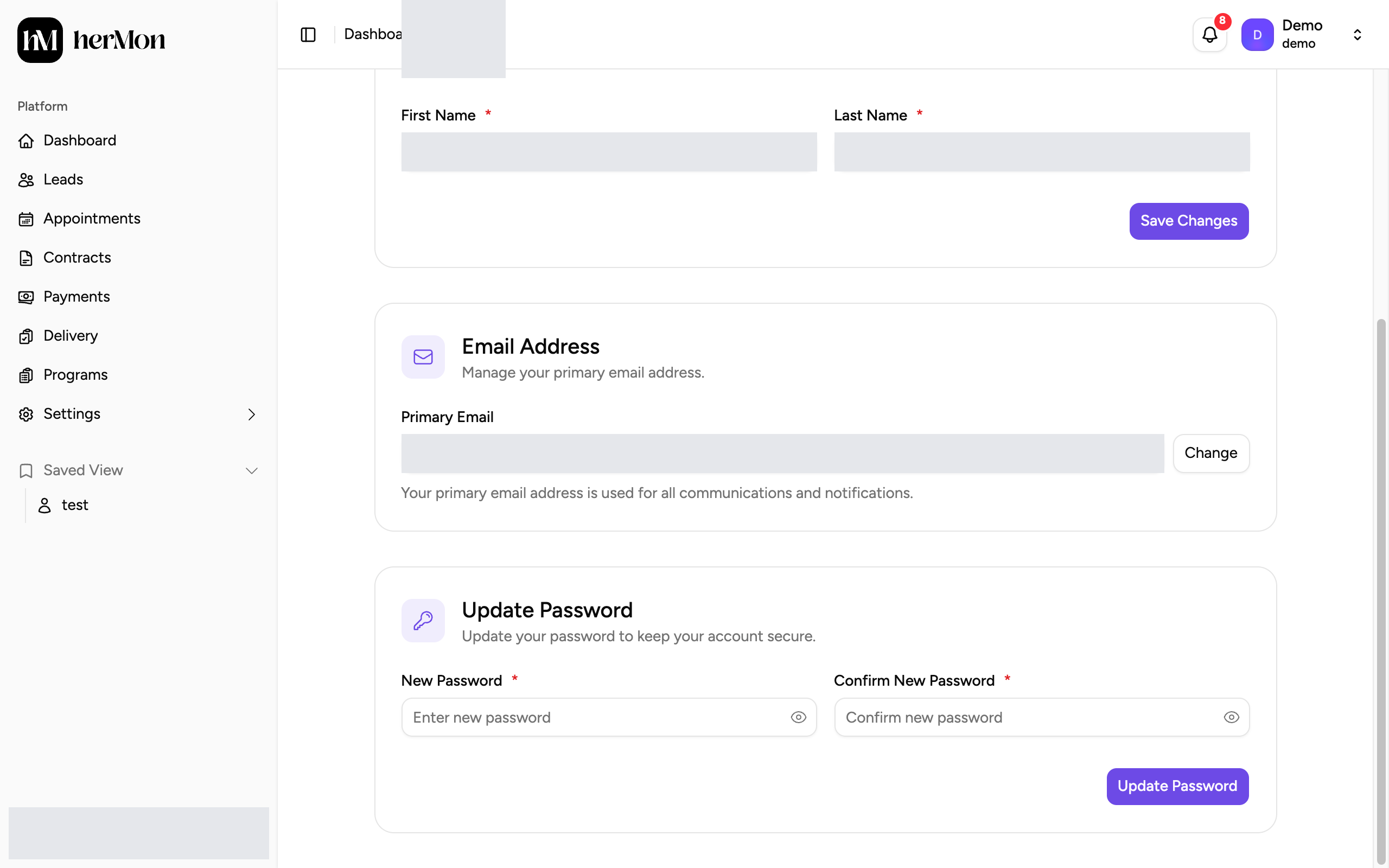
1. Change your email address. 2. Type your new password. Type the new password twice
Fill in New Password and repeat it in Confirm New Password. The eye icon shows what you typed.
Click Update Password
The button reads Create Password if you did not have one yet. Hermon may ask you to confirm that it is you before the password is changed.
| Setting | Rule |
|---|---|
| Name | Letters, spaces, hyphens and apostrophes only |
| Photo | JPG, PNG or SVG, smaller than 5 MB |
| Password | At least 8 characters, with an uppercase letter, a lowercase letter, a number and a special character |
Good to know
Your role is not on this screen. Roles are managed under Settings and Team Members. See Invite your team and connect integrations.
Notifications. There are no personal notification settings here. Your own notifications are under Settings and Notifications. See Set up notifications.
The photo is not accepted. Check the file type and size in the table above.