Set up appointment event types
Tell Hermon what kind of call each booking is, so sales calls, triage calls and coaching calls end up in the right numbers.
An appointment event type is the kind of meeting someone books: "Strategy Call", "30 Minute Intro", "Weekly Coaching". Each event type in Hermon has a call category. Every appointment takes its category from its event type, and the category decides where the call is counted and which outcomes your team can log for it.
Event types from Calendly, iClosed and GoHighLevel are pulled into Hermon. Your job is to check that each one has the right category.
Before you start
- You are an Owner or a Sales Manager. Other sales roles do not have this screen.
- To pull in event types from a booking tool, that tool is connected. See Invite your team and connect integrations.
The three call categories
| Category | Use it for |
|---|---|
| Sales Call | The call where an offer is made and a deal can be closed. |
| Triage Call | A qualifying call before the sales call. |
| Coaching Call | Calls with existing clients, as part of delivery. |
Only Owners can give an event type the category Coaching Call.
Pull in event types from your booking tool
Open the screen
Click Settings in the left sidebar, then Appointment Event Type. The list shows every event type with its Provider, Call Category and Status.
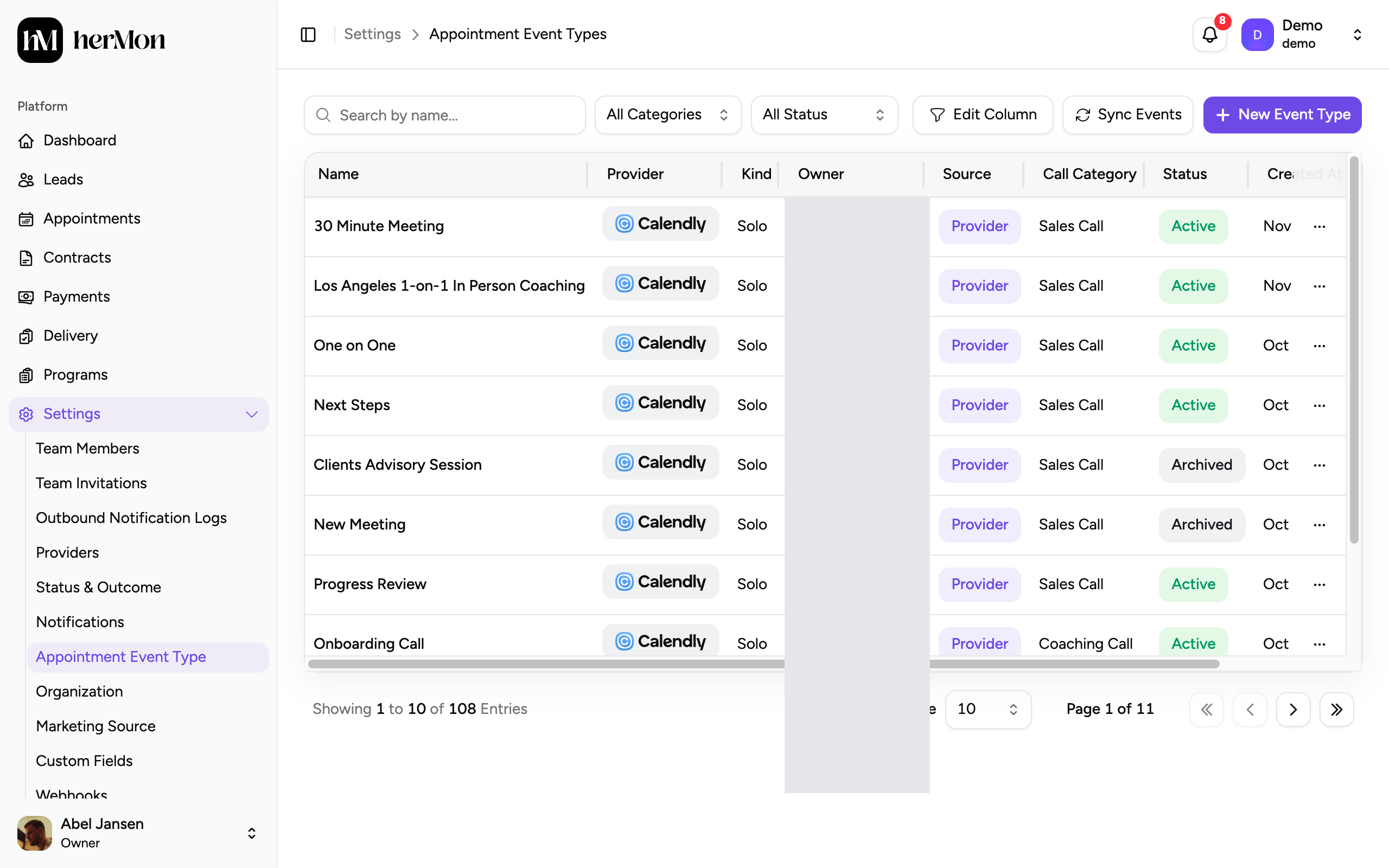
1. The call category of each event type. 2. Pull in event types from a booking tool. 3. Add one by hand. Sync the tool you use
Click Sync Events and choose Sync Calendly, Sync iClosed or Sync High Level. The button is disabled while the sync runs.
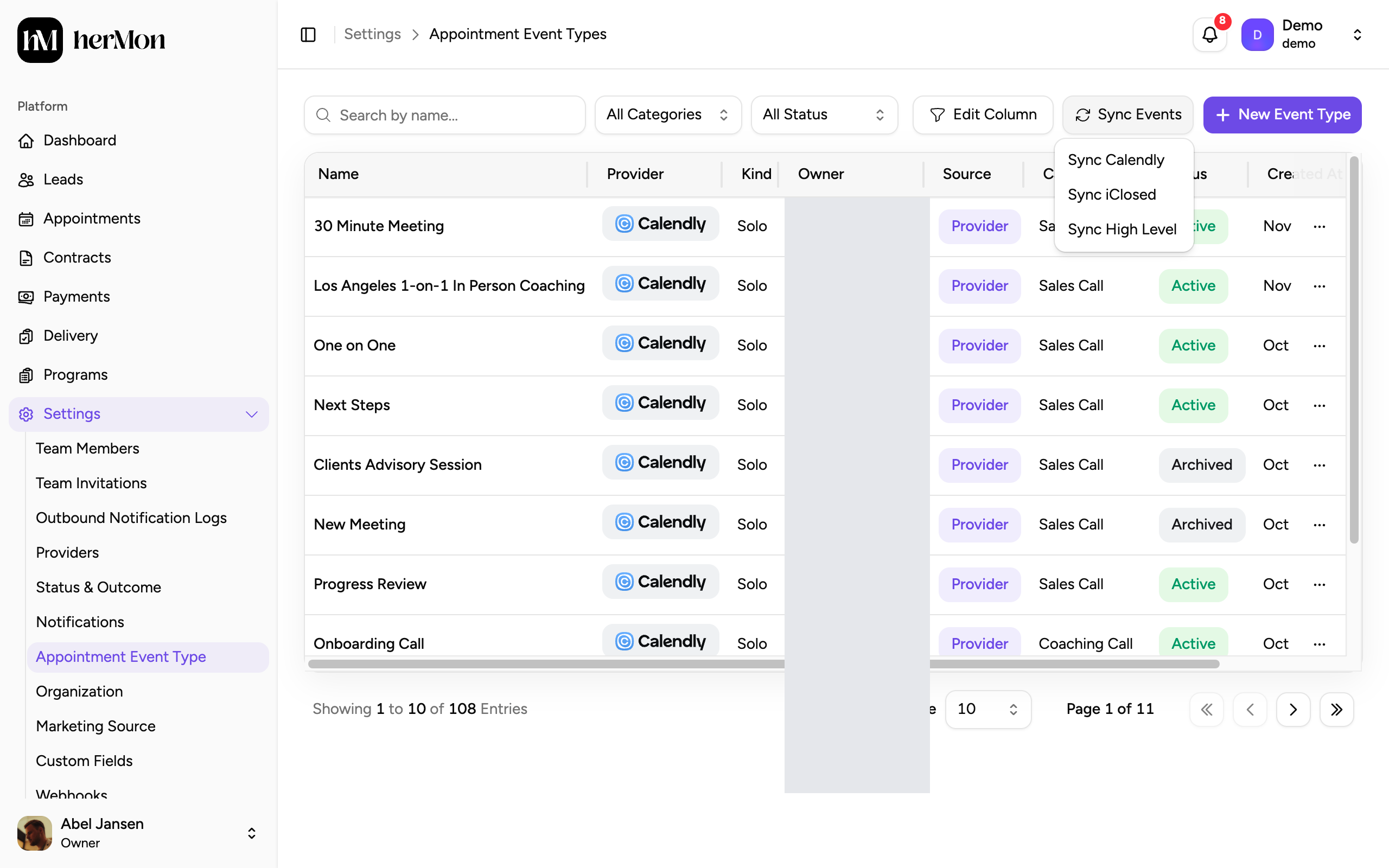
Check the new rows
New event types appear in the list. Go through them and check the Call Category of each one.
Run the sync again whenever you add a new event type in your booking tool.
Map an event type to a call category
Find the event type
Use Search by name... or the category filter to find the row.
Open the row menu and choose Edit
Click the menu at the end of the row and choose Edit. The Call Category cell of that row turns into a dropdown.
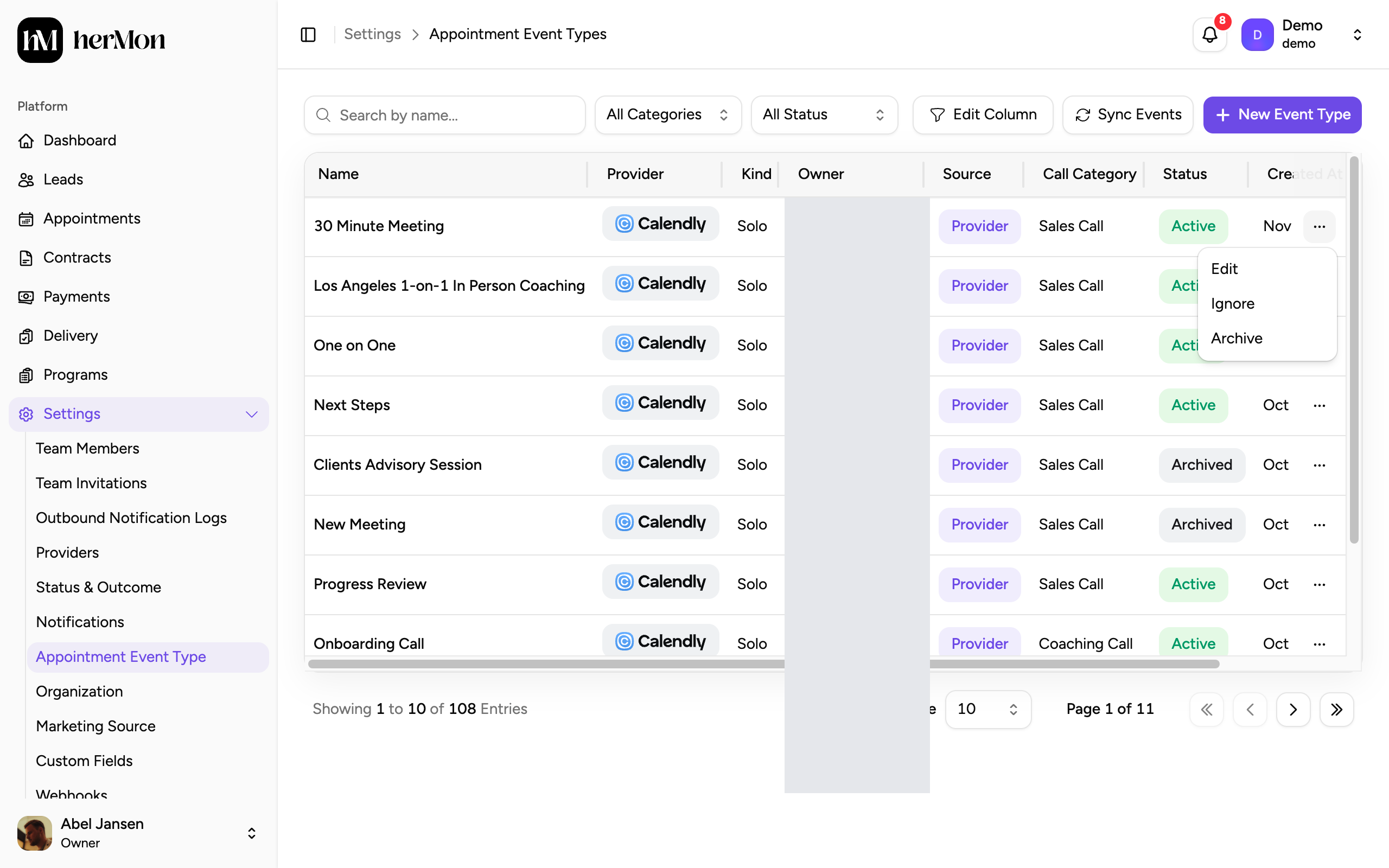
1. Edit makes the call category of this row editable. Pick the category
Choose Sales Call, Triage Call or Coaching Call. The change is saved as soon as you pick it. There is no separate save button.
Edit only changes the call category. The name of a synced event type comes from your booking tool and cannot be changed here.
Add an event type by hand
For calls that are not booked through a connected tool, create your own event type. Your team picks it as the Appointment Type when they add an appointment by hand.
Open the dialog
Click New Event Type.
Fill in the name and category
Enter an Event Name of 3 to 100 characters. Letters, numbers, spaces, hyphens and parentheses are allowed. Then choose the Call Category.
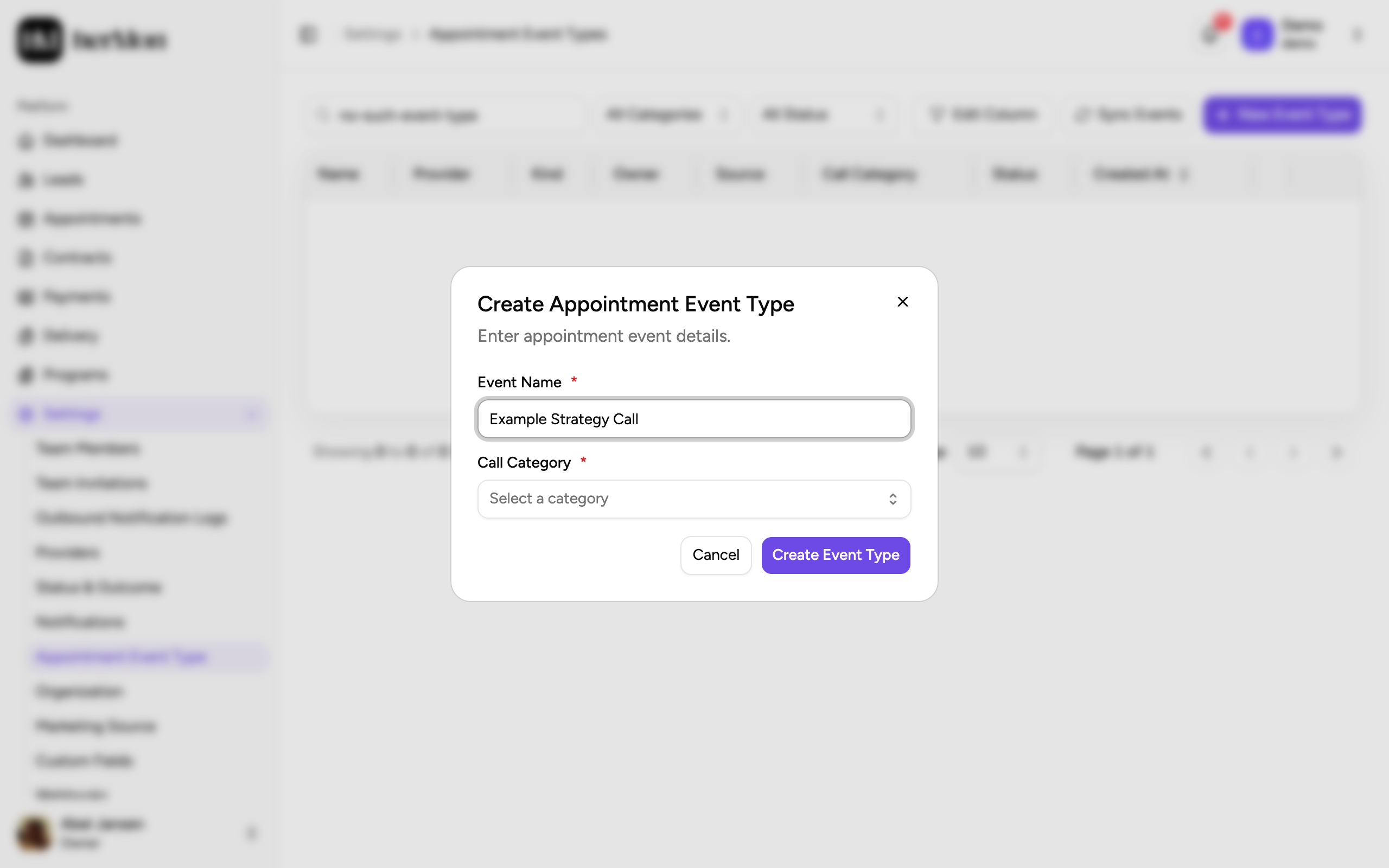
1. The call category. 2. Create the event type. Create it
Click Create Event Type.
Ignore, archive and favourite
The row menu also holds Ignore and Archive. Both ask for confirmation and both can be undone from the same menu with Unignore and Unarchive.
- Ignore strikes through the name of the event type in the list.
- Archive changes the Status from Active to Archived. Use the status filter to show or hide archived event types.
- The heart at the end of a row marks an event type as a favourite.
Good to know
Why the category matters. The dashboard and the Appointments screen can be filtered on call category, and a status is only offered as an outcome for the categories it is set up for. A sales call that is mapped as a triage call ends up in the wrong numbers. See Customise statuses and outcomes.
The category is not typed in on an appointment. When someone adds an appointment by hand, the category follows from the appointment type they choose.
Delivery Managers can open this screen as well. They only see coaching call event types and cannot change them.
Filters are remembered. The category filter, the status filter and your column choices stay as you left them. The search box is cleared.