Match unmatched payments
Link payments that came in from Stripe, Mollie or Whop without a contract to the right contract, so your collected revenue is complete.
When a customer pays through a payment link from Hermon, the payment is booked on the right contract by itself. Money that reaches your payment processor another way is different: Hermon receives the payment but does not know which contract it belongs to. Those payments wait on the Unmatched Payments tab until you link them.
Until a payment is attached, it does not count as collected on any contract. Work through this list regularly.
Before you start
- You are an Owner. Analysts can open the tab and view payments, but cannot change anything. Other roles do not see the tab.
- The contract the payment belongs to exists. If it does not, you can create it from the attach dialog.
Open the list
Click Payments in the left sidebar, then the Unmatched Payments tab. The number on the tab is the count of payments that still need a decision.
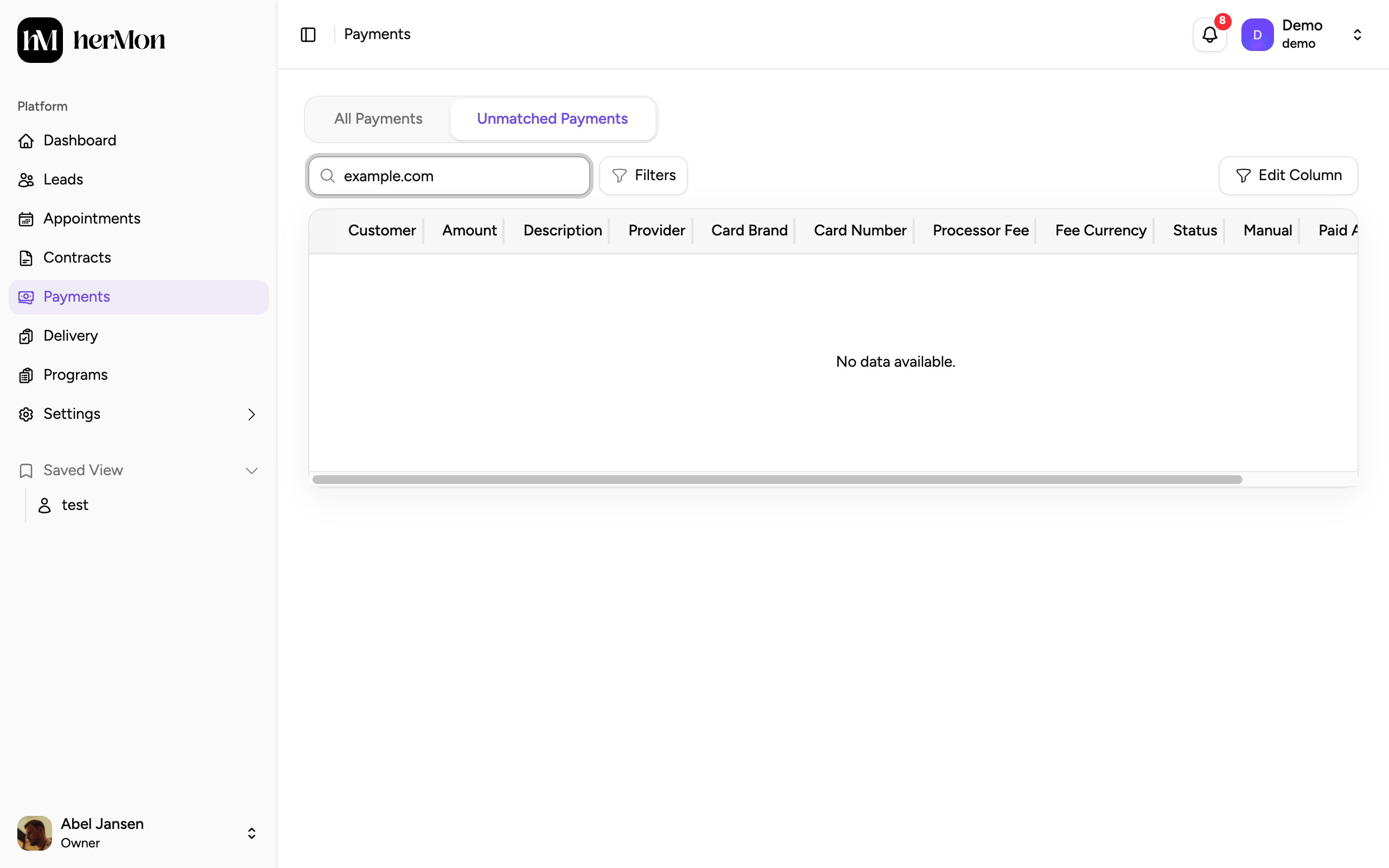
Each row shows the customer, amount, description and provider as your processor reported them. Use the search box, or Filters to narrow by status, provider, currency, amount and paid date.
| Status | Meaning |
|---|---|
| Pending | Not linked to a contract yet. This is your to-do list. |
| Attached | Linked to a contract. Click the row to open the payment. |
| Ignored | Set aside. It can no longer be selected or attached. |
Attach a payment to a contract
Open the attach dialog
Click a Pending row, or open the menu at the end of the row and choose Attach Contract.
Select the contract
Under Select Contract, search by lead name or email and pick the contract. If it does not exist yet, click New Contract at the bottom of the list and create it first.
Choose how the payment is booked
The Contract Payment Schedule lists the payments planned on that contract. You have two options:
- Match to a scheduled payment. Click the scheduled payment that this money is for. The unmatched payment takes its place in the schedule.
- Add as a new payment. Tick Add as a new payment and choose a Payment Type. Use this when the money is not one of the planned payments.
Attach
Click Attach Payment. The row moves to Attached and the contract shows the payment as collected.
For one-time contracts the dialog also shows the Total Contract Value and the amount that is still Unallocated, so you can check that the payment fits.
Detach or ignore a payment
Both actions are in the row menu.
- Detach Contract is for a payment that was attached to the wrong contract. After you confirm with Unattach, the payment returns to the unmatched list and you can attach it again.
- Ignore is for a pending payment that does not belong in Hermon at all, such as a test payment or money for something you do not track here.
Ignore cannot be undone. An ignored payment can no longer be attached to a contract. If you are not sure, leave the payment on Pending.
Work on several payments at once
Tick the checkboxes in front of the rows. A bar appears above the table with the number of selected payments and the actions that fit your selection.
| Button | Appears when every selected payment is | What it does |
|---|---|---|
| Bulk Attach | Pending | Attaches all of them to one contract with one payment type. |
| Bulk Unattach | Attached | Returns all of them to the unmatched list. |
| Bulk Ignore | Pending | Ignores all of them. This cannot be undone. |
| Contracts | Pending | Creates one signed contract per payment for the program you choose. |
If your selection mixes pending and attached payments, the bar shows no buttons. Clear the selection and select one kind at a time. The selection is also cleared when you change page, search or filters.
Good to know
Which payment types you can choose. The list depends on the contract. Instalment is only offered for payment plans, and subscription cycle only for subscription contracts.
A scheduled payment cannot be selected. If another payment is already matched to it, unattach that one first. Hover over the scheduled payment to see the reason.
Add as a new payment is missing. Some contracts do not allow an extra payment. The dialog then shows the reason under the contract.
Mollie payments have an extra checkbox, This payment is VAT-exempt. Without it, Hermon treats the amount as including VAT.
Manual subscriptions. Attaching a subscription cycle to a subscription with the Manual provider counts as a paid cycle. See Manage subscriptions.
Detach from the contract side. Owners can also choose Detach in the menu of a paid payment on a contract. That moves it back to this list.