Manage deliveries
Follow every client after the sale. Find deliveries, read their status and health, assign an owner and save the list as a view.
A delivery engagement, called a delivery in the app, is the record of one client going through one program. It starts when the sale is done and holds everything your delivery team needs: status, health, owner, progress, tasks and notes.
The Delivery screen lists all deliveries. It is visible to Owners, Delivery Managers, Delivery Reps and Analysts. Analysts can look but not change anything.
Contract signed
program has delivery tracking
Delivery created
status Onboarding
Onboarding steps done
status Active
Completed or Churned
When a delivery is created
Hermon creates a delivery by itself when a contract is signed, as long as the program has Enable delivery tracking for this program switched on. See Create and manage programs.
The new delivery:
- is named after the client,
- starts on the day the contract was signed,
- gets your primary Onboarding status,
- receives the onboarding steps and milestones from the program's templates.
Each contract has at most one delivery.
Find a delivery
Open the Delivery screen
Click Delivery in the left sidebar.
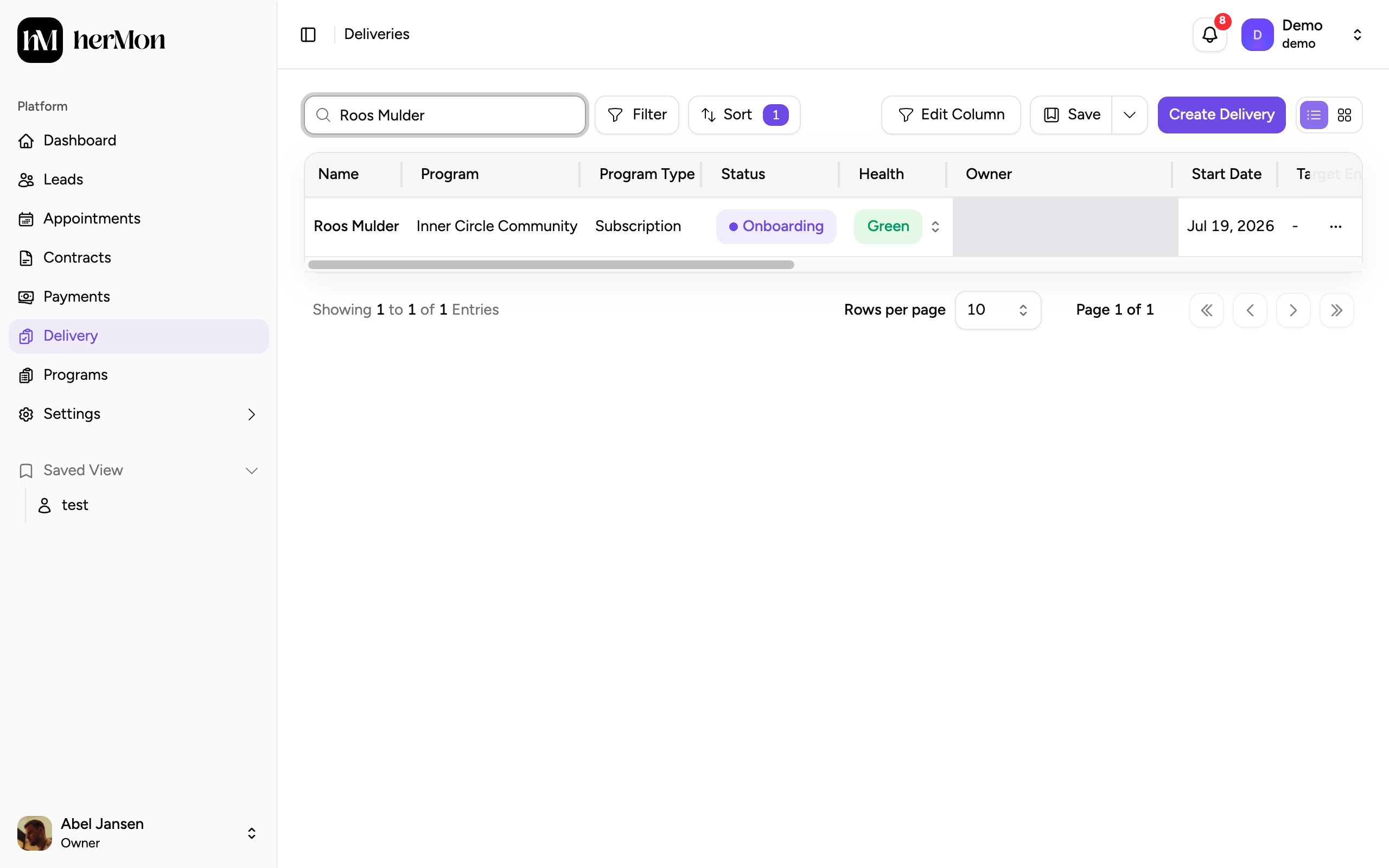
1. Search by client name. 2. Filter the list. 3. The status of each delivery. 4. Create a delivery by hand. Search, filter and sort
Type a client name in the search box. The search looks at the name only. Use Filter to narrow the list, for example by status, health or program type, and Sort to change the order. The newest deliveries are on top by default.
Switch to the board if you prefer
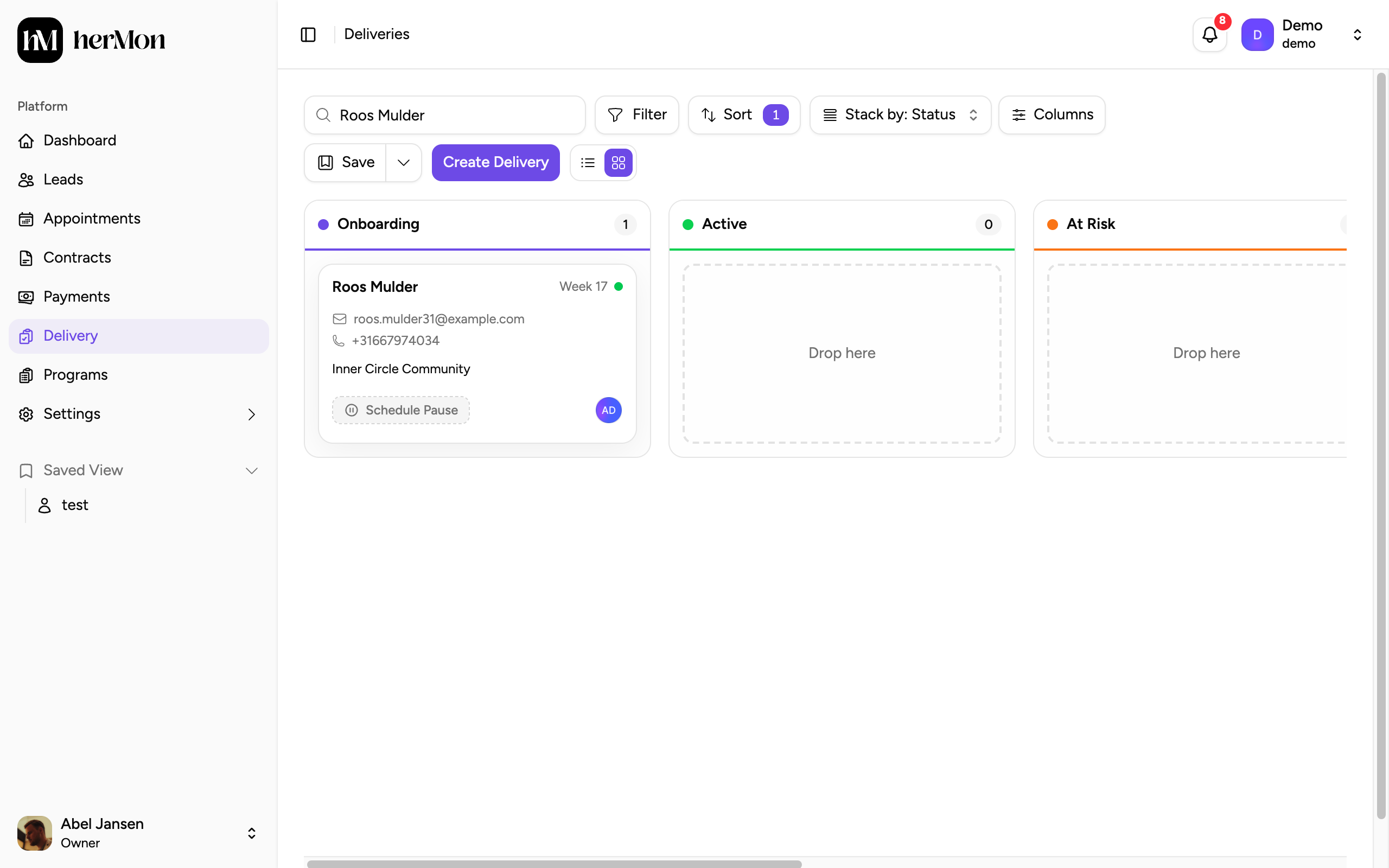
The two icons at the right of the toolbar switch between the list and a board with one column per status. On the board, Stack by lets you group the cards by another field.
Open the delivery
Click a row or a card to open the delivery. The row menu also offers View Details, View Contract and Copy Delivery ID. See Work inside an engagement.
Status and health
Every delivery has a status and a health. They answer different questions.
| What it tells you | Values | |
|---|---|---|
| Status | Where the client is in the program | Your own statuses. Hermon starts you with Onboarding, Active, At Risk, Paused, Completed and Churned. |
| Health | How the client is doing right now | Green, Yellow or Red |
| Progress % | How much of the planned period has passed | A bar from 0 to 100. Paused days do not count. |
You change status and health on the delivery page. You can rename, recolour and add statuses under Settings. See Engagement and task statuses.
Assign an owner
The owner is the team member responsible for the client.
Find the Owner column
In the list, go to the Owner column of the delivery.
Pick a team member
Click the cell that reads Assign owner and choose a delivery team member. Choose Unassigned to remove the owner. The change is saved at once.
Only Owners and Delivery Managers can assign the owner. The owner cannot be changed while a delivery is paused or after it is completed.
A row with a yellow background has been without an owner for more than 24 hours. Assign someone to clear it.
Save the list as a view
A view stores your filters, sorting, visible columns and whether you were on the list or the board.
Set up the list
Apply the filters and sorting you want. Use Edit Column to hide columns you do not need.
Save it
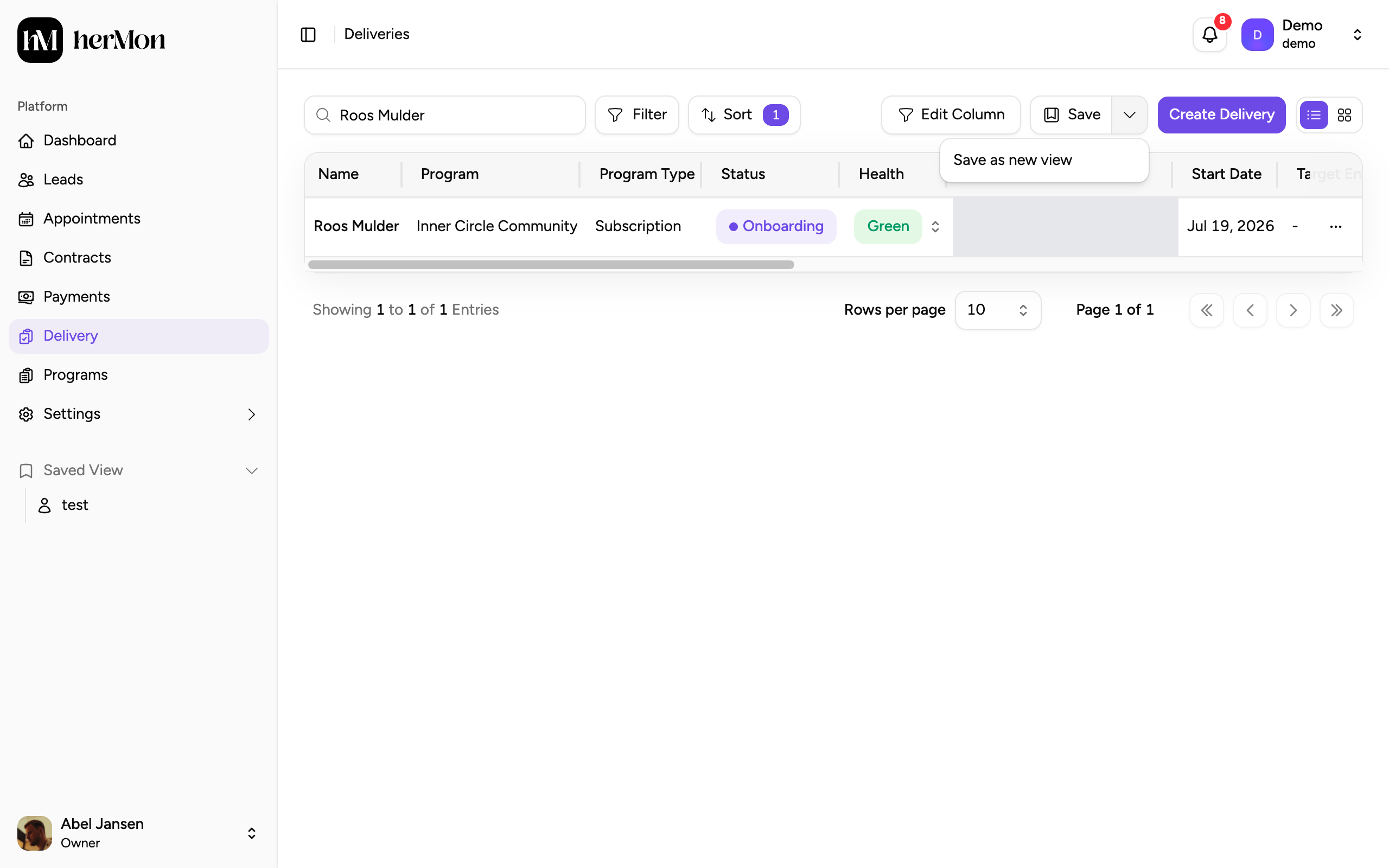
Click the arrow next to Save and choose Save as new view. Give the view a name and choose who can see it: only you, everyone, or specific members.
Keep it up to date
When you change something while a view is open, a dot appears on Save. Click Save to update the view, or choose Discard changes from the menu to go back to the saved version.
Views work the same way as on Leads. See Work with leads and saved views.
Create a delivery by hand
Owners and Delivery Managers can click Create Delivery for a signed contract that has no delivery yet. Pick the contract and click Create.
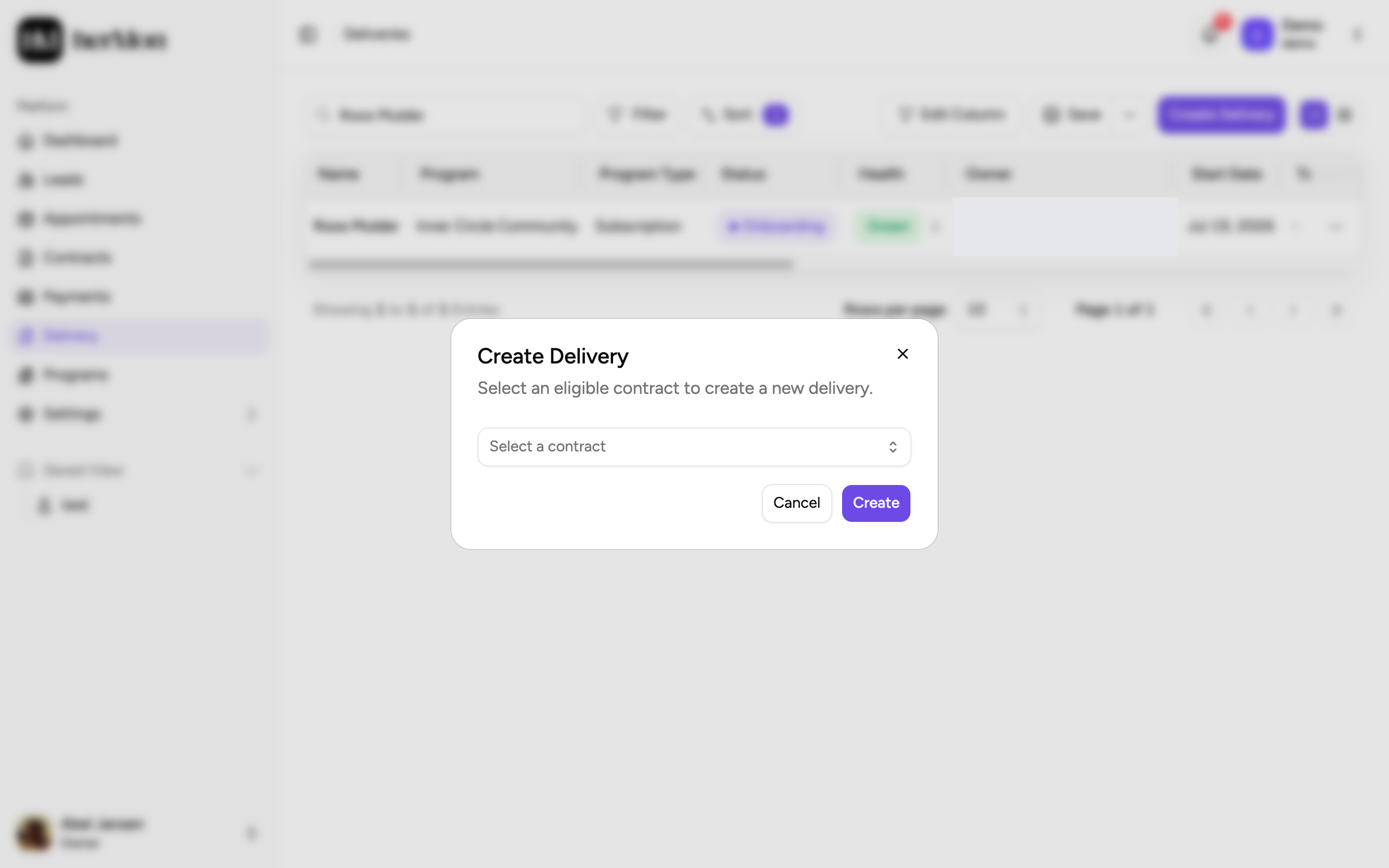
The list only shows eligible contracts: signed, on a program with delivery tracking, and without a delivery. If you see No eligible contracts found, check those three points.
Good to know
What a Delivery Rep sees. A Delivery Rep only sees the deliveries they own or have a task on. Owners, Delivery Managers and Analysts see all of them.
Start date. You can change the Start Date from the list by clicking it. It is fixed for subscription programs and for completed or churned deliveries.
Custom fields. Columns for your own delivery fields can be edited straight from the list. Hover the cell to see the edit control.
What Hermon remembers. Your visible columns, page size and layout are kept for your next visit. Filters and sorting come back when you open a saved view.
Money columns. Contract Value and MRR come from the contract. MRR is only filled for subscriptions.