Work inside a delivery
Use the delivery page to follow one client. Read progress and contract value, work through tasks, keep notes and change the status when something happens.
The delivery page is the full record of one client in one program. The header shows the status and health, and the tabs below hold the day-to-day work: onboarding steps, milestones, tasks, coaching appointments and notes.
Open it by clicking a delivery on the Delivery screen. See Manage delivery engagements for how to find one.
Read the overview
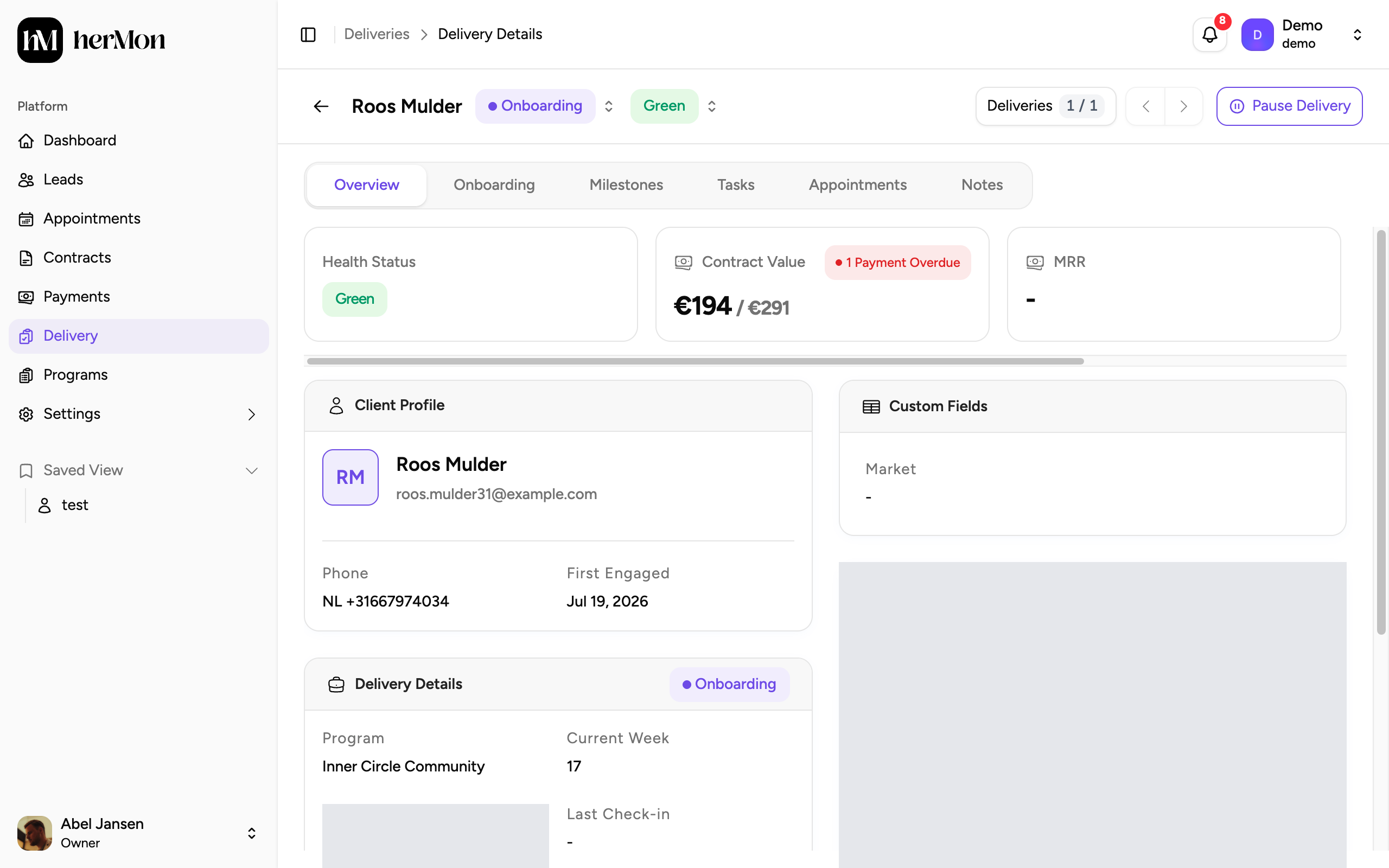
The Overview tab opens first.
| Card | What it shows |
|---|---|
| Overall Progress | How much of the planned period has passed, as a percentage. Paused days do not count. A finished delivery shows 100%. |
| Health Status | Green, Yellow or Red, with the reason if one was given. |
| Contract Value | The amount paid so far and the total contract value, with a badge that reads Payments on track or the number of overdue payments. |
| MRR | The monthly recurring revenue of a subscription. Empty for other contracts. |
| Client Lifetime Overall Value | The lifetime value of this client. |
Below the cards you find the Client Profile, the Delivery Details (program, current week, owner, last and next check-in, and a link to the contract), the Timeline with start and end dates, and the Latest Notes.
To plan the next contact moment, click the date button under Next Check-in and pick a date. Today and earlier dates cannot be chosen.
Work with tasks
Open the Tasks tab
Click Tasks. Use the search box and the status, milestone and assignee filters to narrow the list. The two icons on the right switch between a list and a board.
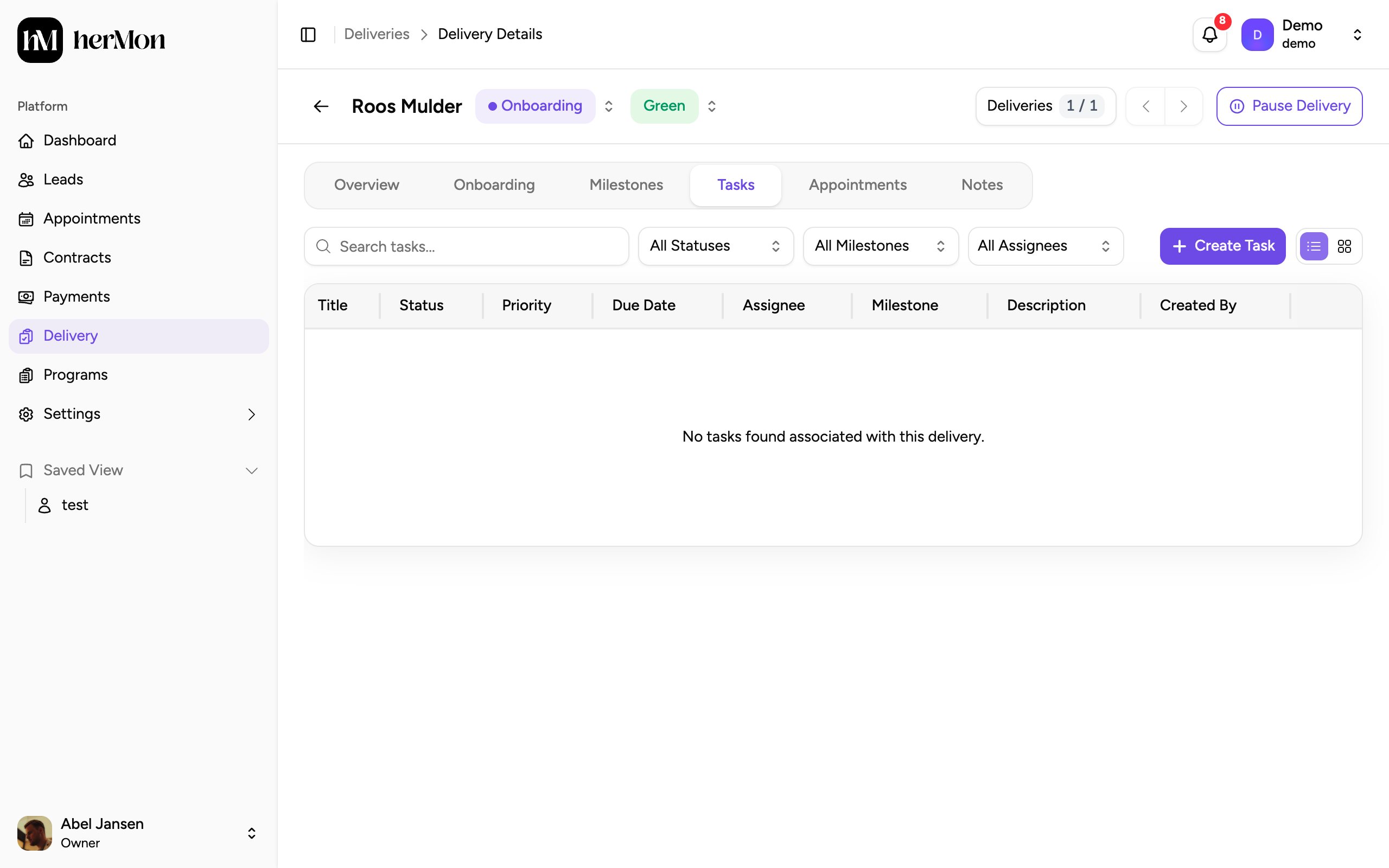
1. Search tasks. 2. Create a task. Create a task
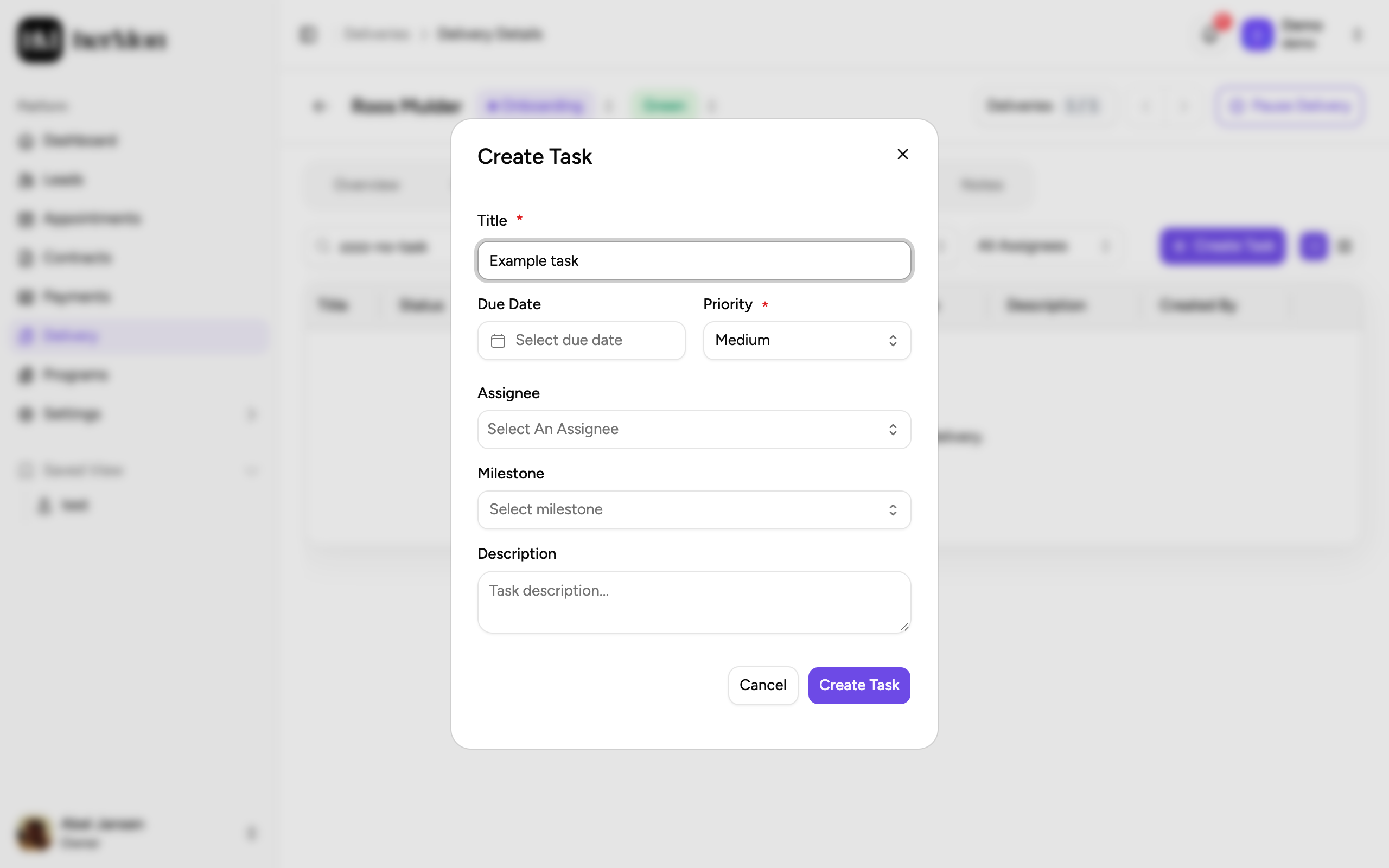
Click Create Task. Enter a Title and choose a Priority (Low, Medium, High or Urgent). Due Date, Assignee, Milestone and Description are optional. Click Create Task to save.
Update a task from the list
Click the Status, Priority or Assignee of a task in the list and pick a new value. It is saved at once. A new task starts in your primary To Do status.
Edit or delete a task
Open the row menu and choose Edit or Delete. Click a task to read its details and notes.
Onboarding steps and milestones
The Onboarding tab holds the checklist for getting a new client started. Mark a step Done, or Skip it with a reason. Add your own with Create Step. When every step is done or skipped, the delivery moves from Onboarding to Active by itself.
The Milestones tab holds the bigger goals of the program, each with a target date and a weight. Use Update Status in the row menu to mark progress, and Create Milestone to add one.
Both lists start with the items from the program's templates. See Create and manage programs.
Notes and coaching appointments
On the Notes tab, type a note and save it. Notes that belong to a task, milestone or onboarding step open that item when you click them. The five most recent notes are also shown on the Overview tab.
The Appointments tab lists the calls linked to this delivery, with their host, outcome and a Join link. Use the row menu to View Details or to Detach a call that does not belong here. You do not create appointments on this tab. See Manage appointments and log call outcomes.
Change the status
Click the status badge
Click the coloured status badge next to the client's name in the header.
Pick the new status
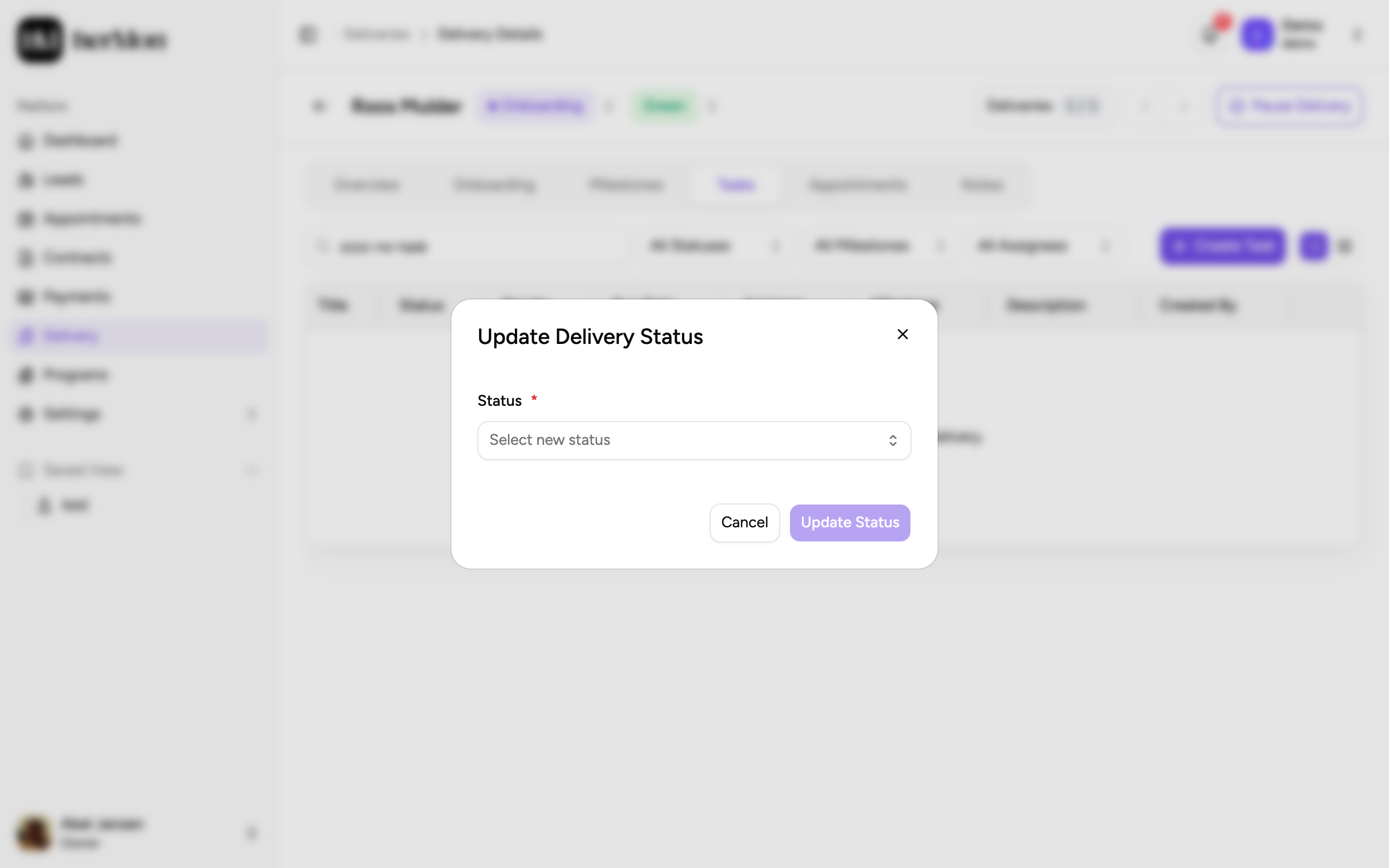
Choose a status in the Update Delivery Status dialog. The list only contains the statuses the delivery can move to from where it is now.
Add a reason and confirm
Add a reason. It is required when you move a delivery to a Churned status. Click Update Status.
Onboarding
Active
At Risk
back to Active when solved
Completed or Churned
To change the health, click the health badge next to the status, pick Green, Yellow or Red, add a reason if you like and click Update Health.
Pause a delivery
Owners and Delivery Managers can click Pause Delivery in the header. Enter the first and the last day of the pause and a reason. The start date must be in the future. While a pause is planned the button reads Cancel Pause, and during the pause it reads Resume Delivery.
A paused or completed delivery is locked. You cannot change its health, owner or next check-in, and you cannot add tasks, onboarding steps or milestones. Resume the delivery first.
Good to know
Reopening a completed delivery. Move it back to an Active status and enter a new end date for the extra days. Delivery Reps cannot do this.
Churned deliveries can come back. From Churned you can move a delivery to Onboarding, Active, At Risk or Completed.
Who can do what. Delivery Reps can change status and health and work with tasks, but cannot assign the owner or pause. Analysts can read everything and change nothing.
Moving between deliveries. When you opened the delivery from the list, the Deliveries button and the arrows in the header take you to the previous and next delivery in that list.
Custom fields. Your own delivery fields are shown in a Custom Fields card on the Overview tab.